
Creating a Batch Record Layout
Create and edit Batch Record Layouts at /batch-templates — link a layout to a master formula and configure EBR section order and visibility.
You create Batch Record Layouts at Batch Record Layouts (/batch-templates). Each layout is tied to one master formula and defines which EBR sections operators and QA see on the batch record and in PDF exports.
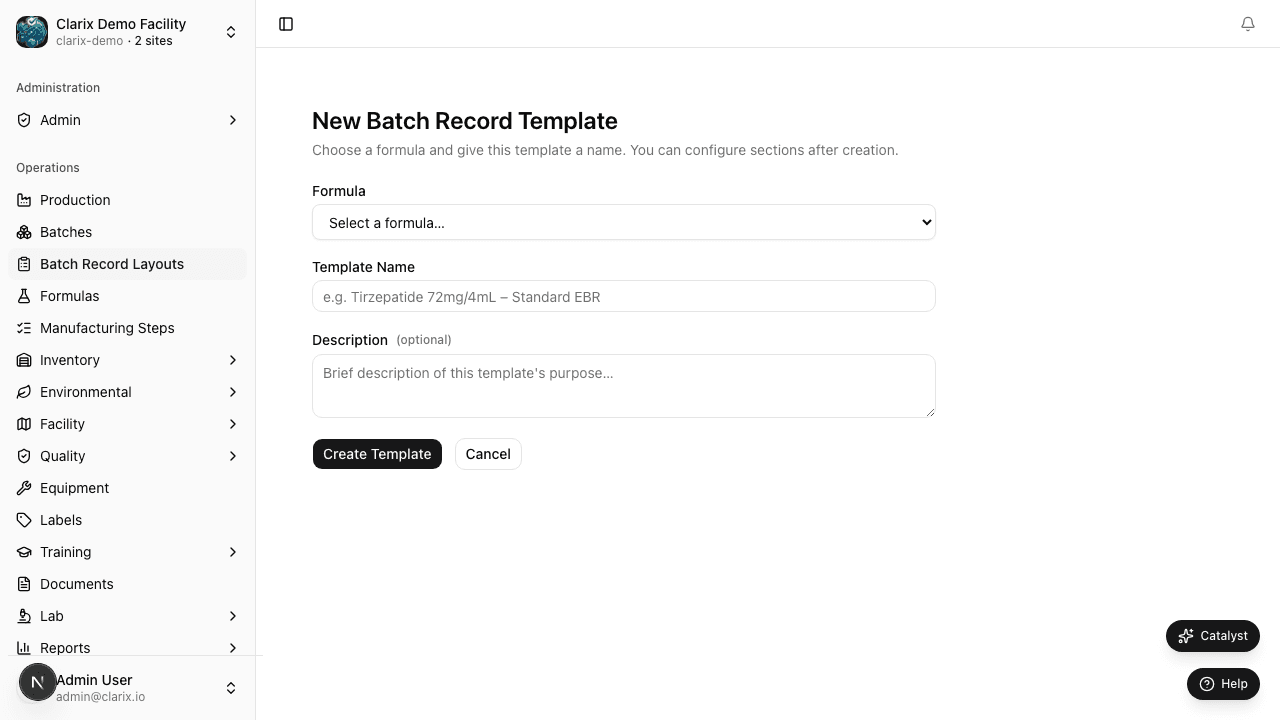
Create a new layout
- In the sidebar, open Batch Record Layouts (or go to
/batch-templates). - Click New Template.
- Select the master formula this layout applies to. Only formulas you have access to appear in the list.
- Enter a name (e.g., "VITC-489 Standard EBR Layout").
- Optionally add a description for QA or document control reference.
- Click Create. Clarix seeds the layout with default sections and opens the detail page.
New layouts start in Draft status. They are not used for new batches until approved.
Configure sections
On the layout detail page, use the Section configurator to tailor the EBR structure:
- Review the list of sections (Cover Page, BOM, Manufacturing Steps, IPC, etc.).
- Toggle Visible to show or hide optional sections for this product.
- Toggle Required for sections that must be present before QA can approve the batch (required sections cannot be hidden).
- Drag rows to change sort order — this order drives the batch detail page and MBR PDF section sequence.
- Click Save sections after making changes.
Required sections marked in the default template (e.g., Filter Integrity Test, Yield Summary) reflect typical 503B sterile compounding expectations. Adjust per your validated procedures and SOPs.
Edit layout metadata
- Open the layout from the catalog.
- Click Edit template in the actions bar.
- Update the name or description.
- Click Save.
Metadata edits do not create a new version. Section changes on a Draft layout are saved in place.
Link layouts to batch creation
When you create a batch (/batches/new), Clarix lists approved Batch Record Layouts for the selected formula. If only one approved layout exists, it is selected automatically. The chosen layout is snapshotted onto the batch at creation time.
If no approved layout exists for a formula, Clarix falls back to default sections until you approve a layout.
Role requirements
| Action | Minimum role |
|---|---|
| Create layout | Formula editor (PIC, QA Manager, or equivalent) |
| Edit sections (draft) | Formula editor |
| View layout catalog | Viewer |
Regulatory reference
21 CFR 211.186 — Master production and control records must include written procedures. The Batch Record Layout ensures the executed batch record mirrors the approved master formula's documented structure.
Related pages
Batch Record Layouts Overview
Configure which Electronic Batch Record sections appear, in what order, and with what visibility — per approved master formula at /batch-templates.
Layout Approval and Archive
Approve Batch Record Layouts with electronic signature, archive superseded layouts, and understand per-batch layout snapshots.