
Creating a Batch
Step-by-step guide to opening a new batch in Clarix against an approved Master Formula.
Creating a Batch
Before you can create a batch, your facility must have at least one approved Master Formula. Only formulas in the Approved state can be used for production. If the formula you need is still in Draft or Under Review, contact your Pharmacist-in-Charge or QA Officer.
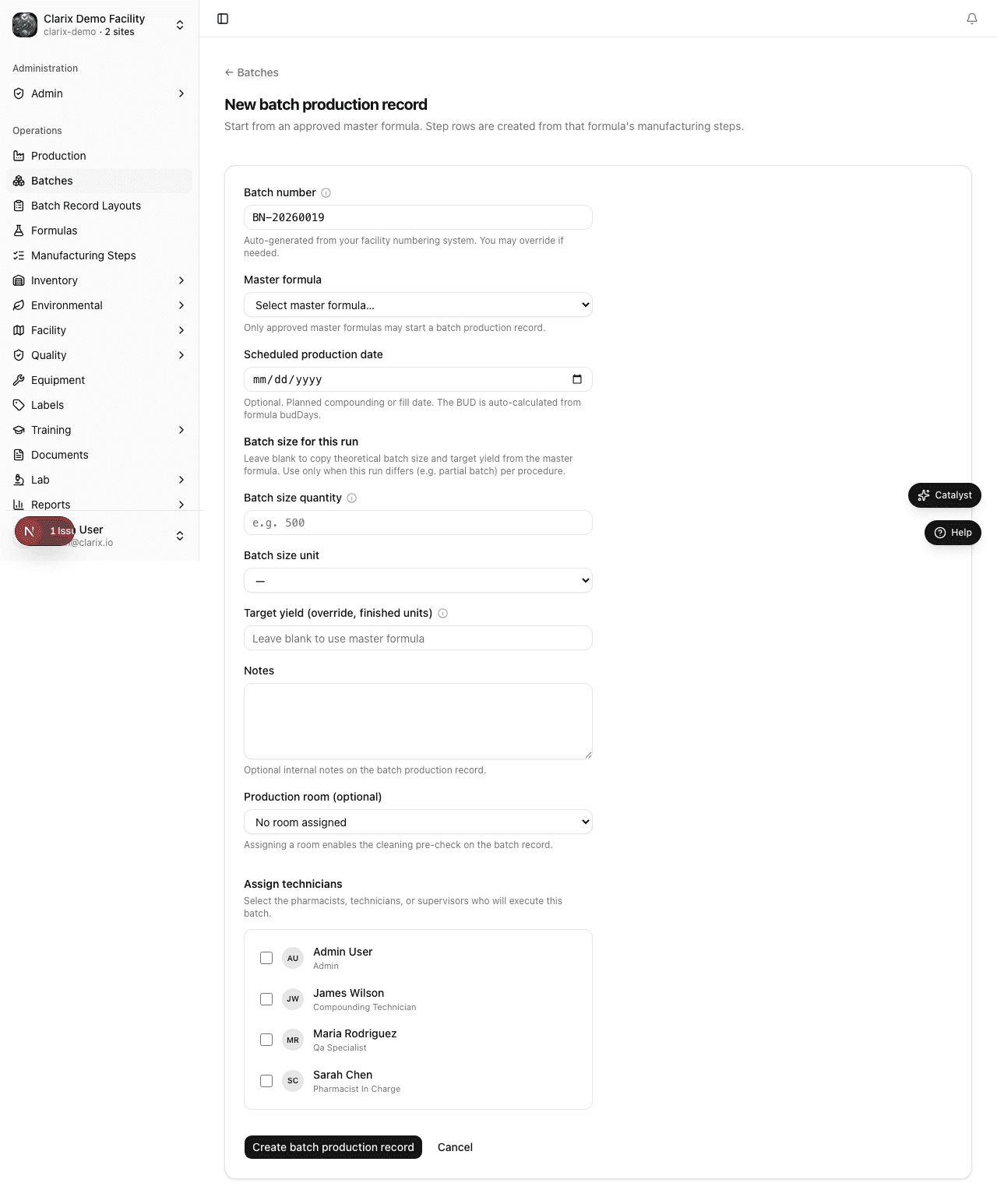
How to create a new batch
Role required: Compounding Technician, QA Officer, QA Manager, or PIC.
- Navigate to Batches in the sidebar.
- Click the New Batch button in the top-right corner of the batch catalog.
- In the New Batch dialog, select the Master Formula from the dropdown. Only approved formulas appear in this list — for example, Ascorbic Acid 500 mg/mL 30 mL IV (VITC-489).
- Review the formula details — product name, batch size unit, and BUD — to confirm you have selected the correct formula version.
- Enter the Batch Size. This is typically expressed in mL, g, or units depending on the formula's configured unit. The batch size drives all quantity calculations in measurement and calculation steps.
- Select the Scheduled Date — the planned date for compounding. This is used in scheduling views and reports but does not lock the batch to that date.
- Optionally, assign a Compounding Technician from the dropdown. This assigns the batch to a specific staff member for tracking purposes.
- Click Create Batch.
Batch number assignment
When you click Create Batch, Clarix immediately assigns a batch number in the format configured by your Admin. The default format is BN-YYYY-NNNN:
BN— configurable prefixYYYY— current calendar yearNNNN— sequential number, zero-padded to four digits (e.g.,0001,0042,1000)
The batch number is assigned at creation and never changes, even if the batch is later rejected or voided.
Pre-flight inventory check
After creating the batch, Clarix runs a pre-flight inventory check. A dialog shows you the Bill of Materials (BOM) for this formula and whether sufficient inventory is available for each component:
| Component | Required quantity | Available | Status |
|---|---|---|---|
| Ascorbic Acid Powder 99.7% | 3,648 g | 50,000 g | ✓ Sufficient |
| SWFI (QS vehicle) | 7,296 mL | 500,000 mL | ✓ Sufficient |
| Phenol USP | 36.5 g | 2,000 g | ✓ Sufficient |
If any component shows Insufficient, you will need to receive more inventory before starting execution. You can still create the batch — the system will warn you but will not block batch creation. However, you will not be able to issue that lot during step execution until enough inventory is available.
Tip: Only inventory lots in Released status are counted in the availability check. Quarantined lots (awaiting QA release) are not included.
After creating the batch
Once the batch is created, it is in Draft status. From the batch detail page you can:
- Edit the assigned technician and scheduled date
- Review the BOM to see which components are needed
- Check the Components tab to pre-select lots before execution starts
- Start execution when the compounding team is ready (requires a facility PIN)
The batch will remain in Draft until execution is started. A Draft batch does not appear in the active batch queue or production schedule until it is started.
Editing before starting
While the batch is still in Draft status, you can modify:
- Assigned technician
- Scheduled date and time
- Notes / internal reference fields
You cannot change the formula or batch size after the batch is created. If you selected the wrong formula, void the batch and create a new one.
Related pages
- Batch Overview — Understand the full lifecycle
- Executing Steps — Starting execution and working through steps
- Components and Lots — Issuing raw material lots to your batch