
Controlled Documents
Create, version, and manage controlled documents through the full review and approval workflow, including supersession and document change requests.
Creating and managing a controlled document in Clarix involves more than just uploading a file. Every document follows a structured workflow that enforces authorship, review, approval, and versioning controls. This structure is what makes Clarix document records defensible during FDA inspections — the system can demonstrate not just what the current procedure says, but who wrote it, who reviewed it, who approved it, when it became effective, and exactly what changed between versions.
Navigate to Documents and click any document to open its detail page, or click New Document to begin creating a new controlled document.
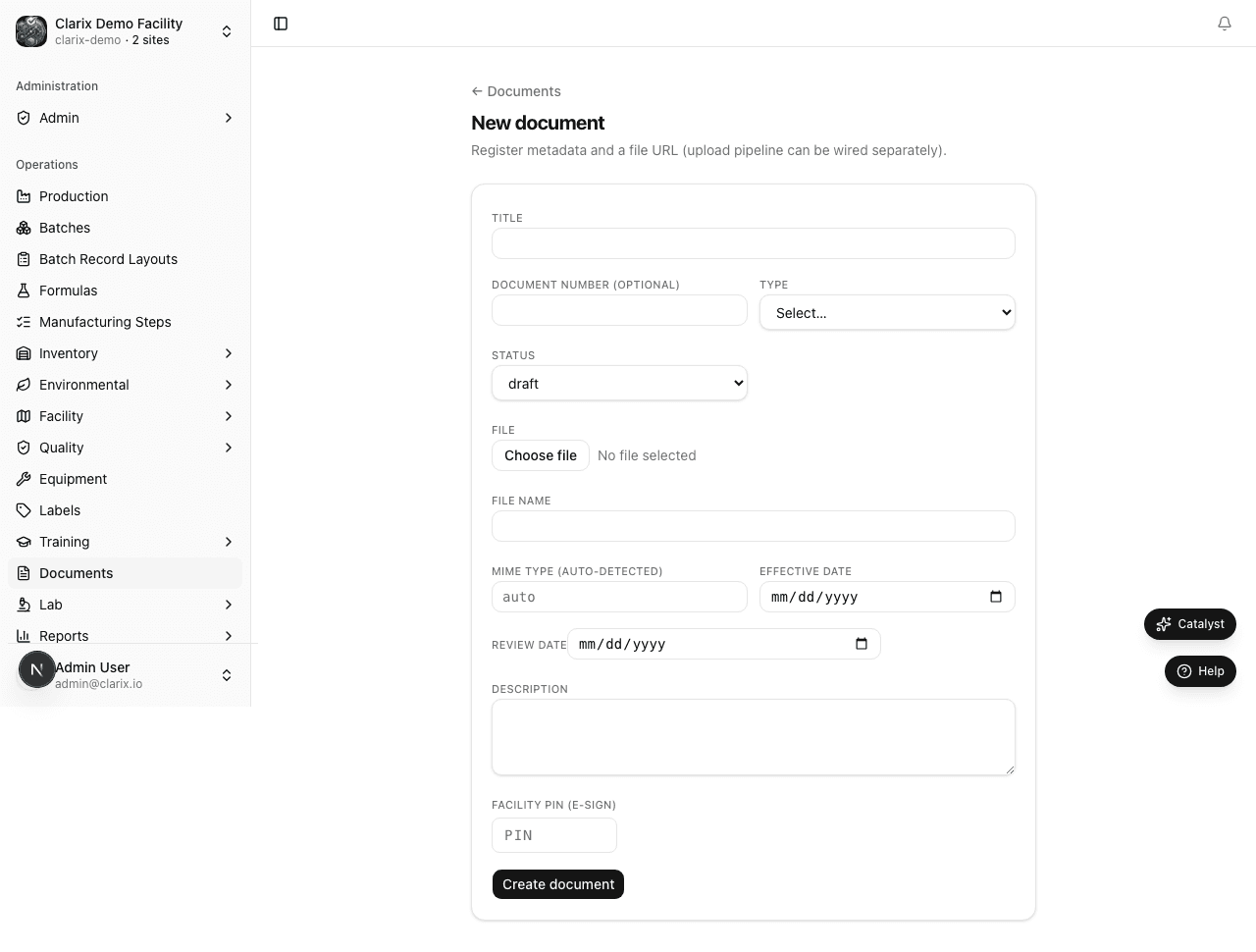
Creating a new document
- Click New Document from the Document Library.
- Select the Document Type: SOP, WI, POL, FRM, or PRO. The type determines the document number prefix.
- Enter the Title — a clear, specific description of the document's scope. Good titles are specific enough that staff can identify the document without reading it (e.g., "Aseptic Technique for IV Preparation in ISO 5 Environment," not just "Aseptic Technique").
- The Document Number is assigned automatically in the format
[TYPE]-[YEAR]-[SEQUENCE](e.g., SOP-2026-0001). You can override this if your facility uses a different numbering scheme. - Enter a Description — a brief summary of what the document covers, its purpose, and its regulatory basis.
- Set the Version number — new documents start at Version 1.0. When revising an existing document, the system automatically increments the version number.
- Set the Effective Date — the date on which the document becomes operational. For initial creation, this is typically set to the anticipated approval completion date. The document will automatically transition from Approved to Effective on this date.
- Select the Linked Department — the primary department responsible for this document (e.g., Compounding, QA, Training, Pharmacy Administration).
- Upload the Document File — click Choose file to upload the document directly from your device. PDF format is strongly recommended to ensure content is fixed and cannot be edited outside the system. The file is stored in Clarix's secure blob storage with a SHA-256 checksum for integrity. Accepted formats: PDF (up to 30 MB), XLSX, CSV, PNG, JPEG.
- Click Save Draft to save the document in Draft status.
Submitting for review
Once the document content is complete and ready for review:
- From the document detail page, click Submit for Review.
- Select the Document Controller or reviewer who will review this document.
- The document moves to Under Review status.
- The assigned reviewer receives a notification and can open the document, read the PDF, and add review comments within Clarix.
- If changes are needed, the reviewer clicks Return to Draft with comments explaining what must be revised. The author then makes the revisions and re-submits.
- When the reviewer is satisfied, they click Approve and enter their Facility PIN. The document moves to Approved status.
Approving a document
The approval step is separate from the review step in facilities that require a second sign-off (e.g., a PIC or QA Director approves after a Document Controller reviews). The approver:
- Opens the Approved document
- Verifies that they agree with the content and the reviewer's assessment
- Clicks Approve for Effectiveness and enters their Facility PIN
- The document's effective date is confirmed and the document will transition to Effective on that date
Once a document is Effective, it is visible to all staff in the Document Library and can be linked to training plans, batch records, and other quality system records.
Superseding a document
When a document requires revision, the correct process is to create a new version — not to edit the currently Effective document. To supersede:
- Open the currently Effective document.
- Click Create New Version. This creates a Draft copy of the document with an incremented version number (e.g., Version 1.0 → Version 2.0).
- Upload the revised PDF and make any necessary changes to the metadata.
- Submit the new version for review and approval as described above.
- When the new version becomes Effective, the old version is automatically moved to Superseded status. The old version remains accessible in the document's version history but is clearly labeled as superseded and cannot be used operationally.
This process maintains a complete version history: every approved version of every document is preserved, with timestamps showing exactly when each version was effective.
File management note: When a document file is replaced during a revision, the previous file is deleted from storage and the deletion event is recorded in the audit trail, satisfying Part 11's requirement for a complete record of all changes to electronic records.
Document Change Requests (DCR)
In many facilities, changes to controlled documents are initiated through a formal Document Change Request process. In Clarix, a DCR is created in the Quality module (Quality → DCR) and linked to the document that needs to be changed. The DCR describes the proposed change, the reason for the change, and any regulatory or compliance driver. Once the DCR is approved, it triggers the document revision workflow: a new version of the document is created, linked to the DCR, and put through the standard review and approval cycle. When the new version becomes Effective, the DCR is automatically closed.
This linkage creates full traceability: you can always trace a document change back to the quality event or regulatory requirement that drove it.
Linking documents to training plans
Once a document is Effective, it can be linked to a Training Plan in the Training module. This linkage means that when the document is next superseded, Clarix will automatically flag the linked training plan as potentially outdated and prompt the Training Manager to review and update the training content. This prevents the common compliance gap where training materials reference an old version of a procedure.
Role required: Authors and Admins can create and edit Draft documents. Document Controllers and Admins can review and approve. All staff can view Effective documents.
Related pages
Document Library Overview
Manage controlled documents — SOPs, work instructions, policies, forms, and protocols — through a structured approval and version control lifecycle.
Document Import
Bulk-import controlled documents and PDF files at /documents/import using CSV metadata and coordinated file uploads.