
Document Import
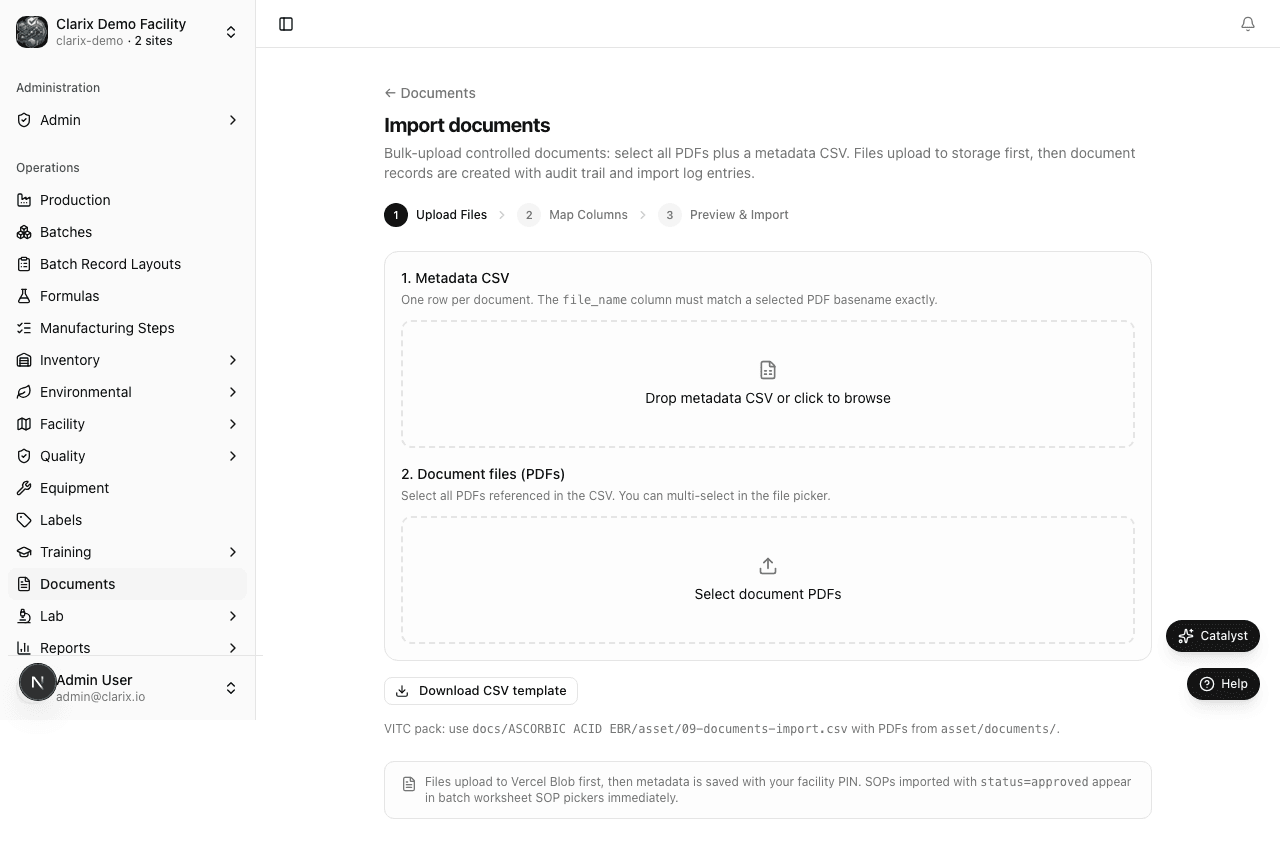
Bulk-import controlled documents and PDF files at /documents/import using CSV metadata and coordinated file uploads.
Use Document Import (/documents/import) to load your controlled document library in volume — SOPs, work instructions, protocols, and forms with metadata, effective dates, and linked PDF files.
When to use document import
- Initial Clarix deployment — migrate an existing document index and PDF repository
- Adding a product family's SOP pack (calibration, garbing, fill, inspection procedures)
- Seeding reference documents before linking them to manufacturing steps or training plans
Manual document creation at /documents/new remains appropriate for one-off revisions.
Import workflow
- Go to Documents in the sidebar.
- Click Import (or open
/documents/import). - Click Download template to get the CSV column layout.
- Place PDF files in a folder alongside your CSV — each row's
file_namemust match an uploaded file name exactly. - Fill in the CSV with document metadata (see columns below).
- Upload the CSV and select the matching PDF files in the file picker.
- Review the import preview — Clarix maps columns, validates types and statuses, and flags missing files.
- Enter your facility PIN and click Confirm import.
Imported documents are created with the status you specify (typically approved or draft). Effective documents become available for step resource links and training references.
CSV columns
| Column | Required | Description |
|---|---|---|
file_name | Yes | PDF file name including extension (must match uploaded file) |
title | Yes | Document title |
document_type | Yes | sop, wi, policy, form, protocol, or allowed alias |
document_number | No | Controlled number (e.g., PT-040, CSP-060) |
status | No | draft, under_review, approved, effective, etc. |
description | No | Summary text |
effective_date | No | ISO date when document becomes effective |
review_date | No | Next periodic review date |
Clarix auto-detects column headers from common aliases (filename, doc number, type, etc.).
File upload requirements
- PDF format recommended for controlled procedures
- File names in the CSV must match uploaded files case-sensitively
- Unmatched files or rows are flagged in the preview before import
Example: VITC SOP pack
The Ascorbic Acid demo imports documents such as:
| Document number | Title |
|---|---|
| PT-040 | Equipment calibration and fill volume |
| CSP-060 | Personnel garbing and EM |
| PT-511 | Manual visual inspection |
| QA-320 | Acceptance sampling |
Import these before the master formula bundle so step resources links resolve document codes.
Role requirements
| Action | Minimum role |
|---|---|
| Import documents | Document Controller or Admin |
| Approve imported effective documents | Document Controller or QA Manager |
Regulatory reference
21 CFR 211.68 and Part 11 — Controlled documents must be approved, versioned, and available to staff performing GxP activities. Bulk import accelerates library setup while preserving document numbers, effective dates, and audit trail entries for each created record.
Related pages
Controlled Documents
Create, version, and manage controlled documents through the full review and approval workflow, including supersession and document change requests.
Labels Overview
Understand how Clarix manages Zebra ZPL label templates with version control and approval workflows to ensure every dispensed product carries an FDA-compliant label.