
Records and Completion
Create training assignments, track staff progress, and record electronic sign-off on completed training materials.
Training records are the documented proof that a specific individual reviewed specific content on a specific date. In the Clarix training system, a training record (also called an assignment) links one staff member to one training plan and tracks the progress from initial assignment through individual material completion to final electronic sign-off. These records are permanently stored in the audit trail and serve as the primary evidence that your facility's training program is operational and current.
Navigate to Training → Records to manage all training assignments.
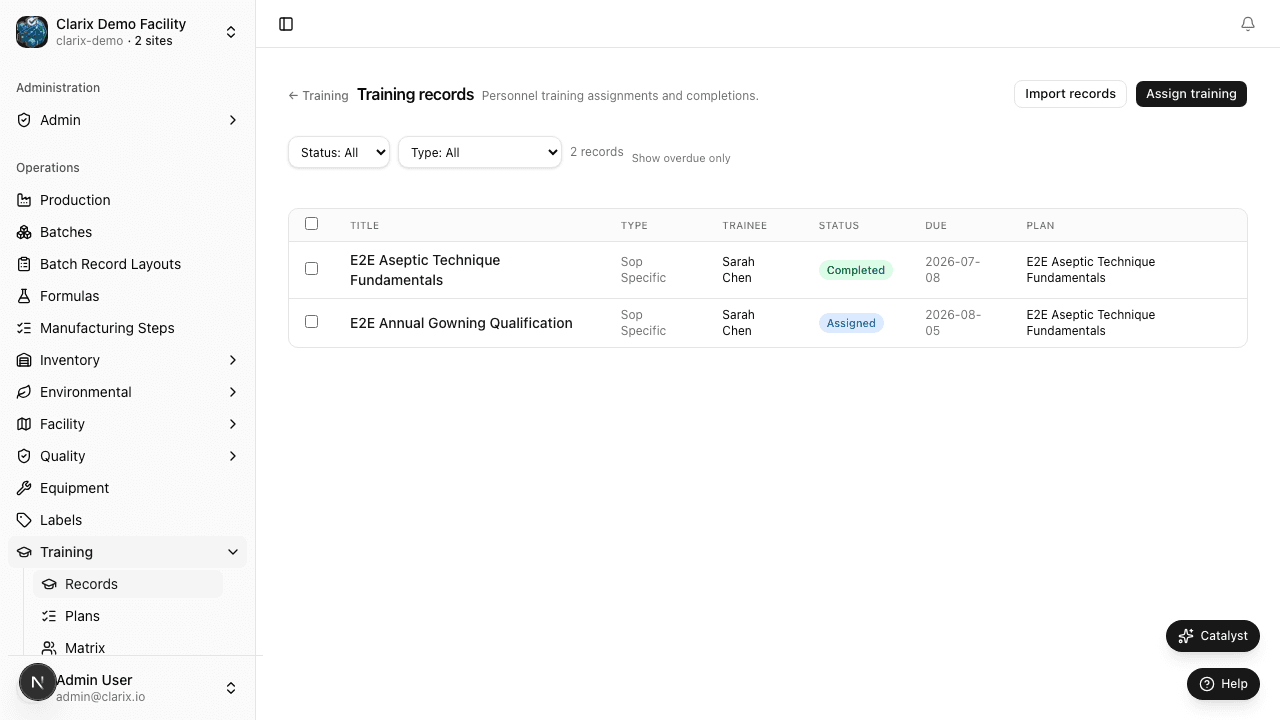
Viewing the records list
The training records list shows all assignments across all staff members (for users with Admin or Training Manager role) or your own assignments (for standard users). Each row shows:
- Staff Member — the person assigned to this training
- Training Plan — the plan they are assigned to complete
- Due Date — the date by which training must be completed
- Status — one of four states:
- Assigned — the assignment has been created but the trainee has not yet started reviewing materials
- In Progress — the trainee has opened the assignment and has completed at least one material
- Completed — all materials have been reviewed and the trainee has signed the completion record
- Overdue — the due date has passed without the assignment reaching Completed status
Use the Status filter to quickly identify overdue assignments requiring follow-up. The Staff Member filter lets supervisors check the training status of specific individuals.
Creating a new training assignment
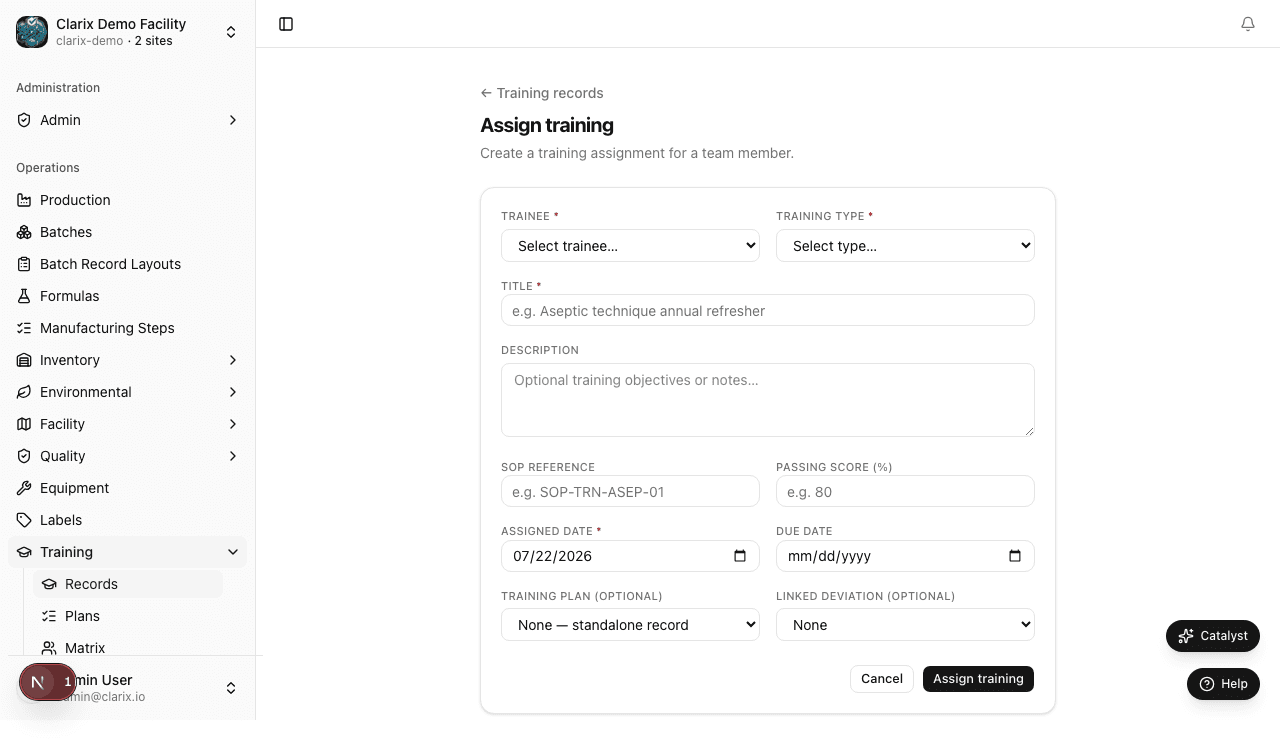
To assign a training plan to a staff member:
- Click New Assignment from the records list.
- Select the Staff Member from the user dropdown. You can search by name or email address.
- Select the Training Plan from the approved plans list. Only Approved training plans appear in this dropdown.
- Set the Due Date — the date by which the trainee must complete the assignment. Due dates are used for overdue calculations and for the Training Hub dashboard summary. A typical initial training assignment has a due date of 7–14 days after hire; refresher training due dates are typically set 30 days before the current qualification expiry.
- Add any optional Notes — for example, instructions about which physical location to perform a hands-on component, or context about why the assignment is being made (e.g., "Annual refresher per SOP-TRN-001 schedule").
- Click Save Assignment.
The system sends a notification to the assigned staff member informing them of the new training assignment and its due date.
Completing training (trainee workflow)
When a staff member logs into Clarix, their open training assignments appear on their personal dashboard and in the Training Records list. To complete an assignment:
- Click the assignment row to open the training record.
- The record displays the training plan name, description, due date, and the list of materials that must be reviewed.
- For each material in the list:
- If the material is a PDF, click Open PDF to view the document. The system records that you opened the document.
- If the material is a video or URL, click the link to open it in a new tab.
- After reviewing the material, click Mark Complete next to that material's row. You may need to add a brief acknowledgment note confirming you reviewed the content.
- Once all materials have been marked complete, the Sign and Complete button becomes active.
- Click Sign and Complete and enter your Facility PIN (or complete the multi-factor electronic signature step, if configured for your facility). Your signature constitutes a legally binding attestation that you reviewed all listed materials and understood the content.
- The assignment status updates to Completed. The completion date, your user ID, and the PIN signature are recorded in the audit trail. This record cannot be deleted or modified.
Administrator view and management
Training Managers and Admins can see all assignments for all staff. From the records list, admins can:
- Filter by staff member, plan, status, or date range to find specific records
- Extend due dates on active assignments when schedule changes make the original deadline unrealistic (the reason for any extension is logged)
- Create bulk assignments — assign the same training plan to multiple staff members at once (useful when a new SOP is released and all applicable staff must be trained)
- Export assignment records to CSV or PDF for inclusion in training files or audit submissions
Audit trail and permanence
Every training completion record — including who completed it, when, what materials were in the plan at the time, and the electronic signature — is written to Clarix's immutable audit trail. Records cannot be deleted by any user, including admins. This permanence is a core requirement of 21 CFR Part 11 (electronic records and signatures) and is what makes Clarix training records defensible during FDA inspections.
If an error was made in an assignment — for example, the wrong training plan was assigned to a person — the record can be voided by an Admin (which adds a voiding note to the audit trail) and a correct assignment created. The original voided record remains visible in the history.
Role required: All staff can view and complete their own training assignments. Training Managers and Admins can create assignments for any user and view all records.
Related pages
Training Plans
Create and manage training curricula that define materials, validity periods, and role requirements for your sterile compounding facility.
Personnel Training Matrix
View the color-coded training matrix showing every staff member's qualification status across all training plans — the view inspectors ask for first.