
Personnel Training Matrix
View the color-coded training matrix showing every staff member's qualification status across all training plans — the view inspectors ask for first.
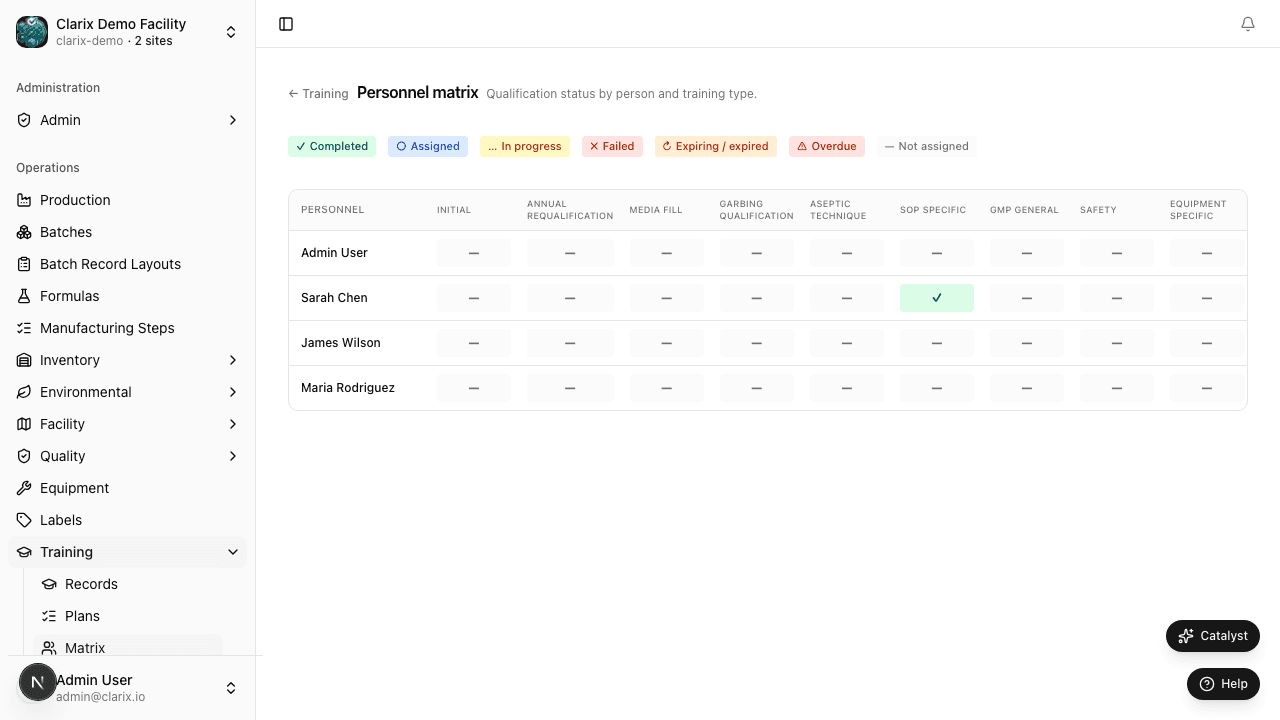
The Personnel Training Matrix is the most inspection-critical view in the Clarix Training module. It presents a grid showing every active staff member (rows) against every training plan they have been assigned (columns), with color-coded cells indicating whether each person's training is current, expiring soon, overdue, or not yet assigned. FDA investigators, accreditation auditors, and internal QA reviewers typically request this view at the beginning of a training records review because it gives an instant, comprehensive picture of your facility's qualification status without requiring navigation through individual records.
Navigate to Training → Matrix to open the personnel training matrix.
Reading the matrix
The matrix grid uses four color states to communicate training status at a glance:
| Color | Status | Meaning |
|---|---|---|
| Green | Complete | Training is current — the person has a completed assignment within the validity period |
| Amber | Expiring Soon | Training is current but the qualification expires within 30 days — retraining should be scheduled immediately |
| Red | Overdue | The qualification has expired or the assignment is past due without being completed — this person should not be performing functions requiring this training |
| Grey | Not Assigned | This training plan has not been assigned to this person — grey does not necessarily indicate a problem, but may warrant review if the plan is required for their role |
Click any cell in the matrix to navigate directly to the relevant training record for that person and plan, where you can see the completion date, materials reviewed, and the signing user.
Filtering the matrix
The matrix can be very wide in facilities with many staff members and training plans. Use the filter controls to narrow the view:
- Department — filter rows to show only staff from a specific department (e.g., Compounding, QA, Administration)
- Role — filter rows to show only staff with a specific role (e.g., Pharmacy Technician, QA Analyst, PIC)
- Training Plan — filter columns to show only specific training plans (e.g., show only the plans tagged as "Required for Batch Compounding")
- Status — filter to show only cells in a specific status (e.g., show only Red cells to identify all overdue training in one view)
Combining filters is especially powerful: filtering by Role = Pharmacy Technician and Status = Red immediately shows you all overdue training for compounding staff — exactly the remediation priority list you need.
Exporting the matrix
The training matrix can be exported in two formats:
- PDF — a formatted, printable version of the matrix suitable for inclusion in an audit binder, regulatory submission, or inspection file. The PDF export includes the facility name, export date, and the name of the user who generated it.
- CSV — a spreadsheet-compatible export for custom analysis, mail merge, or incorporation into a quality management system report.
Both exports are generated as-of the current date and time and include only the filters currently applied. Store exported matrices with your inspection-readiness documentation and regenerate them fresh before any inspection or audit.
How inspectors use the matrix
During an FDA inspection, the 503B investigator assigned to training typically follows this sequence:
- Request the training matrix for all compounding and QA personnel
- Identify any Red (overdue) cells and request the underlying records for those individuals
- For a sample of Green (current) cells, request the underlying records to verify that the training was actually completed — not just assigned — and that it was completed by the deadline
- Ask whether the training content (materials) is up to date relative to current SOPs
Clarix's matrix is designed to support this review efficiently. Every cell links to an auditable record with timestamps, material lists, and electronic signatures. There are no gaps to explain away: if training was completed, the record is in the system; if it was not, the Red cell is visible to everyone.
Keeping the matrix current
The matrix is only as useful as the data behind it. Best practices for maintaining a meaningful matrix:
- Create training assignments for new staff on or before their first day
- Set due dates that reflect actual operational deadlines, not aspirational ones
- Review the matrix in your monthly quality meeting and address Amber cells before they turn Red
- When new SOPs are released, update the relevant training plan and create bulk assignments for all applicable staff in the same workflow
- After any compliance training driven by a CAPA or corrective action, verify completion in the matrix before closing the CAPA
Role required: QA Managers, Training Managers, and Admins can view the full matrix for all staff. Standard users can view only their own row. Exporting the matrix requires the QA Manager or Admin role.