
E-Signatures and Audit Trail
How Clarix captures, stores, and protects electronic signatures and audit trail records across every compliance gate.
E-Signatures and Audit Trail
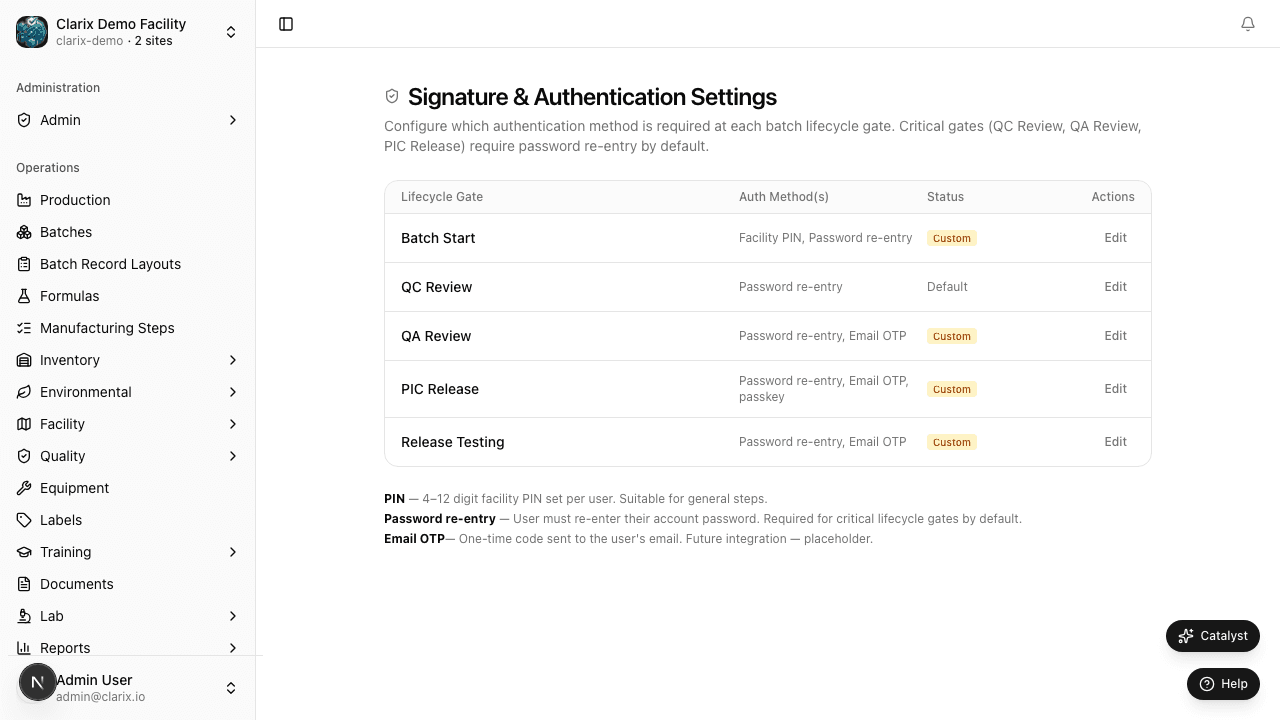
Every regulated record in a 503B facility must answer a simple question: who did what, when, and why? Clarix's e-signature and audit trail system is designed so that question always has a verifiable, tamper-proof answer — whether you're preparing for a routine quality review or responding to an FDA inspector in real time.
This page explains the types of e-signatures available in Clarix, where they are required, how the audit trail works, and what to do when you need to retrieve or demonstrate compliance records.
E-signature types
Clarix supports four authentication methods for electronic signatures. Each method provides a different balance of speed, security, and hardware requirements. Your organization can configure which methods are accepted at each signature gate from Settings → Signatures.
Facility PIN
A 4-digit numeric code that is unique to each user's account. Designed for shop-floor speed — a technician can sign a batch step in under two seconds without removing gloves from a touchscreen.
- Fast and hands-free for gloved operators
- Each PIN is tied to one user account; sharing PINs is a compliance violation
- PINs can be reset by an Admin when forgotten
- Appropriate for high-frequency gates such as individual step completions
Important: "Facility PIN" means the PIN is set specifically for use within Clarix's signing workflow — it is not the same as a device lock code or any external PIN. Each user sets their own Facility PIN in their account profile.
Password
The user's account password, re-entered at the time of signing. Provides stronger authentication than a PIN for critical lifecycle gates.
- Requires re-entry of the full account password
- Appropriate for QA review, formula approval, and PIC release gates
- Cannot be shared between users by design — each account has a unique password
Email OTP
A one-time passcode sent to the user's verified email address. Provides strong authentication without requiring the user to remember a specific password or PIN, and works across devices.
- One-time codes expire after 10 minutes
- Appropriate for infrequent or high-security signatures
- Requires email access at the time of signing
Passkey (FIDO2 biometric)
A cryptographic passkey stored on the user's device, typically authenticated with biometrics (Face ID, Touch ID, Windows Hello). This is the strongest and fastest authentication method available.
- Hardware-backed cryptographic proof — cannot be phished or reused
- No shared secret — the credential never leaves the user's device
- Supported on iPad, iPhone, Mac, and modern Windows/Android devices
- FIDO2 standard provides non-repudiation that meets the highest Part 11 requirements
Where e-signatures are captured
Clarix requires an e-signature at every major compliance gate. The table below lists all signature points and which authentication methods are accepted by default (your administrator can restrict or expand this per gate).
| Action | Who signs | Default method | What is attested |
|---|---|---|---|
| Batch start | Compounding Technician | PIN or Password | Formula, materials, and equipment have been verified |
| Batch step (critical) | Technician | PIN | Step was performed as specified |
| Second verification (critical steps) | Second Technician | PIN | Independently verified the step |
| Batch QA review | QA Officer | Password or Passkey | Batch record is complete and compliant |
| PIC batch release | Pharmacist-in-Charge | Password or Passkey | Batch is approved for dispensing or distribution |
| Formula approval | Pharmacist-in-Charge | Password or Passkey | Formula version is approved for production use |
| Formula version change | PIC or QA Officer | Password | Acknowledges impact of version revision |
| Training completion | Staff member | PIN or Password | Training item has been completed as assigned |
| Equipment calibration | Equipment Technician | PIN or Password | Calibration was performed per the calibration procedure |
| Deviation closing | QA Officer | Password | Investigation is complete, disposition is documented |
| Lot release | QA Officer | PIN or Password | Inventory lot is approved for use in batch production |
| CAPA effectiveness verification | QA Officer | Password | Corrective action has been verified as effective |
ALCOA+ principles
The pharmaceutical industry uses the ALCOA+ framework to define what makes a data record trustworthy. Every e-signature and audit trail entry in Clarix is designed to satisfy all nine ALCOA+ attributes:
ALCOA (original five)
Attributable — Every record is linked to the specific user account that created or signed it. The system records the user ID, display name, and role at the time of the action. There is no anonymous access and no way to act on behalf of another user without that user's authentication.
Legible — All data is stored as text in a structured database. There are no handwritten entries, no scanned PDFs of paper forms, no image files where a number might be misread. The MBR PDF renders all data in a clean, human-readable format.
Contemporaneous — Timestamps are generated server-side at the exact moment the action occurs. A user cannot backdate or forward-date a record. The timestamp reflects when the action actually happened, not when the user submitted the form.
Original — The first entry in the system is the authoritative record. There is no copy of a copy. If a value needs to be corrected, a new entry is created alongside the original — the original is never erased.
Accurate — The system captures what actually happened. Measurement values are entered directly. There is no transcription step where data could be altered during transfer from a paper log.
ALCOA+ (extended attributes)
Complete — Every required field must be filled before a step or record can be signed. The system will not allow a gate to be passed with missing data.
Consistent — Time is synchronized to a single server clock. There are no discrepancies between timestamps on different devices or in different modules.
Enduring — Records are retained indefinitely on redundant, backed-up infrastructure. They cannot be deleted by any user, including administrators.
Available — All records are retrievable in real time. There is no archive tape to request or off-site retrieval process. Any record can be found and exported within seconds.
How the audit trail works
The audit trail is a separate, immutable log that records every significant event in the system. It runs automatically in the background — your team does not need to do anything to activate it.
Every audit trail entry contains:
- Timestamp — Server-side UTC, precise to the millisecond
- User — Full name, user ID, and role at the time of the action
- Action type — Created, Updated, Signed, Deleted (logical delete only — data is retained)
- Record affected — Which module, which record (e.g., Batch BN-2026-0001, Formula Formula-0042)
- Before values — The exact state of every changed field before the action
- After values — The exact state of every changed field after the action
- IP address — The network address of the device used
- Session ID — The authenticated session that performed the action
The audit trail table is INSERT-only at the database level. No record in it can be modified or deleted — not by administrators, not by the application, and not by Fills AI. This architecture is what makes the audit trail suitable for regulatory inspection.
Querying the audit trail
You can query the audit trail from Reports → Audit Trail. Available filters:
- Date range — Narrow to a specific day, shift, or inspection period
- User — See everything a specific person did
- Module / record type — Filter to batches, formulas, inventory, quality events, etc.
- Action type — Show only creates, updates, signatures, or deletions
- Record ID — Pull the complete history of a single batch, formula, or other record
The filtered results can be exported as a CSV for submission or external review. The full audit trail for a specific batch is also included in the batch MBR PDF export.
Handling e-signature disputes
If a signer claims they did not sign a record, or a question arises about whether a signature is legitimate, the audit trail provides the complete evidence chain:
- Navigate to Reports → Audit Trail
- Filter by the record in question (e.g., the batch number)
- Find the signature event — it will show the exact user, timestamp, IP address, and authentication method used
- Cross-reference the IP address with your facility's network logs if needed
- The signature cannot be deleted or modified — it is a permanent, tamper-evident record
If you suspect an account was accessed by an unauthorized person, the audit trail also shows every login event, every session, and every action taken during that session.
Setting up e-signatures
E-signature configuration is done in Settings → Signatures. From that page, Admins can:
- Select accepted methods per gate — For example, require Password or Passkey for PIC release, but allow PIN for step completions
- Require multiple factors — Configure any gate to require two separate authentication steps (e.g., PIN followed by Password)
- View all configured gates — See a summary of every signature gate and its current configuration
To set up your facility:
- Go to Settings → Signatures
- Review each gate's current configuration
- Adjust the accepted methods to match your facility's SOPs and risk tolerance
- Ensure all users have set their Facility PIN (they can do this from their user profile)
- Encourage high-privilege users (PIC, QA) to enroll a Passkey for the strongest available authentication
Related pages
- 21 CFR Part 11 — The regulatory basis for electronic records and signatures
- USP <797> and cGMP — Sterile compounding and manufacturing standards
- Roles and Permissions — Who can sign at each gate
- Batch Overview — The batch lifecycle and its signature gates