
Batch Overview
Understand the complete batch lifecycle in Clarix — from draft creation through QA review to final PIC release.
Batch Overview
A batch in Clarix represents a single production run of a compounded drug product. Every batch is linked to an approved Master Formula and creates a tamper-proof electronic Batch Production Record (BPR) that satisfies 21 CFR Part 211 and USP <797> documentation requirements.
The batch lifecycle
Every batch moves through a defined set of states from creation to release. The lifecycle ensures that no batch is released without completing all required steps, passing QA review, and receiving a PIC electronic signature.
Lifecycle states
Active production states
| State | What it means |
|---|---|
| Draft | Batch has been created but execution has not started. You can still edit the batch details (assigned technician, scheduled date). |
| In Progress | A facility PIN was used to start execution. Steps are being completed on the shop floor. The batch record is actively being built. |
| Completed | All required steps have been completed and the actual yield has been entered. The batch is ready to be submitted for QA review. |
Review and approval states
| State | What it means |
|---|---|
| Under QA Review | The technician has submitted the batch for QA officer sign-off. The QA officer can see all step values, measurements, and signatures. |
| QA Approved | The QA officer has reviewed and approved the batch record. The batch is now waiting for the Pharmacist-in-Charge to perform the final release. |
| Released | The PIC has signed the final release. The batch record is locked and cannot be modified. The PDF Master Batch Record (MBR) is available for download. |
Exception states
| State | What it means |
|---|---|
| Rejected | The batch was rejected by QA or the PIC. A deviation is typically opened to document the reason. The batch may be reworked, amended, or voided depending on the situation. |
| Voided | The batch was cancelled before completion. Voided batches are retained for audit trail purposes but are excluded from production statistics. |
| Quarantined | The batch has been placed on hold — typically due to a quality event, equipment failure, or pending investigation. No further steps can be completed until quarantine is lifted. |
| Recalled | A post-release recall has been initiated. The batch is flagged in all reports and the audit trail records the recall event with reason and scope. |
What the batch record contains
A completed batch record is a comprehensive document that includes:
- Batch header — Formula name and version, batch number, batch size, scheduled and actual dates
- Assigned personnel — Compounding technician, QA officer, PIC reviewer
- Bill of Materials (BOM) — Every component with target quantities, issued lot numbers, actual quantities weighed, and COA assay values
- Step records — Every step with the technician's response, timestamp, and electronic signature
- Worksheets — In-process controls, particle counts, visual inspection, label reconciliation
- Yield — Actual yield percentage vs. theoretical
- QA and PIC signatures — With timestamps and IP addresses for 21 CFR Part 11 compliance
- Deviation links — Any deviations opened during or after the batch
Batch numbering
Batch numbers are auto-generated by Clarix using the format configured in Settings → Numbering. The default format is BN-YYYY-NNNN (e.g., BN-2026-0001). Your Admin can configure a custom prefix or sequence.
Batch numbers are assigned at the time the batch is created and do not change through the lifecycle.
Batch catalog
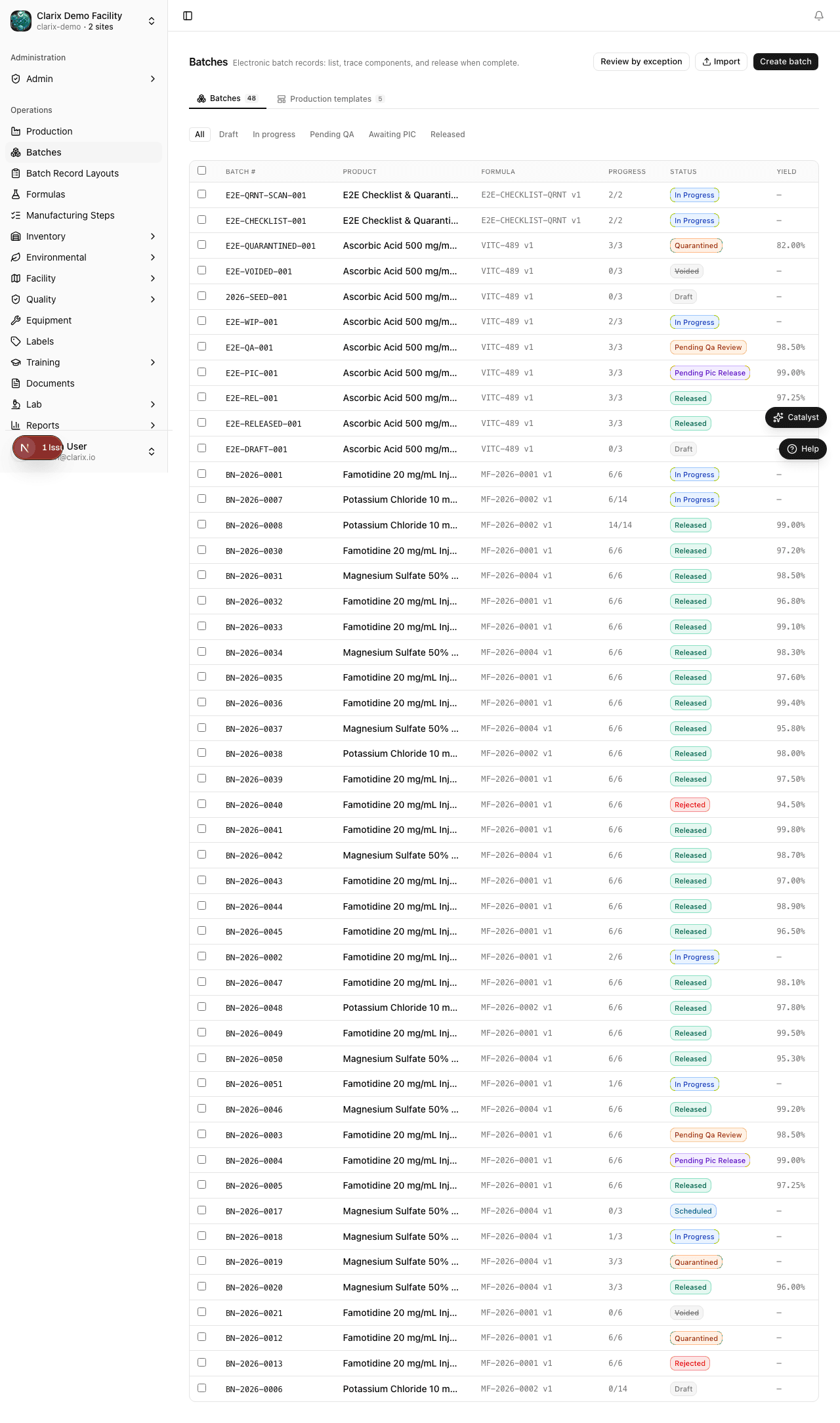
The Batches page is the central catalog of all batches in your facility. From the catalog you can:
- Filter batches by status, formula, technician, or date range
- Search by batch number or formula name
- Multi-select batches for bulk actions (quarantine, export PDFs)
- Click any batch to open its detail page
The catalog defaults to showing all non-voided batches. Use the Status filter to narrow to a specific lifecycle state.
Production kanban
The Production view at /production shows batches as cards on a kanban board grouped by lifecycle stage — In Progress, Completed, Pending QA, Awaiting PIC, and Released. This view is optimized for daily production meetings and shift handoffs.
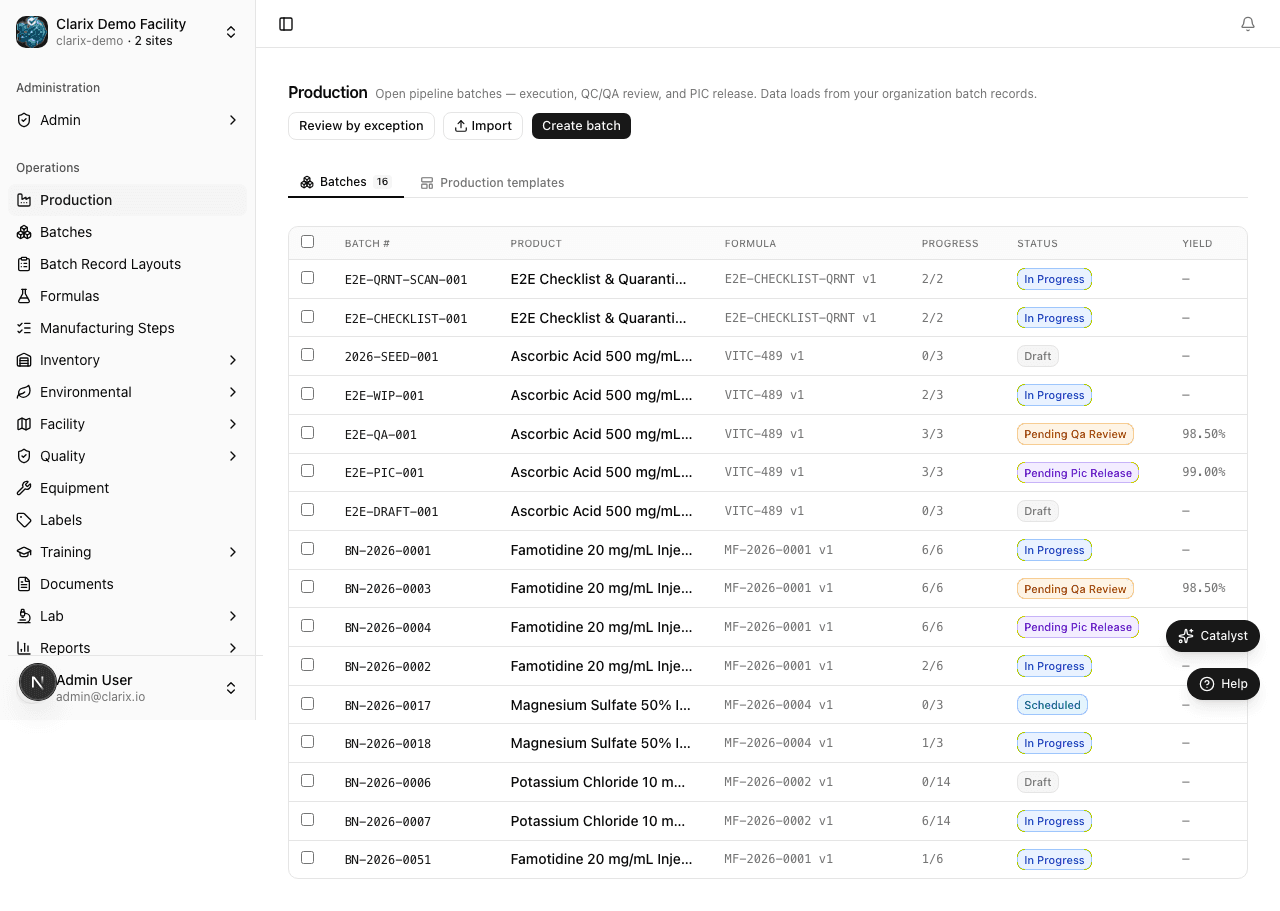
Drag-and-drop between columns is not supported; status changes happen through the normal batch workflow (submit for QA, approve, release). Click any card to open the batch detail page. The same batch record renders differently depending on your role — technicians see execution controls, QA officers see review actions, and the PIC sees release controls. See Executing Steps and QA and PIC Release for role-specific views.
Batch production templates
The Templates tab in the batch catalog shows saved batch configurations you can reuse to quickly start new runs. Templates store the formula, batch size, notes, and other metadata — but are never executed themselves.
| Action | How |
|---|---|
| Save as template | On any batch detail page, open the actions menu and click Save as template. Give it a name. |
| Create from template | In the Templates tab, click a template row and then Create batch from this template. |
| Edit template | Open the template detail page and click Edit template to update the name, notes, or batch size. |
| Delete template | In the Templates tab, use the row actions menu to delete the template. |
Templates do not have a lifecycle (no Start, QA, Release). They are configuration snapshots that accelerate the batch creation workflow for recurring production runs.
See Production Batch Templates for a full walkthrough.
Related pages
- Creating a Batch — How to open a new batch
- Production Batch Templates — Saving and reusing batch configurations
- Batch Record Layouts — EBR section configuration per formula
- Executing Steps — How to work through production steps
- QA and PIC Release — The review and release workflow
- MBR and Exports — Downloading the batch record PDF