
Roles and Permissions
Learn how Clarix roles control access to modules, actions, and approvals across your 503B facility.
Roles and Permissions
Clarix uses role-based access control (RBAC) to ensure that every action in the system is performed by a qualified person. Your role determines which modules you can access, which actions you can take, and which approval workflows require your signature.
How roles work
Each user account is assigned one or more roles by an Admin. Roles are scoped to your organization, so users at multi-site companies can have different roles at each facility. You will only see the modules and actions permitted by your assigned role — others are hidden or locked.
The 15 Clarix roles
Pharmacist-in-Charge (PIC)
The PIC is the final regulatory authority for your 503B facility. This is typically the licensed pharmacist named on your FDA registration.
What a PIC can do:
- Approve and publish Master Formulas
- Release batches (final sign-off after QA approval)
- Override out-of-sequence step execution with their PIN
- Manage staff qualifications and training plans
- Configure system-wide settings
- View all modules and reports
Role required: Only a PIC can perform the final batch release. This action requires a facility PIN and is recorded as an electronic signature under 21 CFR Part 11.
Compounding Technician
The primary shop-floor operator. Technicians execute batches, receive materials, and perform day-to-day production tasks.
What a Technician can do:
- Start and execute batch steps
- Scan barcodes during steps
- Issue raw material lots to a batch
- Enter measurements, data, and checklist responses
- Receive incoming inventory lots
- View their assigned batches and training plans
Role required: Technicians cannot approve formulas, release batches, or review deviations.
QA Officer
QA Officers are responsible for reviewing completed batches and approving them before the PIC release step.
What a QA Officer can do:
- Review completed batch records (all steps, values, signatures)
- Approve or reject batches for PIC release
- Open and manage deviations and CAPAs
- Review batch amendments
- Access quality reports and audit trail
- Release inventory lots from quarantine
QA Manager
The QA Manager has all QA Officer capabilities plus elevated access for oversight and escalation.
What a QA Manager can do:
- Everything a QA Officer can do
- Configure quality rules and thresholds
- Manage CAPA workflows and sign off on closures
- Approve deviations that require manager-level sign-off
- Access cross-batch trend reports
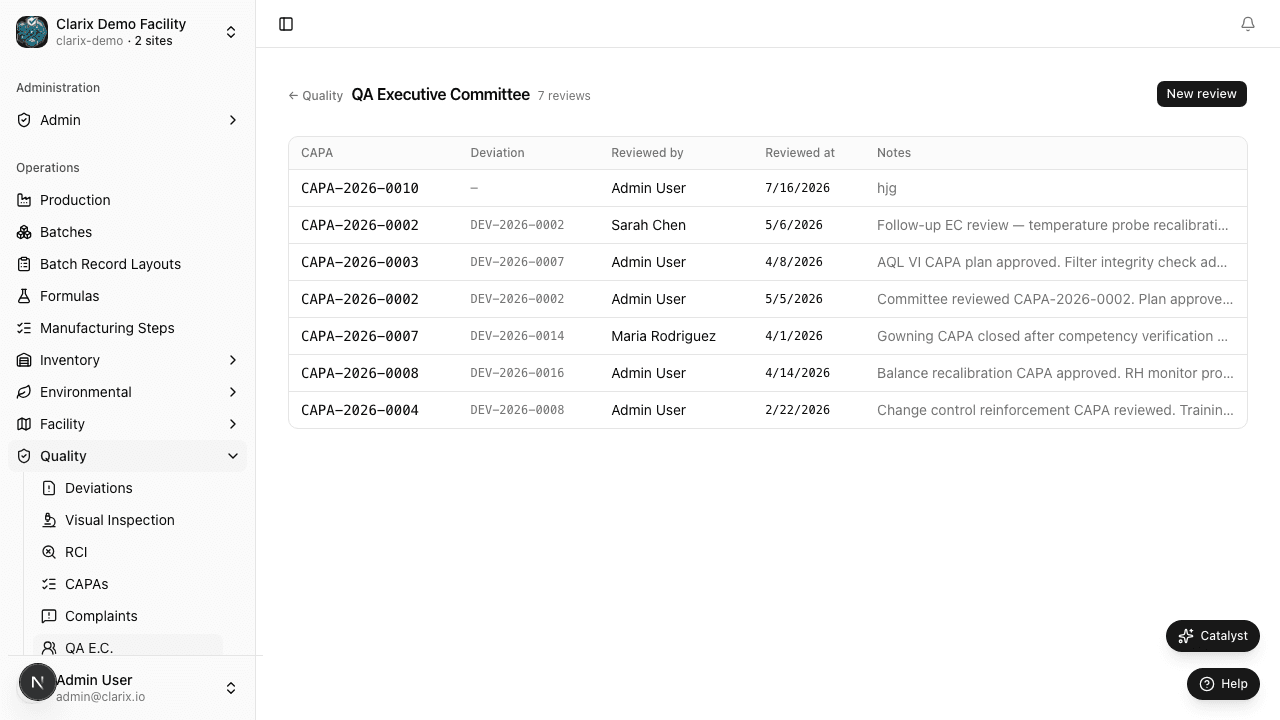
QA Executive Committee
High-level quality oversight role for senior stakeholders and compliance officers.
What the QA Executive Committee can do:
- Read-only access to all quality records, deviations, and CAPAs
- Review 483-readiness reports and quality metrics dashboards
- Cannot modify records — review and attestation only
Lab Technician
Manages QC lab samples and environmental monitoring activities.
What a Lab Technician can do:
- Create and manage QC lab samples
- Log environmental monitoring (EM) samples and results
- Record endotoxin, bioburden, and sterility test results
- View lab-related reports
Training Manager
Responsible for creating and managing personnel training programs.
What a Training Manager can do:
- Create training plans and assign SOPs
- Track staff training completion and qualification status
- Mark training as complete or expired
- Generate training compliance reports
- Set up recurring training schedules
Document Controller
Manages the controlled documents library (SOPs, policies, forms).
What a Document Controller can do:
- Upload, version, and retire controlled documents
- Assign documents to training plans
- Set document review cycles and expiry
- Track acknowledgement status by staff member
Equipment Technician
Maintains equipment records, calibration schedules, and preventive maintenance.
What an Equipment Technician can do:
- Add and manage equipment in the asset registry
- Log calibration events and results
- Record preventive maintenance (PM) activities
- Upload calibration certificates
- Set calibration and PM schedules with alerts
Admin
System administrators configure the platform and manage users. The Admin role does not grant production access by default.
What an Admin can do:
- Create and manage user accounts
- Assign and modify roles
- Configure numbering sequences (batch, formula, lot numbers)
- Set system-wide policies (inventory, formula, rules engine)
- Manage organization settings and multi-site configurations
- Access all settings panels
Note: Admins can configure the system but cannot approve formulas or release batches unless they also hold the PIC role.
Environmental Monitor
Performs environmental monitoring rounds in ISO cleanrooms.
What an Environmental Monitor can do:
- Log EM samples (settle plates, air samples, surface samples)
- Record readings against room monitoring plans
- View environmental trending reports
- Escalate excursions to QA
Viewer / Read Only
A read-only role for stakeholders, auditors, or observers who need visibility without the ability to change anything.
What a Viewer can do:
- View all batch records, formulas, inventory, and reports
- Download PDFs and exports
- Cannot create, edit, or approve any records
Managing users
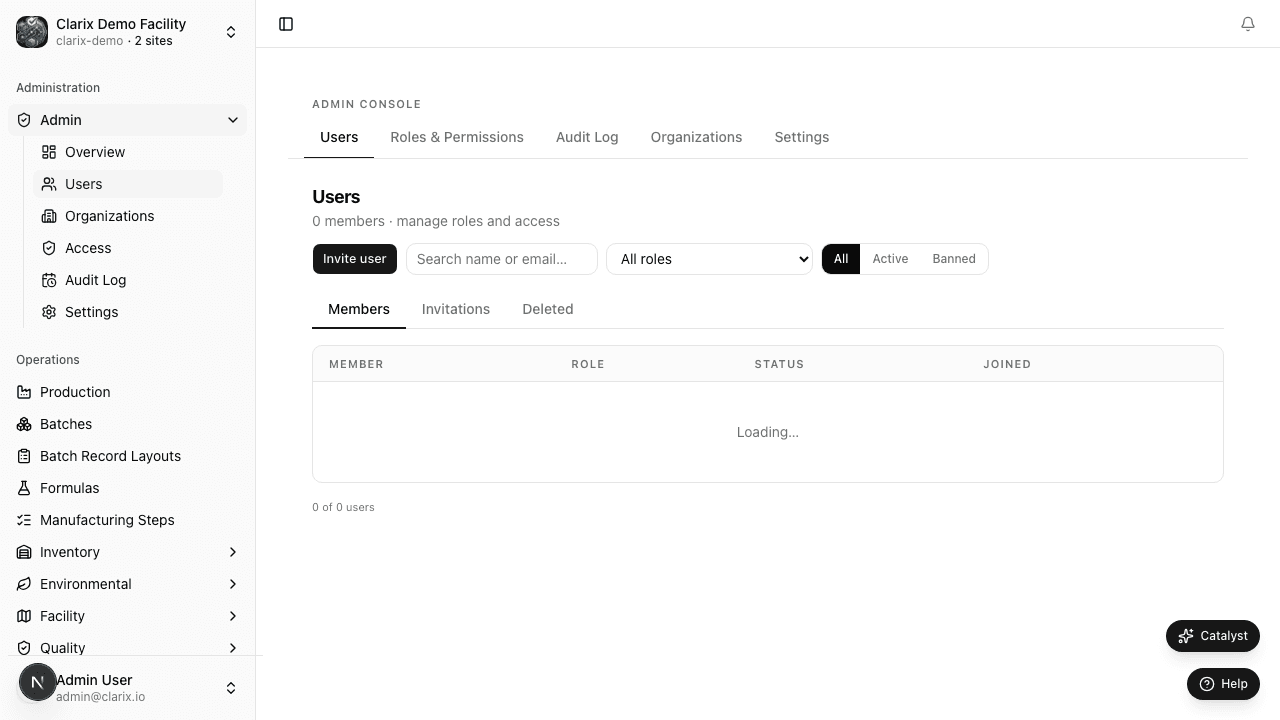
Role required: Only an Admin can create users and assign roles.
- Go to Admin → Users in the sidebar.
- Click Invite user and enter the staff member's email address.
- Select their role(s) from the dropdown. A single user can hold multiple roles (e.g., PIC + Admin).
- Click Send invitation. The user receives an email with a sign-in link.
- Once they sign in, their role takes effect immediately.
To change a user's role, click their name in the users list and edit the Roles field. Changes apply to the next session.
Multi-site role assignment
If your organization has multiple facilities, users can have different roles at each site. When a user signs in and switches organizations using the Organization Switcher at the top of the sidebar, their permissions automatically update to match that facility's role assignment.
Related pages
- Dashboard — What you see after signing in
- Navigation — How to move around Clarix
- Batch QA & PIC Release — The approval workflow that relies on roles