
Asset Registry
Create and manage the complete equipment asset register for your facility, including calibration intervals and room assignments.
The Asset Registry is the authoritative list of every piece of equipment and instrumentation in your facility. It captures the identifying information needed to trace any measurement or process back to a specific, qualified instrument. Keeping this list complete and accurate is a regulatory requirement: FDA investigators expect to be able to correlate any data in your batch records with a calibrated, identified piece of equipment.
Navigate to Equipment → Assets to open the asset list.
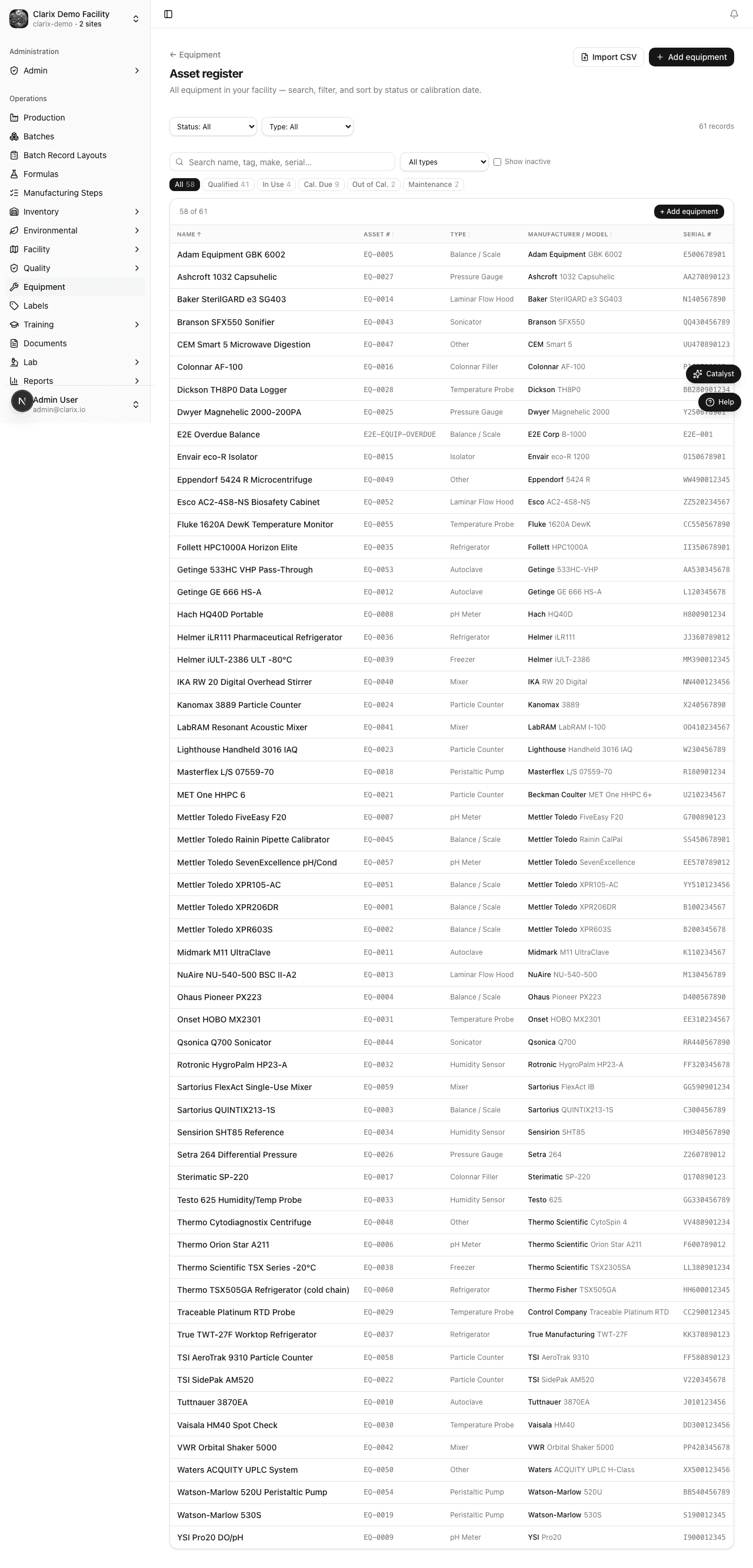
Viewing the asset list
The asset list displays all equipment assets registered in the system. Each row shows:
- Asset Tag — the unique facility identifier (e.g., EQ-0001)
- Name — the descriptive name of the instrument
- Type — the equipment category (balance, oven, autoclave, filler, etc.)
- Room — the room or area where the asset is physically located
- Calibration Status — color-coded: Green (current), Amber (due within 14 days), Red (overdue)
- Next Calibration Due — the calculated next due date based on the last calibration and the calibration interval
Use the search bar to filter by asset tag or name. Use the Type and Status dropdowns to narrow the list to a specific category or compliance state.
Creating a new asset
To add a new piece of equipment to the registry:
- Click New Asset in the top-right corner of the asset list.
- Enter the Asset Tag — this is your internal identifier (e.g., EQ-0001, EQ-0042). Asset tags must be unique across the facility. A consistent numbering scheme (sequential integers) is strongly recommended.
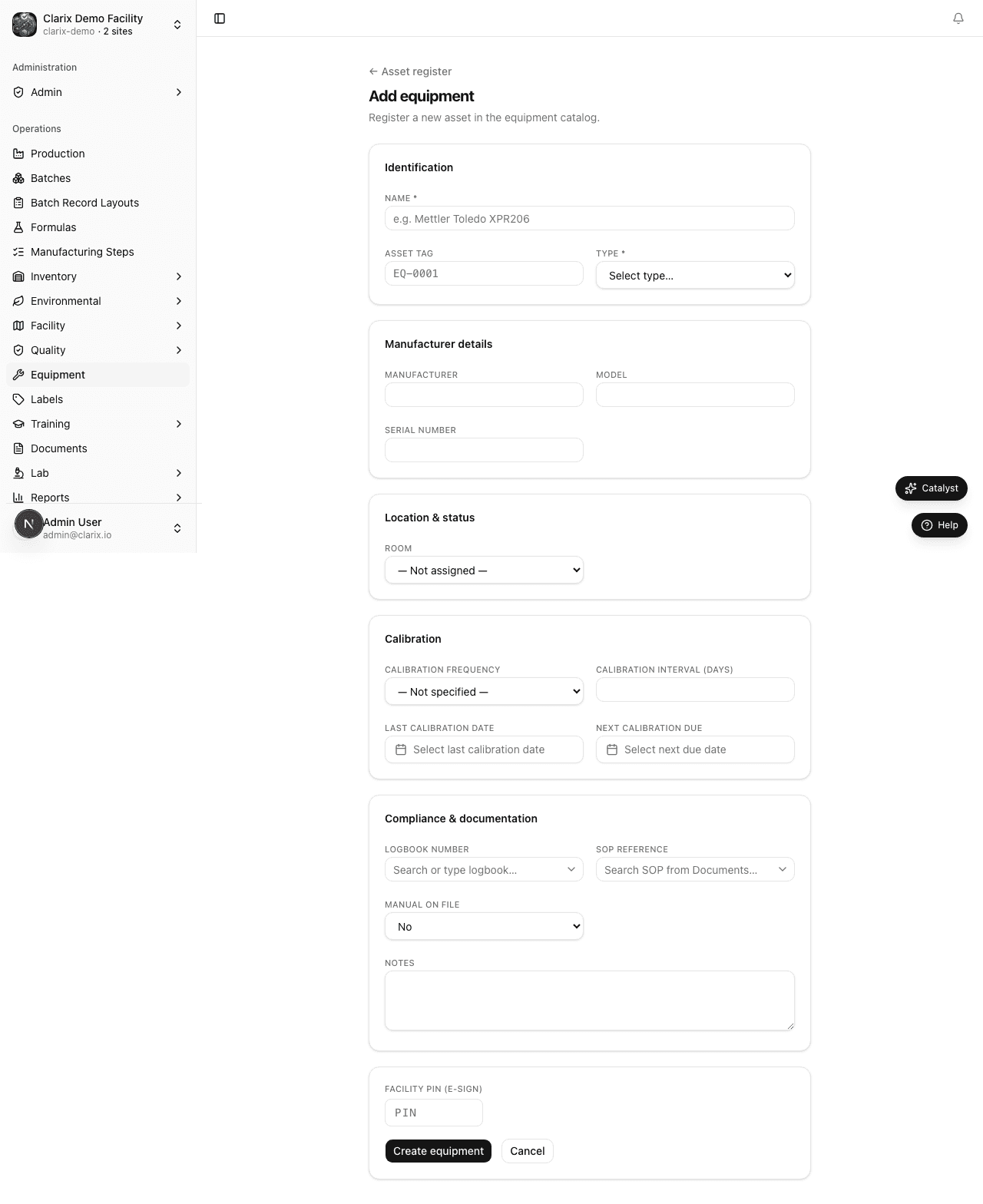
- Enter the Name — use a descriptive name that identifies the instrument to anyone in the facility (e.g., "Analytical Balance — ISO 5 Hood A").
- Enter the Manufacturer (e.g., Mettler Toledo) and Model (e.g., XSR 205).
- Enter the Serial Number exactly as it appears on the instrument nameplate. This is critical for correlating Clarix records with vendor calibration certificates.
- Select the Type from the dropdown. Common types include:
- Balance / Scale
- Oven / Incubator
- Autoclave / Sterilizer
- Filling Equipment
- HEPA / HVAC unit
- Refrigerator / Freezer
- pH Meter
- Conductivity Meter
- Particle Counter
- Environmental Sampler
- Select the Room where the asset is installed. Rooms are configured by your administrator in the Facility module.
- Enter the Calibration Interval (days) — the number of days between required calibrations. Common intervals: 365 days (annual) for most lab instruments, 180 days (semi-annual) for critical process equipment, 90 days (quarterly) for high-use instruments.
- Optionally enter the PM Schedule frequency if the asset has preventive maintenance requirements (see Preventive Maintenance).
- Click Save Asset to create the record.
Example asset entry
| Field | Value |
|---|---|
| Asset Tag | EQ-0001 |
| Name | Analytical Balance — ISO 5 Hood A |
| Manufacturer | Mettler Toledo |
| Model | XSR 205 |
| Serial Number | B123456789 |
| Type | Balance |
| Room | ISO 5 Hood A |
| Calibration Interval | 365 days |
CSV bulk import
If you are onboarding a new facility or migrating from a spreadsheet-based system, Clarix supports bulk import of assets via CSV file at Equipment → Assets → Import (/equipment/assets/import).
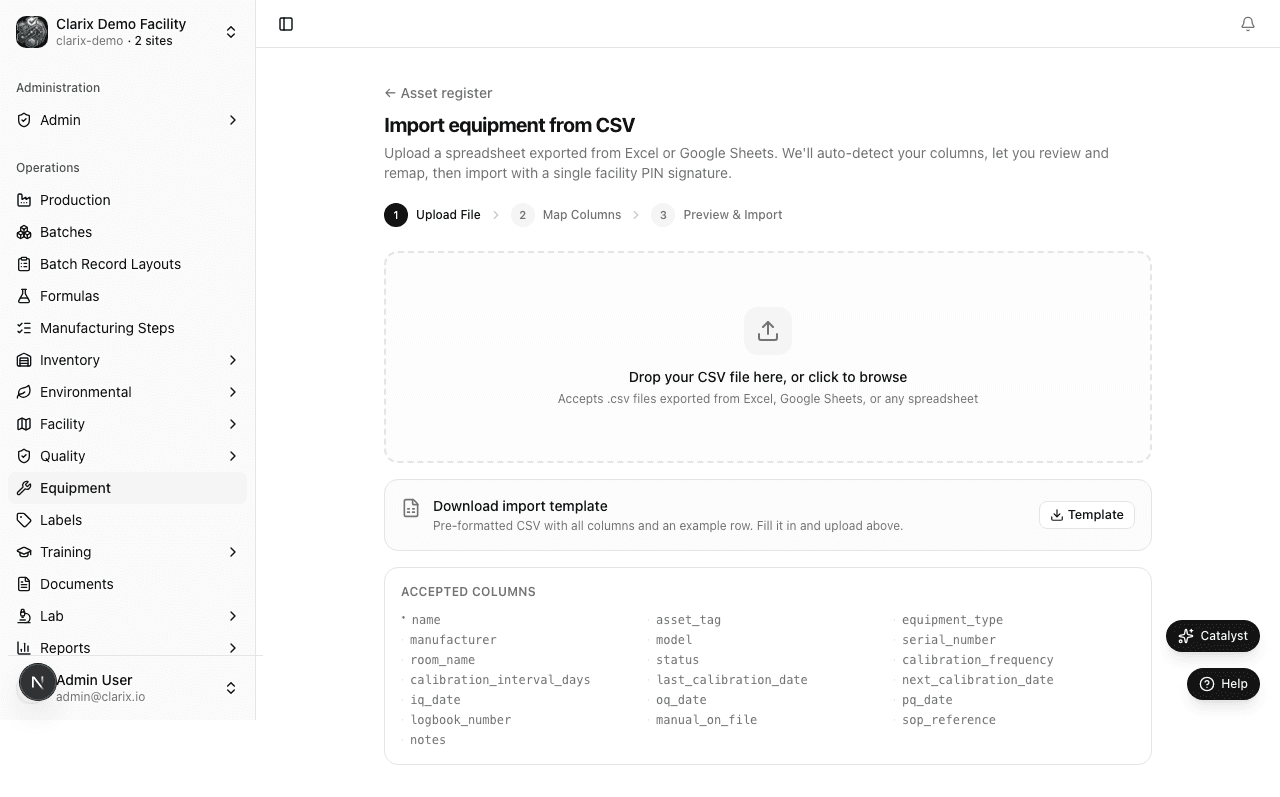
Click Download template on the import page to get the correct file format. Fill in the required columns (asset tag, name, manufacturer, model, serial number, type, room, calibration interval) and upload the completed file. The system validates the data before importing — any rows with missing required fields or duplicate asset tags are flagged for correction.
Editing an asset record
Click any asset row to open the asset detail page. Use the Edit button to update any field on the asset record. Note that changing the calibration interval does not retroactively alter existing calibration history — it affects only future due-date calculations starting from the most recent calibration.
Retiring an asset
When a piece of equipment is decommissioned, use the Retire Asset action on the asset detail page. Retired assets are hidden from the active list but remain accessible in the historical view, preserving the audit trail for any batch records that referenced the equipment during its operational life.
Role required: All staff can view the asset registry. Creating, editing, and retiring assets requires the Equipment Manager or Admin role.