
Dashboard
Understand your Clarix operations dashboard and how to use it to monitor your 503B facility at a glance.
Dashboard
The Clarix dashboard is the first screen you see after signing in. It gives you a real-time summary of your facility's operations — active batches, inventory alerts, equipment status, and staff training compliance — so you can triage issues before they become problems.
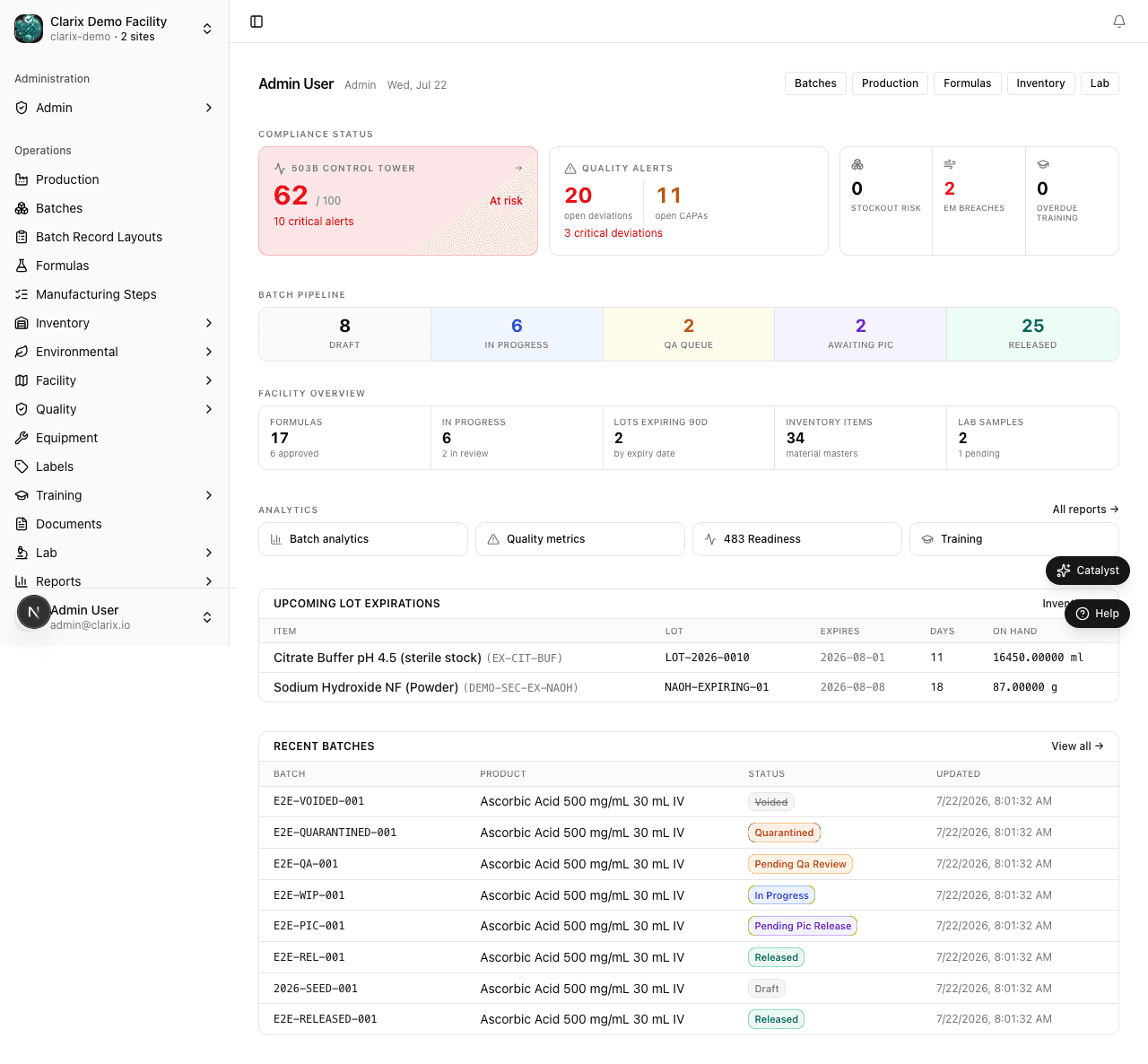
Batch pipeline
The top row of the dashboard shows your current batch pipeline at a glance:
| Metric | What it shows |
|---|---|
| In Progress | Batches currently being executed on the shop floor |
| Pending QA | Completed batches waiting for QA officer review |
| Awaiting PIC | QA-approved batches waiting for final PIC release |
| Released Today | Batches that were fully released today |
Click any pipeline card to jump directly to the filtered batch catalog showing only those batches.
Facility metrics
Below the pipeline, a row of facility-wide metrics gives context for your operations:
- Active Formulas — Number of approved Master Formulas currently available for batch production
- Inventory Items — Total raw material items in your inventory catalog
- Lab Samples — Open QC lab samples currently pending results
Expiring lots
The Expiring Lots section lists all inventory lots with an expiry date within the next 30 days. Each row shows the material name, lot number, quantity remaining, and exact expiry date.
Review this section daily to plan re-ordering and to ensure you do not issue an expired lot to a batch. Issuing an expired lot will be blocked by the system and flagged as a deviation.
To act on an expiring lot, click its row to open the lot detail page where you can review the COA, see which batches it has been issued to, or begin the disposal process.
Active batches
The Active Batches table shows all batches currently in progress or awaiting review. For each batch you can see:
- Batch number (e.g., E2E-WIP-001 for an in-progress VITC-489 run)
- Formula — the Master Formula being used (e.g., Ascorbic Acid 500 mg/mL 30 mL IV)
- Status — current lifecycle state with a color-coded badge
- Assigned technician
- Scheduled date
Click any batch row to open its detail page and see all steps and their completion status.
Calibration alerts
The Calibration Alerts panel shows equipment that is overdue for calibration or preventive maintenance. Each alert includes:
- Equipment name and ID
- Last calibration date
- Days overdue
Important: Equipment that is overdue for calibration cannot be used in batch steps until an Equipment Technician logs a new calibration event.
Click an equipment alert to open the equipment detail page and log the calibration.
Training alerts
The Training Alerts panel lists staff members with overdue training assignments. Each row shows:
- Staff member name
- Training plan or SOP that is overdue
- Days past due date
Click a training alert to open the training compliance record for that staff member.
Quick navigation cards
At the bottom of the dashboard, a grid of module cards lets you jump directly to any part of Clarix:
- Formulas — View and author Master Formulas
- Batches — Open the batch catalog or create a new batch
- Inventory — Manage raw materials and lots
- Quality — Deviations, CAPAs, and compliance
- Equipment — Asset registry and calibration
- Training — Plans, assignments, and compliance
- Environmental — EM sample schedules and results
- Reports — Analytics and 483-readiness
Refreshing the dashboard
The dashboard data refreshes automatically when you navigate to it. To force a refresh while on the page, reload your browser window. Real-time push updates are planned for a future release.
Related pages
- Navigation — How to move around Clarix
- Roles and Permissions — What you see depends on your role
- Batch Overview — Understand the full batch lifecycle