
QA Review and PIC Release
How to submit a completed batch for QA review, approve or reject it as a QA Officer, and perform the final PIC release.
QA Review and PIC Release
After all batch steps are complete and worksheets are filled in, the batch enters the review and release workflow. This two-stage process — QA review followed by PIC release — satisfies 21 CFR Part 211 requirements for independent verification before a batch is released to inventory or dispensing.
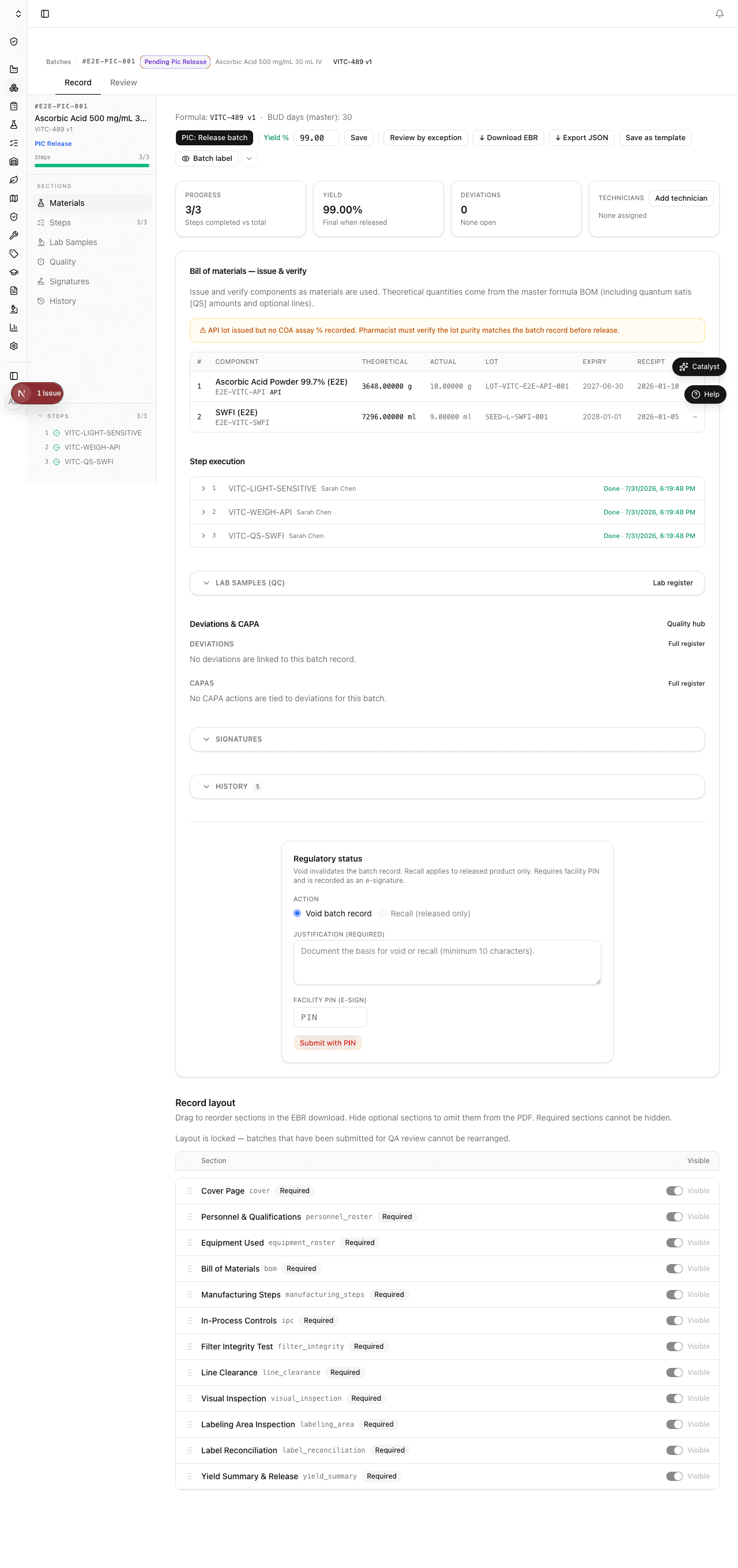
When a batch is submitted for QA review, the detail page shows the full record in read-only mode pending sign-off:
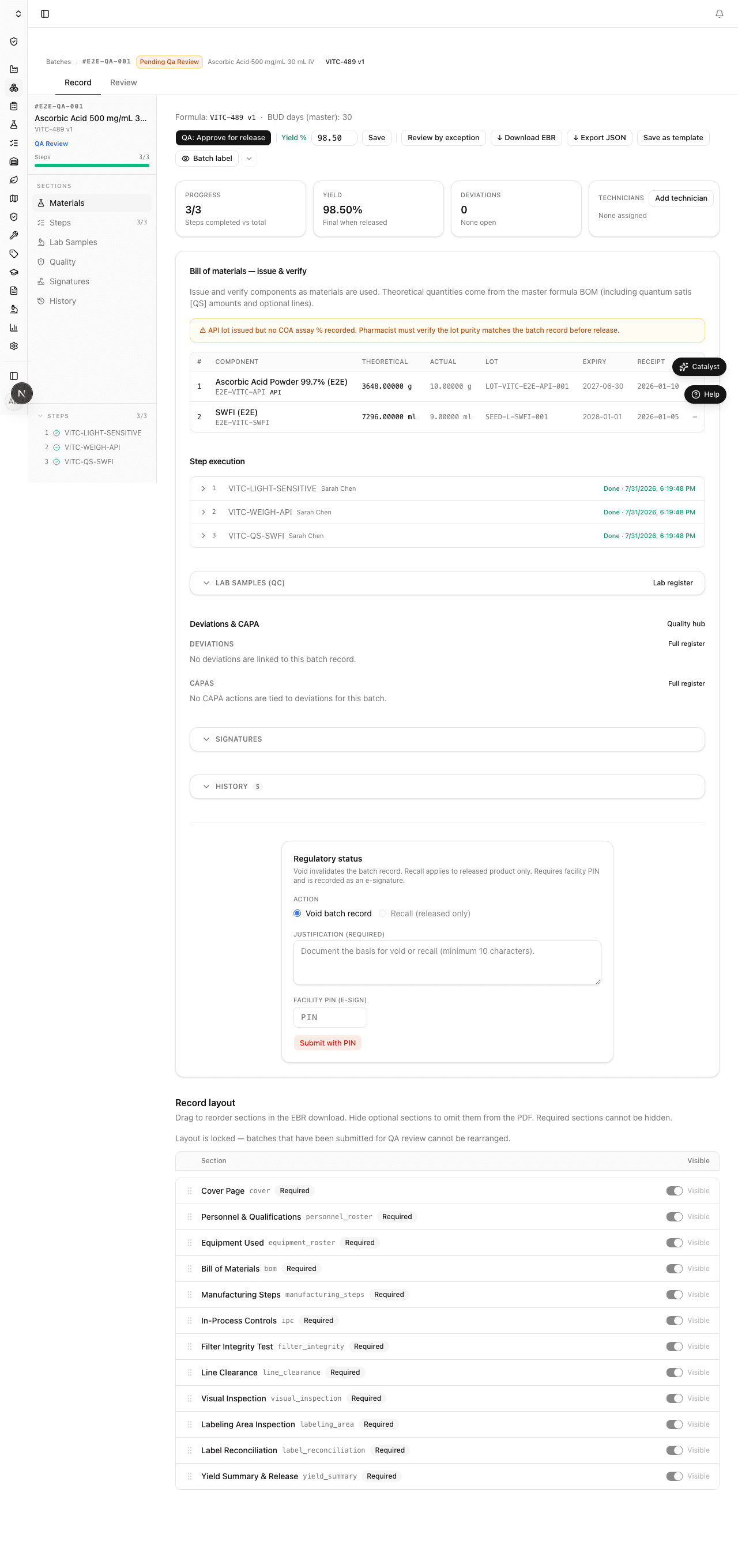
Submitting for QA review
Role required: Compounding Technician or above can submit.
Once all required steps are completed and the actual yield has been entered:
- From the batch detail page, click Submit for QA review.
- A confirmation dialog explains what will happen — the batch record will be locked for editing and a QA Officer will be notified.
- Enter your facility PIN to authorize the submission.
- Click Confirm submission.
The batch status changes to Under QA Review. The batch is now read-only for the compounding team — no further step edits are possible without an approved amendment request.
QA Officer review
Role required: QA Officer or QA Manager.
When a batch is submitted for review, QA Officers see it flagged in the batch catalog and on the dashboard under Pending QA.
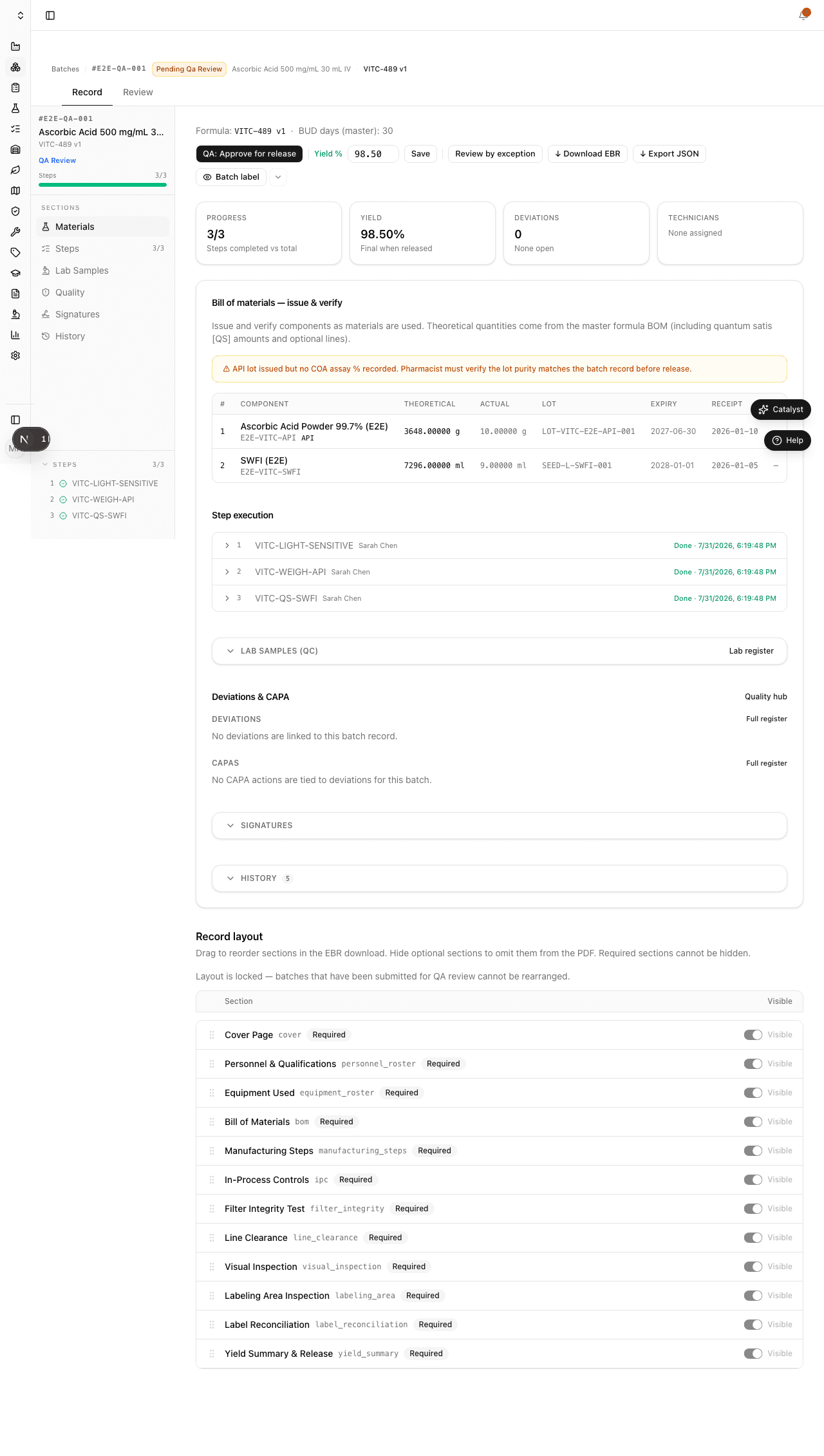
Reviewing the batch record
- Open the batch from the catalog or the dashboard card.
- Review each section of the batch record:
- Steps — all step values, timestamps, and signatures
- Components — issued lots, quantities, and COA assays
- Worksheets — in-process controls, particle counts, visual inspection, label reconciliation
- Amendments — any step corrections and their approvals
- Yield — actual vs. theoretical, with any deviation flags
- If you have questions, use the Comments field to leave notes for the technician or PIC.
Approving the batch
If the batch record is complete and meets specifications:
- Click Approve batch.
- Enter your QA Officer PIN or electronic signature credentials.
- Add any reviewer notes (optional but recommended for complex batches).
- Click Confirm approval.
The batch status changes to QA Approved. The PIC is notified that the batch is ready for final release.
Rejecting the batch
If you find a critical issue during review:
- Click Reject batch.
- Enter the reason for rejection — be specific (e.g., "Step 7 measurement value 3,912 mg exceeds ±50 mg tolerance. Lot purity calculation does not reconcile with yield.").
- Enter your QA Officer PIN.
- Click Confirm rejection.
The batch status changes to Rejected. The system automatically creates a Deviation record linked to this batch documenting the rejection reason. The technician and PIC are notified.
After rejection, the team can decide to: (1) amend and resubmit the batch if corrections are appropriate, (2) open a formal investigation as part of the deviation workflow, or (3) void the batch if it cannot be corrected.
PIC release
Role required: Pharmacist-in-Charge (PIC) only.
The PIC release is the final step before a batch is locked and documented as released.
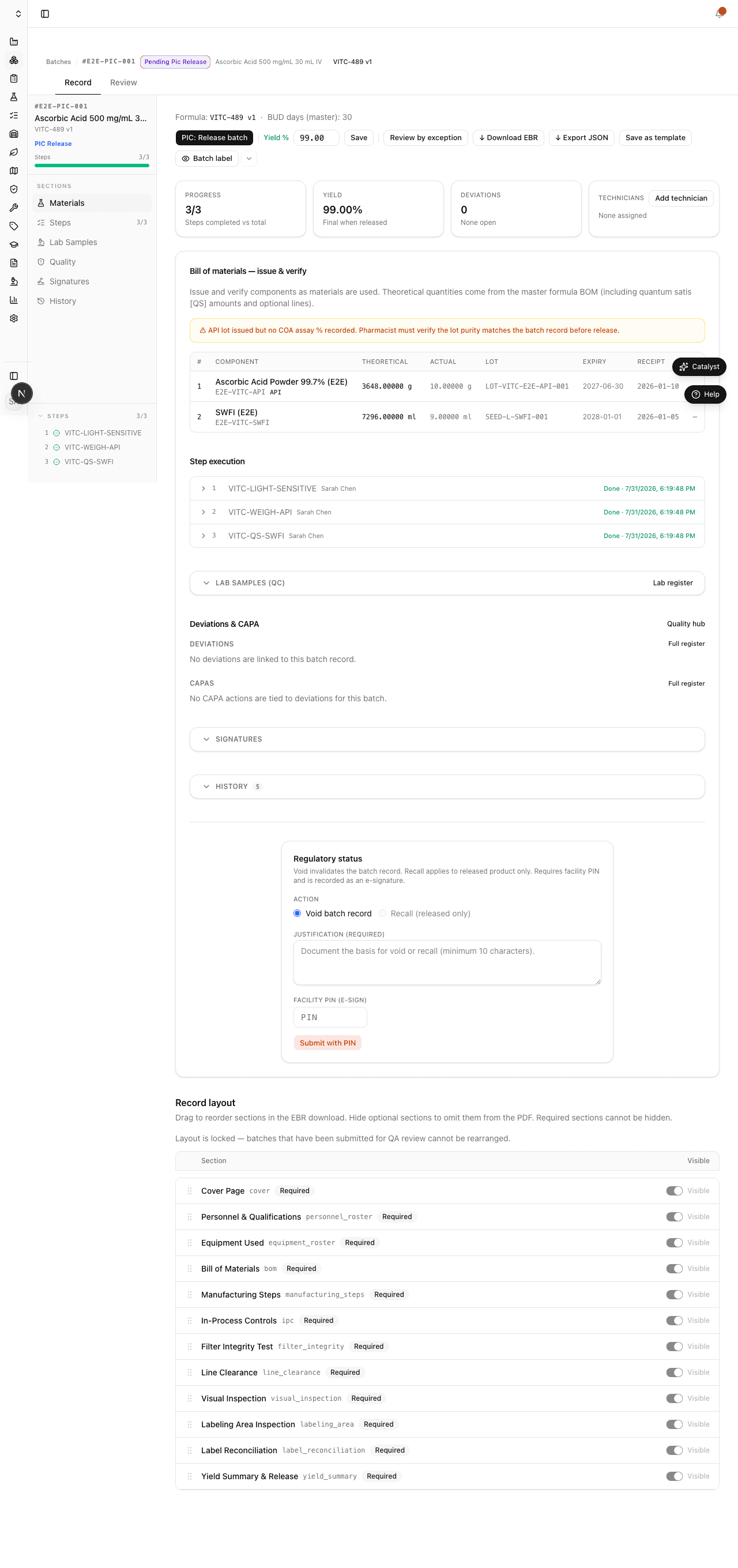
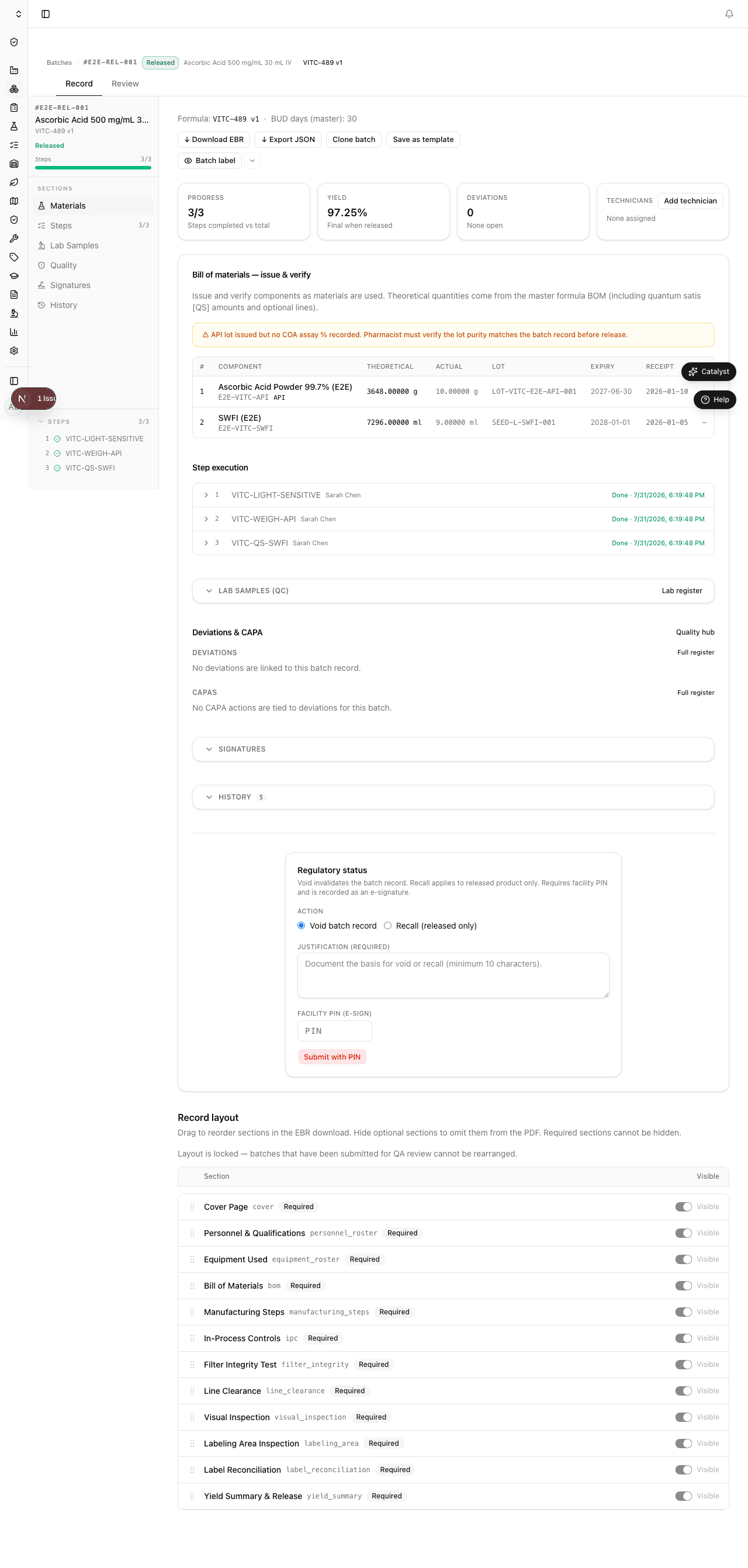
- Open the batch from the catalog (filter by Awaiting PIC status) or from the dashboard.
- Review the batch record, QA notes, and approval signature.
- Click Release batch.
- A release confirmation dialog appears. This action is irreversible — once released, the batch record cannot be modified in any way.
- Enter your PIC PIN and electronic credentials.
- Optionally add release notes (e.g., storage conditions, disposition instructions).
- Click Confirm release.
Lab sample release gate
Before the PIC release is confirmed, Clarix checks every QC lab sample linked to the batch. Release is blocked if any linked sample:
- Has not yet received a result (status is still Collected or In Testing, or
resultPassis null) - Has a failed result (
resultPass = false)
If blocked, you will see an error such as:
"Cannot release: 2 lab sample(s) have pending/missing results. All samples must pass before PIC release."
This gate ensures that a batch cannot be released while any QC result is outstanding or has failed — a direct requirement of 21 CFR Part 211.192 (investigation of any unexplained discrepancy before batch disposition). To proceed, either enter the outstanding results in Lab → Samples or initiate an OOS investigation if a result is failing.
The batch status changes to Released when no gate is blocking. The following then happens automatically:
- The batch record is cryptographically locked
- A timestamped PIC electronic signature is added to the record
- The PDF Master Batch Record (MBR) is generated and made available for download
- The batch appears in released batch reports and inventory records
After release
Once released, the batch record is immutable. No edits, amendments, or additions can be made. If a post-release issue is discovered:
- Open a Deviation linked to the batch number
- If product must be recalled, initiate a Recall from the batch detail page (PIC and Admin permissions required)
- All post-release actions are documented in the audit trail with the batch number as a reference
Downloading the batch record
From the released batch detail page:
- Click Download MBR to download the formatted PDF Master Batch Record
- Click Export JSON to download a machine-readable archive of all batch data
- Both exports include all step values, signatures, and timestamps
Rejected batch workflow
When a batch is rejected by QA, a deviation is automatically created with:
- Reference: the batch number
- Category: Batch rejection
- Description: the rejection reason entered by the QA Officer
The deviation follows the standard quality workflow — investigation, root cause, CAPA, and closure. The deviation must be closed before the batch can be marked as resolved (either resubmitted or voided).
Related pages
- Batch Overview — Full lifecycle including all states
- Executing Steps — What happens before QA review
- MBR and Exports — How to download and archive the batch record
- Review by Exception — QA triage for batches with flags
Worksheets
Learn how to complete the in-batch worksheets in Clarix — in-process controls, particle counts, visual inspection, and label reconciliation.
Production Kanban
Monitor all active batches in real time with the Production Kanban — swimlane view by status, filter by production line, and navigate directly to any batch.