
Organizations
Set up and manage multiple organizations (sites) in Clarix for 503B facilities operating across multiple locations — with per-org data isolation and user membership control.
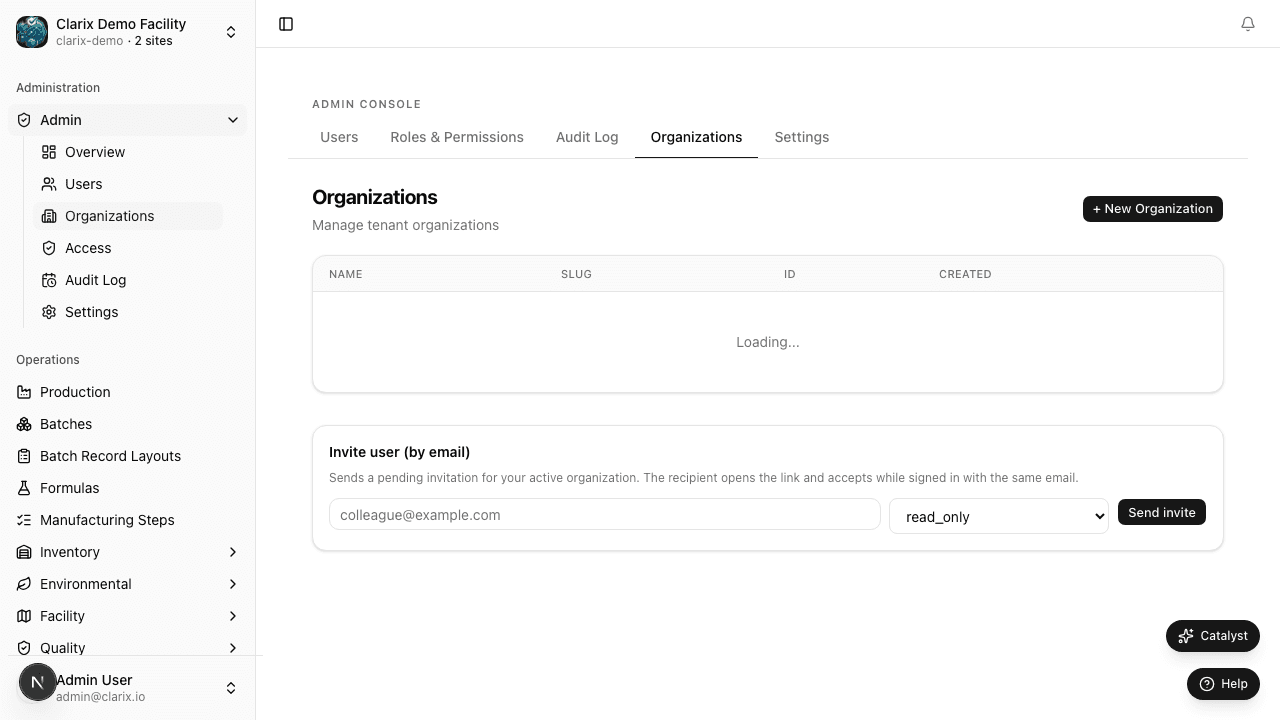
The Organizations page at /admin/organizations allows administrators to manage multi-site or multi-entity configurations in Clarix. If your 503B facility operates a single location, you will have one organization and this page will show just that entry. If your company operates multiple compounding sites — or if you manage a network of pharmacies under a single corporate entity — each site can be configured as its own organization with isolated data and its own user roster.
Role required: Super Administrator. Creating new organizations and managing cross-organization settings requires the Super Admin role. Site-level administrators can view their own organization's details but cannot create new organizations or modify other organizations.
What is an organization in Clarix?
An organization in Clarix represents a distinct operational unit — typically a physical site, facility, or legal entity. Every record in Clarix (batches, formulas, inventory lots, deviations, equipment, EM samples, training records) belongs to exactly one organization. Data does not cross between organizations: a technician logged into Organization A cannot see batches from Organization B, even if they have a user account in both.
This design reflects the 503B regulatory framework, where each facility registration (FEI number) is a discrete regulated entity. Keeping data cleanly separated by organization ensures that your audit trail, batch records, and quality data are always attributable to the correct site.
Creating a new organization
To add a new site to your Clarix account:
- Navigate to Admin → Organizations.
- Click New Organization in the top-right corner.
- Fill in the required fields:
- Organization name — The full legal or operational name of the site (e.g., "Clarix Compounding — Dallas Campus")
- Site code — A short alphanumeric code used as a prefix in certain record numbers (e.g., "DAL"). Site codes must be unique across all organizations in your account.
- Contact name — The primary operational contact or facility administrator for this site
- Contact email — Used for system notifications related to this organization
- Click Create Organization.
The new organization is immediately active. You can now add users to it and begin configuring its settings.
Adding users to an organization
Users can belong to one or more organizations. Adding a user to an organization grants them access to that organization's data at the role they have been assigned.
To add an existing Clarix user to an organization:
- Open the organization from the organizations list.
- Click Add User in the Members section.
- Search for the user by name or email.
- Select their role within this organization (a user can have different roles in different organizations — for example, a QA Manager at the main site might have a Viewer role at a satellite site).
- Click Add to Organization.
To remove a user from an organization without deleting their account, click the Remove button next to their name in the Members section.
The organization switcher
Users who belong to multiple organizations will see an organization switcher in the Clarix sidebar. Clicking their current organization name opens a dropdown listing all organizations they have access to. Selecting a different organization refreshes the app to show that organization's data — batches, inventory, formulas, and all other records are scoped to the selected organization.
The currently active organization is shown in the sidebar header. All actions taken (creating batches, receiving inventory, opening deviations) apply to the currently selected organization. Users cannot accidentally create a record in the wrong organization by mistake — every record creation explicitly records the active organization at the time.
Data isolation between organizations
Clarix enforces strict data isolation at the database level:
- Batches are org-scoped — a batch created in Organization A is never visible from Organization B
- Formulas are org-scoped — each site manages its own master formula library
- Inventory is org-scoped — lot numbers, stock levels, and CoAs belong to a single site
- Users can be shared across organizations, but their data access is always scoped to the organization they are currently operating in
- Audit trails are org-scoped — each organization has its own audit log
The only entities that span organizations are user accounts and (in some configurations) formula templates shared by a Super Administrator from a master organization. Consult your Clarix implementation specialist for cross-org formula sharing options.
Typical multi-site configurations
503B network with a central QA team: Create one organization per physical compounding site. Add QA Officers to all sites so they can cross-review quality events. Each site's compounders, technicians, and PICs are added only to their own organization.
Single site with separate business entities: If your legal structure requires separating, for example, a hospital pharmacy from your 503B operation even though they share a building, create two organizations with separate user rosters, formulas, and batch records.
Pilot implementation: During initial rollout, create your first organization immediately and add all users. Create additional organizations as you bring new sites online. Each new organization starts with empty data and its own settings configuration.
Note: Organization names and site codes appear in exported batch records, PDF reports, and audit trail entries. Choose names that are clear and consistent with how your sites are identified in other regulatory documents (e.g., FDA facility registration records).
Related pages
Managing Users
Invite users, assign roles, edit accounts, ban departing employees, and manage the role hierarchy in Clarix for 503B compounding facility administration.
Audit Trail
The complete, append-only system audit log for all create, update, delete, and signature actions across Clarix — required for 21 CFR Part 11 compliance in 503B facilities.