
Audit Trail
The complete, append-only system audit log for all create, update, delete, and signature actions across Clarix — required for 21 CFR Part 11 compliance in 503B facilities.
The Audit Trail is the complete record of every action taken in Clarix. Navigate to Audit Trail in the sidebar (available to Administrator-level users and above) to access the full log. The audit trail is a cornerstone of your 21 CFR Part 11 compliance posture: it provides a continuous, tamper-evident record of who did what, when, and on which record across every module in your facility's Clarix environment.
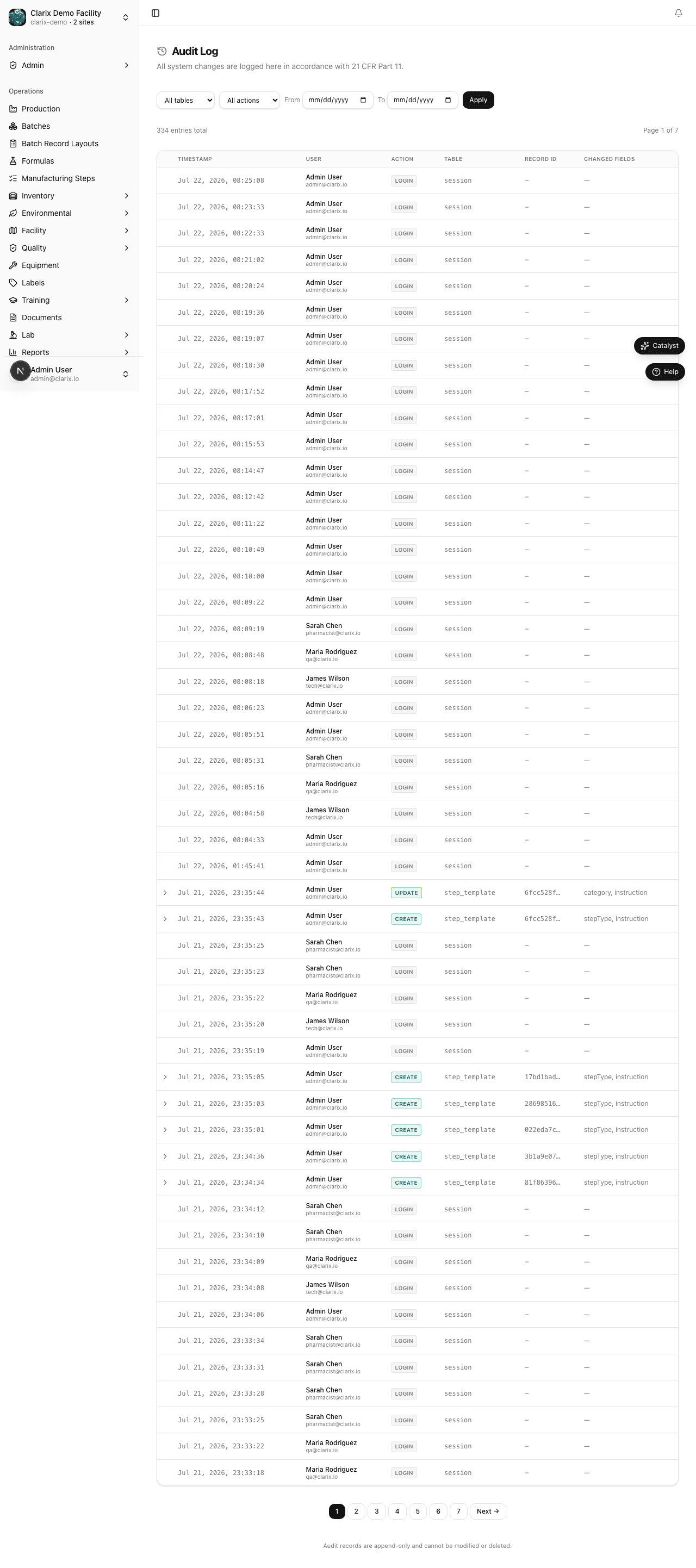
Role required: QA Manager, PIC, Administrator, or Super Administrator. The audit trail is read-only — no entries can be edited, deleted, or modified by any user at any privilege level.
What gets logged
Every significant action in Clarix creates an audit entry. Logged events include:
| Action type | Examples |
|---|---|
| Create | New batch created, deviation opened, lot received, formula published, user invited |
| Update | Batch step value updated, lot status changed, role assignment changed, formula version saved |
| Delete | User account deleted, draft formula discarded, lot disposed, attached file deleted from blob storage |
| Sign | Batch step signed (e-signature), batch started, QA review submitted, batch released |
| Auth | Login success, login failure, password changed, PIN updated |
| Export | Report exported (CSV or PDF), batch record PDF generated |
| Config | Settings changed, business rule toggled, numbering prefix updated, module enabled/disabled |
No action type is excluded. If something happened in Clarix, there is an audit entry for it.
Modules covered
Audit trail coverage spans every module: Batches (start, step completion, QA review, PIC release, amendments), Formulas (approval, version changes), Inventory (lot receipt, status changes, disposal), Quality (deviations, CAPAs, OOS, change control, DCR, risk assessments, protocol validations, RCI), Lab (sample creation, result entry), Equipment (calibration, maintenance logs), Environmental Monitoring (sample collection, excursion investigations), Training (plan assignment, record completion), Documents (create, review, approve, supersede), and Admin (user management, role changes, settings). File attachment and deletion events from any of these modules are also captured with the blob URL and checksum.
What each audit entry contains
Every audit log entry records the following fields:
- Timestamp — Exact date and time of the action (UTC, displayed in your organization's local time zone)
- User identity — The full name and email address of the person who performed the action
- Organization — The organization context in which the action was performed (relevant in multi-site environments)
- Action type — Create, Update, Delete, Sign, Auth, Export, or Config
- Module — The Clarix module where the action occurred (Batch, Formula, Inventory, Quality, EM, Equipment, Training, Admin, Reports, Settings)
- Affected record ID — The unique identifier of the record that was affected (e.g., BN-2026-0112 for a batch, DEV-2026-0045 for a deviation)
- IP address — The client IP address from which the request originated
- Previous values — For Update actions, the field values before the change
- New values — For Update actions, the field values after the change (all values are stored as structured JSON)
Navigating to the changed record
Each audit entry includes a View Record link that navigates directly to the affected record in the appropriate module. For example, clicking View Record on a batch sign entry takes you to that batch's detail page. This makes it easy to investigate a specific event without having to manually search for the record.
Filtering the audit trail
The audit trail can hold hundreds of thousands of entries for an active 503B facility. Use the filters to find specific events quickly:
- Module — Filter to a single module (e.g., Batch, Quality, Admin)
- Action type — Filter to Create, Update, Delete, Sign, Auth, Export, or Config
- Date range — Narrow to a specific day, week, or custom range
- User — Filter to actions performed by a specific person (search by name or email)
- Record ID — Enter a specific batch number, deviation number, or other record ID to see all audit entries for that record
Combine multiple filters to answer precise investigative questions. All filter combinations are resolved instantly without a page reload.
Typical inspector queries
When an FDA investigator asks for audit trail evidence, these are the most common queries you will need to run:
"Who released batch BN-2026-0001, and when?"
Set Module = Batch, Action type = Sign, and enter BN-2026-0001 in the Record ID field. You will see the sign entry for the PIC release, including their name, timestamp, and IP address.
"Show me all changes made to this batch record." Enter the batch number in Record ID and set Module = Batch. All creates, updates, and signs for that batch will appear in chronological order.
"Who changed this user's role?" Set Module = Admin, Action type = Update, and filter by the user's name. The entry will show the previous role and the new role in the values columns.
"Was this lot ever in a non-quarantine status before it was approved?" Enter the lot ID in Record ID and set Module = Inventory. Review all Update entries for the lot's status field to see every status transition in order.
"Show me all logins in the past 30 days." Set Module = Auth, Action type = Auth, and set the date range to the past 30 days. Both successful and failed login attempts are logged.
Append-only design and 21 CFR Part 11
The Clarix audit trail is designed to be append-only: new entries are always added; existing entries are never modified or deleted. There is no administrative interface to purge, edit, or redact audit log entries. This design is a deliberate architectural requirement for compliance with 21 CFR Part 11, which mandates that electronic records be accurate, complete, and protected against unauthorized modification.
Even if a batch record itself is amended (through the formal batch amendment process), the original entries remain in the audit trail. The amendment creates new audit entries; the old ones are preserved.
Note: If you receive a request from legal counsel or a regulatory agency to produce audit trail records, use the Export CSV button on the filtered audit trail view to download the relevant entries. The export includes all displayed columns and is suitable for submission as a formal records production. The export action itself is logged in the audit trail.
Related pages
Organizations
Set up and manage multiple organizations (sites) in Clarix for 503B facilities operating across multiple locations — with per-org data isolation and user membership control.
Settings Overview
Overview of the Clarix settings hub — personal settings (appearance, PIN) and organization settings (modules, numbering, rules, policies, integrations) for 503B facilities.