
Formula Import
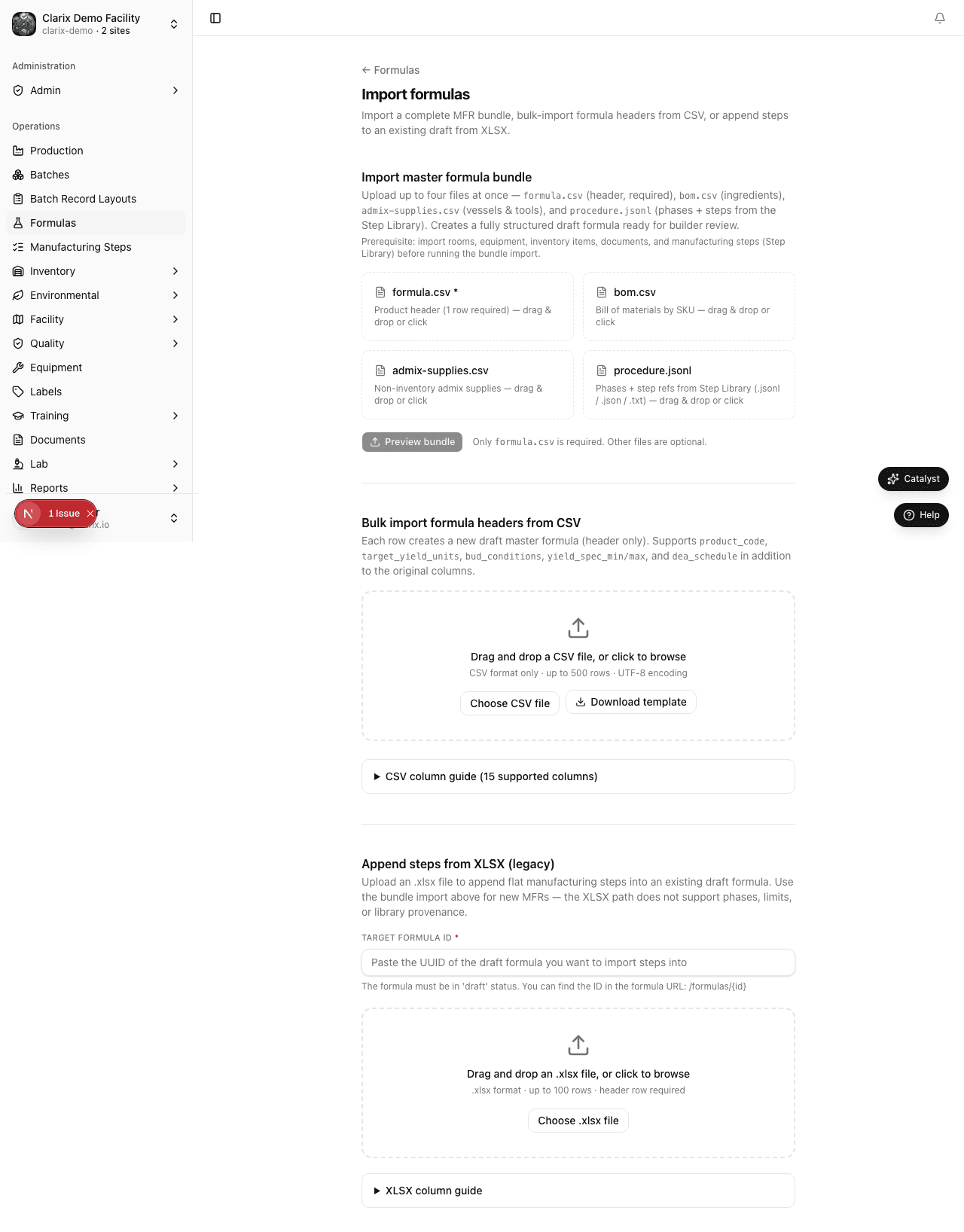
Import paths at /formulas/import — master formula bundle (recommended), header CSV bulk import, and per-formula step import.
Clarix provides three import paths for formulas at Formulas → Import (/formulas/import):
- Master formula bundle import — import a complete MFR from four files:
formula.csv,bom.csv,admix-supplies.csv, andprocedure.jsonl(recommended for new products like VITC-489) - Formula header import (bulk CSV) — create multiple formula record shells at once
- Formula steps import (Excel or CSV) — populate the Steps tab of an individual formula
These tools are especially useful when migrating an existing formula library into Clarix or when building out a large number of formulas efficiently.
Role required: Compounder, PIC, or QA Manager role is required to import formulas.
Master formula bundle import
The bundle import at /formulas/import creates a complete Draft Master Formula — header, bill of materials, admix supplies, and phased procedure steps — from four coordinated files in one transaction.
See Master Formula Bundle Import for full column reference, prerequisite order (Step Library JSONL first), and the VITC-489 Ascorbic Acid walkthrough.
Formula header import (bulk CSV)
The formula header import creates new Draft formula records in Clarix. It does not import BOM lines or steps — those must be added separately after import, either manually or via the steps import tool.
When to use this
- Migrating an existing formula library from a spreadsheet system
- Creating a batch of new formula shells that a team will build out over time
- Rapidly setting up formulas after a system implementation
Step-by-step: importing formula headers
- In the sidebar, click Formulas.
- Click the Import button in the top-right corner of the Formulas catalog page.
- Click Download CSV template to get the correct file format.
- Open the template in Excel or a CSV editor and fill in your formula data.
- Save the file as CSV (UTF-8 encoding recommended).
- Back in Clarix, click Upload CSV and select your file.
- Review the import preview — each row is shown with its parsed values and any validation errors.
- Resolve errors (see Validation errors) and re-upload if needed, or deselect individual rows to skip them.
- Click Confirm import to create the formulas.
CSV template columns
| Column | Required | Description |
|---|---|---|
product_name | Yes | Full product name (e.g., "Ascorbic Acid 500 mg/mL 30 mL IV") |
product_code | No | Internal product code (e.g., "VITC-489") |
strength | No | Concentration or potency (e.g., "4 mg/mL") |
dosage_form | Yes | Must match one of: Injectable Solution, Injectable Suspension, Ophthalmic, Otic, Oral Solution, Oral Suspension, Topical Cream, Topical Gel, Suppository, Capsule, Other |
batch_size | Yes | Numeric batch size (e.g., 240 for VITC-489 vial runs) |
batch_unit | Yes | Unit: mL, L, g, kg, units, capsules, patches |
product_type | Yes | Sterile or Non-sterile |
bud_category | Yes | Sterile: Cat1, Cat2, Cat3 / Non-sterile: NonAqueous, WaterOral, WaterTopical, Other |
bud_days | Yes | Number of days (e.g., 12 for Cat 1 sterile would be entered as 1; Cat 2 as days granted by your study) |
storage | Yes | RoomTemp, Refrigerate, Freeze, or DeepFreeze |
protect_from_light | No | TRUE or FALSE |
risk_level | Yes | Low, Medium, or High |
special_instructions | No | Free text; use double-quotes if the text contains commas |
After import
All successfully imported formulas are created with Draft status and receive auto-generated formula numbers (e.g., MF-2026-0001). They appear in the Formulas catalog filtered by Draft status.
Next steps for each imported formula:
- Open the formula and verify all imported attributes.
- Add BOM lines on the Bill of Materials tab (or use the BOM import on that tab).
- Add steps on the Steps tab (or use the Steps import described below).
- Submit for pharmacist review when complete.
Formula steps import (Excel or CSV)
You can import steps directly into a specific formula's Steps tab. This is useful when you have the manufacturing procedure documented in a structured spreadsheet.
Step-by-step: importing formula steps
- Open the target formula (must be in Draft status).
- Click the Steps tab.
- Click Import steps.
- Click Download template to get the steps template in Excel (.xlsx) format or CSV.
- Fill in the template (see columns below).
- Click Upload file and select your Excel or CSV file.
- Clarix parses the file and shows a step-by-step preview with the step type, label, and any field values parsed from the file.
- Review each step and its configuration. Rows with errors are highlighted in red with an explanation.
- Deselect any rows to skip, or fix the file and re-upload.
- Click Confirm import to add the steps to the formula.
Imported steps are appended to any existing steps. They can be reordered after import using the drag handles.
Steps template columns
| Column | Required | Description |
|---|---|---|
step_order | Yes | Integer; determines the sequence (1, 2, 3…) |
step_type | Yes | One of: Instruction, Measurement, DataEntry, BarcodeScan, Checklist, Verification, Calculation, Timer, Signature, SupplyGathering, LabelVerification, PhotoCapture |
label | Yes | The step title or instruction text |
target_value | Conditional | For Measurement and Calculation steps; can be a numeric value or expression |
min_value | No | Lower bound for Measurement steps |
max_value | No | Upper bound for Measurement steps |
unit | No | Unit of measure for Measurement/Calculation steps |
duration_minutes | Conditional | Required for Timer steps |
duration_seconds | No | Additional seconds for Timer steps |
required_role | Conditional | Required for Signature steps: Pharmacist, PIC, QAManager |
checklist_items | Conditional | For Checklist steps; separate items with a pipe character (|) |
help_text | No | Additional guidance text shown below the step |
warning_level | No | None, Caution, Warning, or Critical (for Instruction steps) |
Supported file formats
- Excel (.xlsx) — recommended; supports the full template with column headers and data validation dropdowns pre-configured in the template file
- CSV (.csv) — UTF-8 encoding; use double-quotes around fields that contain commas or pipe characters
Validation errors
During import preview, Clarix checks each row and displays errors inline. Common errors include:
| Error | Cause | Fix |
|---|---|---|
| Unknown dosage form | Value in dosage_form column doesn't match an allowed value | Use the exact values from the dropdown list |
| Invalid step type | step_type is misspelled or not in the allowed list | Check spelling; refer to the allowed values above |
| Missing required field | A required column is blank for a row | Fill in the required value |
| Expression syntax error | A calculation expression contains invalid syntax | Test the expression in the formula step editor before importing |
| Duplicate formula name | A formula with that name already exists in Draft or Approved status | Rename the formula or skip the row |
Errors are shown row-by-row in the preview table. You can:
- Fix and re-upload — correct the CSV/Excel file and upload again
- Skip invalid rows — uncheck the checkbox on error rows; only valid rows will be imported
- Cancel — discard the import entirely
Related pages
Formula Versioning
How Clarix handles formula versions — creating new versions of approved formulas, how batches retain their formula snapshot, and reviewing version history.
Master Formula Bundle Import
Import a complete master formula in one transaction at /formulas/import — formula.csv, bom.csv, admix-supplies.csv, and procedure.jsonl.