
Bill of Materials
How to add, edit, and manage the ingredient list (BOM) on a Master Formula Record in Clarix.
The Bill of Materials (BOM) is the complete ingredient list for a formula. Every active pharmaceutical ingredient (API), excipient, diluent, and packaging component that goes into the finished product must be listed here with a target quantity and acceptable range. During batch execution, technicians weigh or measure each BOM ingredient, and Clarix checks their entries against these limits in real time.
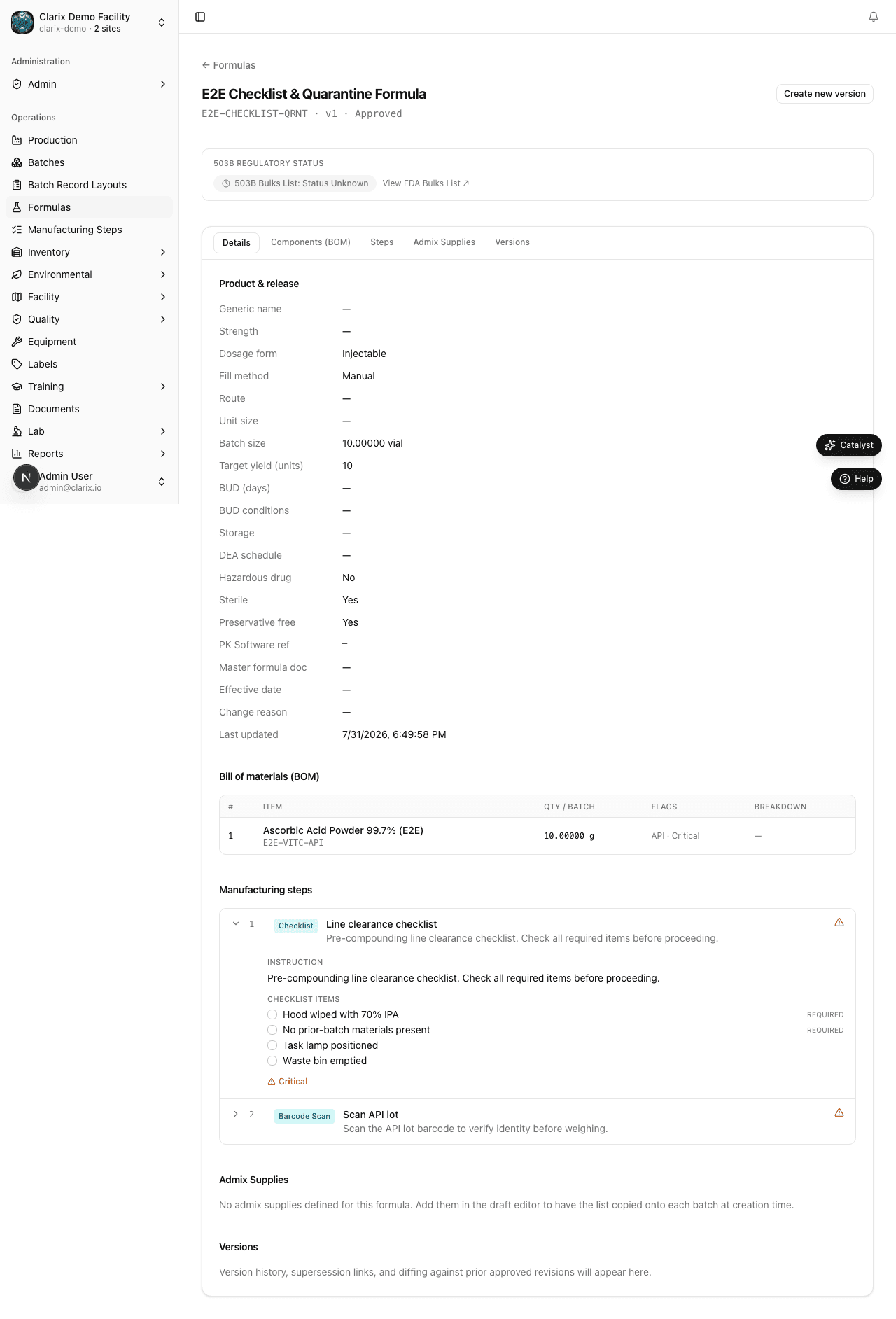
Role required: Compounder, PIC, or QA Manager can add or edit BOM lines on a Draft formula. The BOM is locked on Approved formulas — a new version is required to make changes.
Opening the BOM tab
- Open the formula from the Formulas catalog.
- Click the Bill of Materials tab on the formula detail page.
If the formula is in Draft status, the Add ingredient button appears in the top-right corner of the BOM table.
Adding a BOM line
Each row in the BOM table represents one ingredient or component.
- Click Add ingredient.
- In the ingredient search field, start typing the material name (e.g., "Famotidine"). The search queries your organization's inventory item catalog. Select the correct item from the dropdown.
- Fill in the quantity fields:
| Field | Description |
|---|---|
| Target quantity | The ideal amount to use, expressed in the item's default unit |
| Unit | Auto-filled from the inventory item's default unit; can be overridden |
| Minimum quantity | Lower bound of the acceptable range (optional but strongly recommended) |
| Maximum quantity | Upper bound of the acceptable range (optional but strongly recommended) |
- Click Add to save the line.
Repeat for each ingredient. The BOM table updates immediately.
Setting acceptable ranges
For each BOM line, you can define a minimum and maximum acceptable quantity. These bounds are used during batch execution: if a technician enters a measurement outside the range, Clarix flags a deviation. Ranges should be based on your facility's acceptable limits (typically ±2–5% for APIs, ±5–10% for excipients).
Leave min/max blank only for non-critical components where any reasonable quantity is acceptable (e.g., qs to volume with Water for Injection).
Purity-adjusted quantities
When an ingredient lot has a Certificate of Analysis (COA) assay value on file, Clarix can adjust the required quantity to account for the ingredient's actual purity. This is controlled in the formula's Calculation steps using the variable component["Name"].purity.
For example, if "Famotidine USP" has a target BOM quantity of 10 g but the received lot has an assay of 97.2% (purity = 0.972), the actual mass needed is:
10 g ÷ 0.972 = 10.288 gThis calculation is configured in a Calculation step on the Steps tab using the expression:
component["Famotidine USP"].qty / component["Famotidine USP"].purityThe BOM tab displays the target quantities. The purity adjustment is applied at batch execution time using the actual lot's COA assay. See Step Authoring — Calculation steps for full details on writing these expressions.
Editing a BOM line
- On the BOM tab, click the pencil icon (edit) on the line you want to modify.
- Update the target quantity, unit, or range fields.
- Click Save.
Note: Editing a BOM line on a Draft formula is immediate and does not require re-approval. However, if you edit the BOM on a formula that has already been Approved, Clarix will prevent the save and prompt you to create a new version instead.
Removing a BOM line
- Click the trash icon on the BOM line row.
- Confirm the deletion in the dialog.
Removing an ingredient from the BOM will also break any Calculation or Measurement steps that reference that ingredient by name. Clarix highlights broken step references in red on the Steps tab so you can correct them.
Importing BOM from CSV
For formulas with many ingredients, you can bulk-import the BOM from a CSV file rather than entering each line manually.
- On the BOM tab, click Import BOM.
- Click Download template to get the correct CSV structure.
- Fill in the template columns:
| Column | Required | Description |
|---|---|---|
ingredient_name | Yes | Must match an inventory item name exactly |
target_qty | Yes | Numeric target quantity |
unit | Yes | Unit of measure |
min_qty | No | Lower bound |
max_qty | No | Upper bound |
- Click Upload CSV and select your file.
- Clarix shows a row-by-row preview with any validation errors highlighted in red (e.g., ingredient name not found in catalog, non-numeric quantity).
- Resolve errors in the CSV and re-upload, or uncheck individual rows to skip them.
- Click Confirm import to add the validated rows to the BOM.
BOM on approved formulas
An approved formula's BOM is read-only. This is a deliberate control: once a formula has been reviewed and approved by a pharmacist, changing the ingredient list would invalidate the approval without creating a traceable record.
If you need to change an ingredient, quantity, or range on an approved formula:
- Navigate to the formula detail page.
- Click Create new version.
- A Draft copy of the formula is created (see Versioning).
- Edit the BOM on the new Draft version.
- Submit the new version for approval.
The original approved version remains active until the new version is approved. Batches can continue to be created from the old version during the review period.