
Approval Workflow
How to submit a formula for review, approve or reject it as a pharmacist or QA manager, and what happens when a formula is approved in Clarix.
Every Master Formula Record (MFR) in Clarix must be reviewed and approved by a licensed pharmacist or QA Manager before it can be used to create batches. This approval workflow is a core GMP control that ensures every production formula has been independently verified for accuracy, safety, and compliance with 503B standards.
Who is involved
| Role | Capability |
|---|---|
| Compounder / Technician | Creates the formula draft; submits it for review |
| PIC (Pharmacist-in-Charge) | Reviews and approves or rejects formulas |
| QA Manager | Reviews and approves or rejects formulas |
Role required: Submitting a formula for review requires the Compounder role or higher. Approving or rejecting requires the PIC or QA Manager role.
Submitting a formula for review
A formula can only be submitted for review when it is in Draft status. Before submitting, ensure:
- The formula has at least one BOM ingredient
- The formula has at least one step
- All required formula fields are complete (product name, batch size, BUD, storage conditions, risk level)
To submit:
- Open the formula from the Formulas catalog.
- Verify the formula content on the Bill of Materials and Steps tabs.
- Click the Submit for review button in the formula header.
- In the confirmation dialog, optionally enter a note to the reviewer explaining the purpose of this formula or any items they should pay particular attention to.
- Click Confirm submission.
The formula status changes to Pending Review immediately. The formula is now locked for editing — no further changes can be made until a reviewer approves or rejects it.
What happens after submission
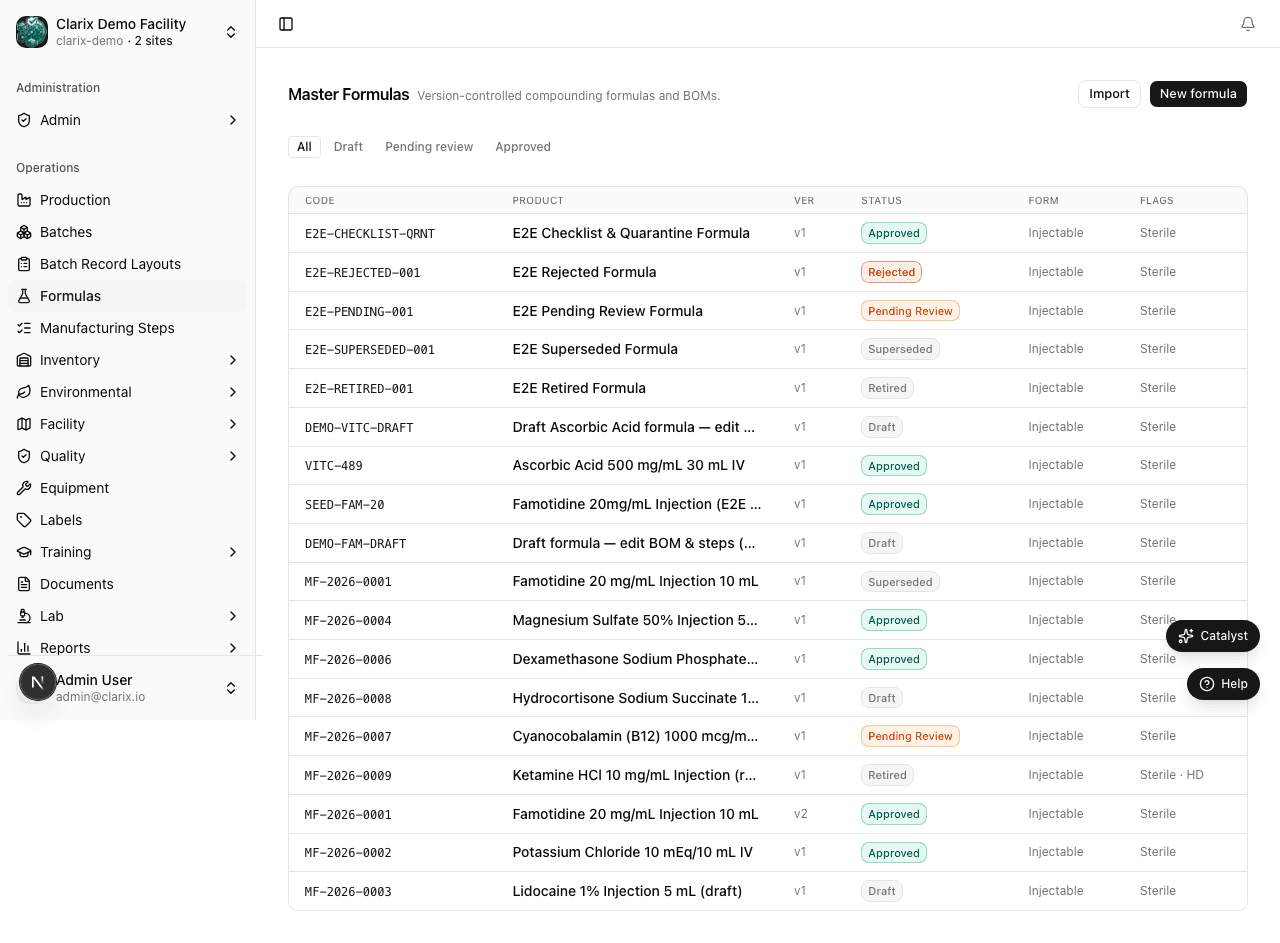
- The formula appears in the Pending Review filter on the Formulas catalog page.
- Reviewers with the PIC or QA Manager role will see a notification badge on the Formulas sidebar item.
- An in-app notification is sent to all users with the PIC and QA Manager roles in your organization.
- The submission is recorded in the formula's audit log with the submitter's name, timestamp, and any reviewer note.
Reviewing a formula (Pharmacist / QA Manager)
- Navigate to Formulas in the sidebar.
- Filter by Status: Pending Review to see formulas awaiting your review.
- Click the formula to open its detail page.
The formula detail page provides full access to all tabs in read-only mode:
- Overview — verify product identity, BUD, storage conditions, and risk level
- Bill of Materials — confirm all ingredients, quantities, and acceptable ranges
- Steps — review each step in sequence; use the step preview to see exactly what technicians will see during batch execution
- Version history — see if this formula is a revision of a prior approved version
Approving the formula
- After completing your review, click the Approve button in the formula header.
- Enter your Clarix password to apply your electronic signature (satisfies 21 CFR Part 11 requirements).
- Optionally add an approval note (e.g., "Approved per SOPs QC-045 and QC-046; BUD category confirmed with stability coordinator").
- Click Confirm approval.
The formula status changes to Approved. Batches can now be created from this formula.
Rejecting the formula
If the formula requires corrections before it can be approved:
- Click the Reject button in the formula header.
- In the rejection dialog, enter a detailed rejection reason that explains what must be corrected. This note is visible to the formula author and is permanently recorded in the audit log.
- Click Confirm rejection.
The formula status returns to Draft. The author receives an in-app notification with your rejection reason. They can make the required corrections and resubmit.
What changes when a formula is approved
Once approved, the following takes effect:
- Batch creation is unlocked — the formula appears in the formula selector when creating a new batch.
- Formula is read-only — the BOM and steps can no longer be edited. To make changes, a new version must be created (see Versioning).
- Approval record is permanent — the approver's name, role, timestamp, and any approval note are stored in the version history and are included in every batch record that uses this formula.
- The formula is indexed for search — it appears in formula lookups across the system (batch creation, reports, imports).
Rejecting and re-submitting
After a rejection, the formula author should:
- Open the rejected formula (status: Draft).
- Review the rejection reason displayed in the formula header banner.
- Correct the identified issues in the BOM, steps, or formula attributes.
- Click Submit for review again to start a new review cycle.
There is no limit on how many times a formula can be submitted and rejected. Each submission and rejection is logged in the audit trail.
Formula version history
Every formula maintains a Version history tab showing every version that has been created, reviewed, and approved (or rejected). The history includes:
| Column | Description |
|---|---|
| Version | Version number (v1, v2, v3…) |
| Status | Approved, Rejected, Draft, or Superseded |
| Submitted by | Name and role of the user who submitted for review |
| Reviewed by | Name and role of the PIC or QA Manager who took action |
| Date | Timestamp of the approval or rejection |
| Notes | Submission note, approval note, or rejection reason |
This history is included in the printed batch record for every batch manufactured using this formula, providing a complete traceability chain from raw material to finished product.
Related pages
Step Authoring
Complete guide to creating and configuring the 12 step types available in the Clarix formula step editor, including the calculation variable system.
Formula Versioning
How Clarix handles formula versions — creating new versions of approved formulas, how batches retain their formula snapshot, and reviewing version history.