
Managing Inventory Items
How to create, configure, and manage material master records (inventory items) in Clarix, including barcode policy and item settings.
An inventory item (also called a material master) is the foundational record for a raw material in Clarix. It represents the generic material — its name, specifications, and operational settings — independent of any specific shipment or lot. Before you can receive a shipment of a material, you must create an inventory item record for it.
Role required: QA Officer or Admin role is required to create or edit inventory items. Viewing items requires any authenticated role.
Creating a new inventory item
- In the sidebar, click Inventory.
- Click the New Item button in the top-right corner of the inventory catalog.
- Fill in the item creation form:
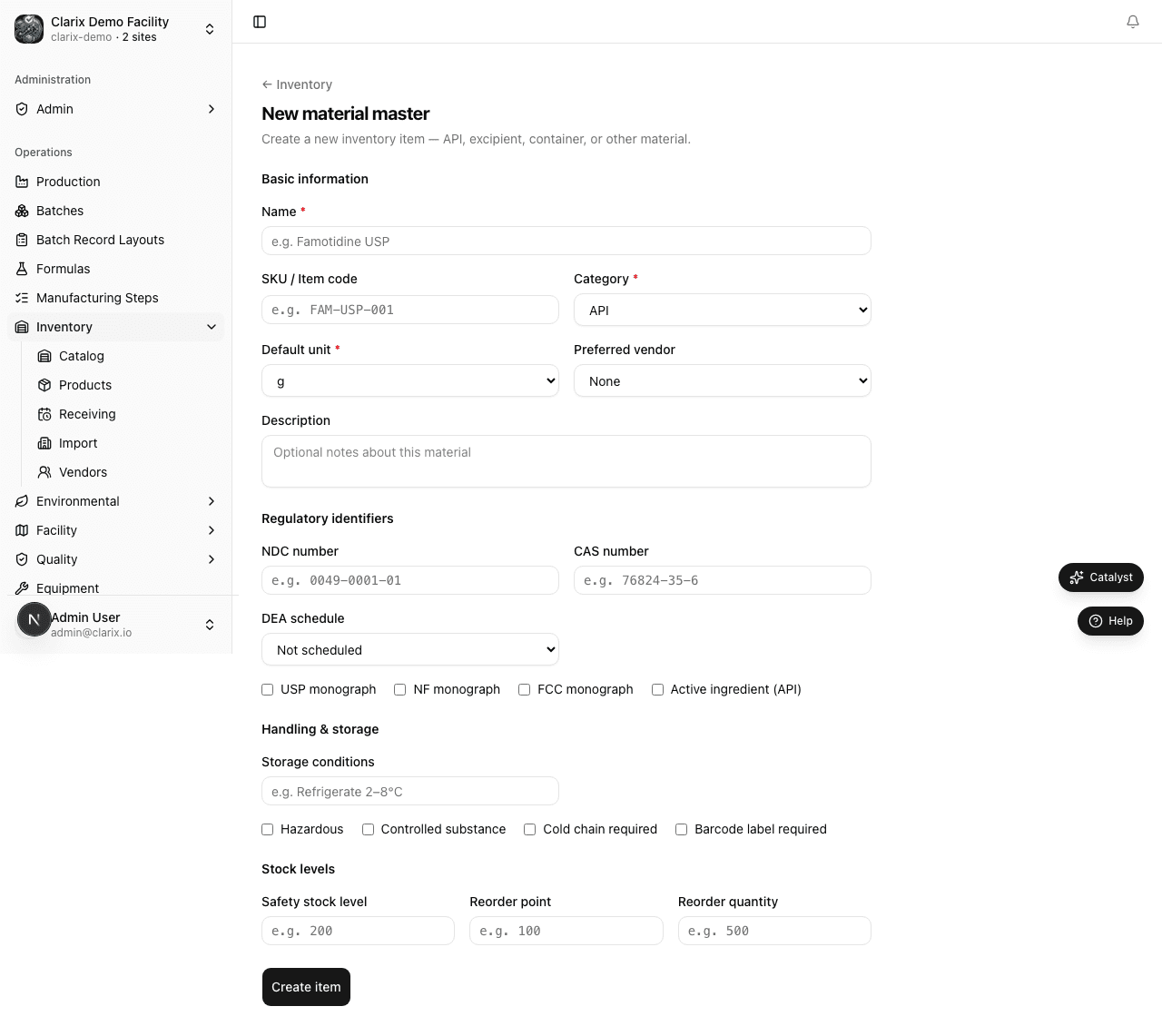
Required fields
| Field | Description |
|---|---|
| Item name | Full descriptive name of the material (e.g., "Ascorbic Acid Powder 99.7%", "SWFI for Injection") |
| Default unit | The standard unit of measure for this material: g, kg, mg, mL, L, units, each. This unit is used as the default when receiving lots and weighing during batches. |
| Category | Select from: API (Active Pharmaceutical Ingredient), Excipient, Diluent, Packaging Component, Labeling, Cleaning Agent, Other |
Optional fields
| Field | Description |
|---|---|
| NDC | National Drug Code (11-digit format: XXXXX-XXXX-XX). Enables NDC-based barcode scanning and labeling. |
| CAS number | Chemical Abstracts Service registry number for the molecule |
| Physical form | Physical state of the material: liquid, powder, oil, device, or other. Corresponds to the "Form" column in many spreadsheet-based inventory lists. |
| Strength | Free-text strength descriptor (e.g., "1N", "200 mg/mL", "0.9%"). Used for display and search; not a substitute for potency calculations in formulas. |
| Speed code | Short mnemonic code for quick lookup (e.g., "NACL", "SWFI", "SEM"). Appears in catalog search and on printed labels where configured. |
| Generic name | International Nonproprietary Name (INN) or generic drug name, when applicable. |
| Unit cost | Cost per default unit (decimal). Used for inventory valuation reports; does not affect batch costing calculations. |
| Manufacturer | Primary manufacturer name as free text. This is separate from your vendor or wholesaler records — it identifies who made the material, not who sold it to you. |
| Compounded in store | When enabled, marks this item as compounded in-house rather than purchased from an external supplier. |
| Generic product ID | External catalog or supplier product identifier (e.g., wholesaler SKU or ERP item code). |
| Label color / text | Label color or text annotation for physical container identification on the shop floor. |
| Reorder threshold | Quantity (in default unit) below which the item is flagged as "Low stock" on the dashboard. Set based on your typical batch demand and lead time. |
| Description / Notes | Internal notes about storage requirements, handling precautions, or sourcing details |
- Click Create item to save.
The new item is created with zero on-hand quantity. You must receive one or more lots before any quantity is available for batch use.
Editing an inventory item
You can edit most item attributes at any time, even if lots are on hand.
- Open the item from the inventory catalog.
- Click the Edit button (pencil icon) in the item header.
- Make your changes.
- Click Save.
Note: Changing the default unit on an item that already has lots does not retroactively convert lot quantities. Only change the unit if you are correcting an initial setup error, and adjust lot quantities manually if needed.
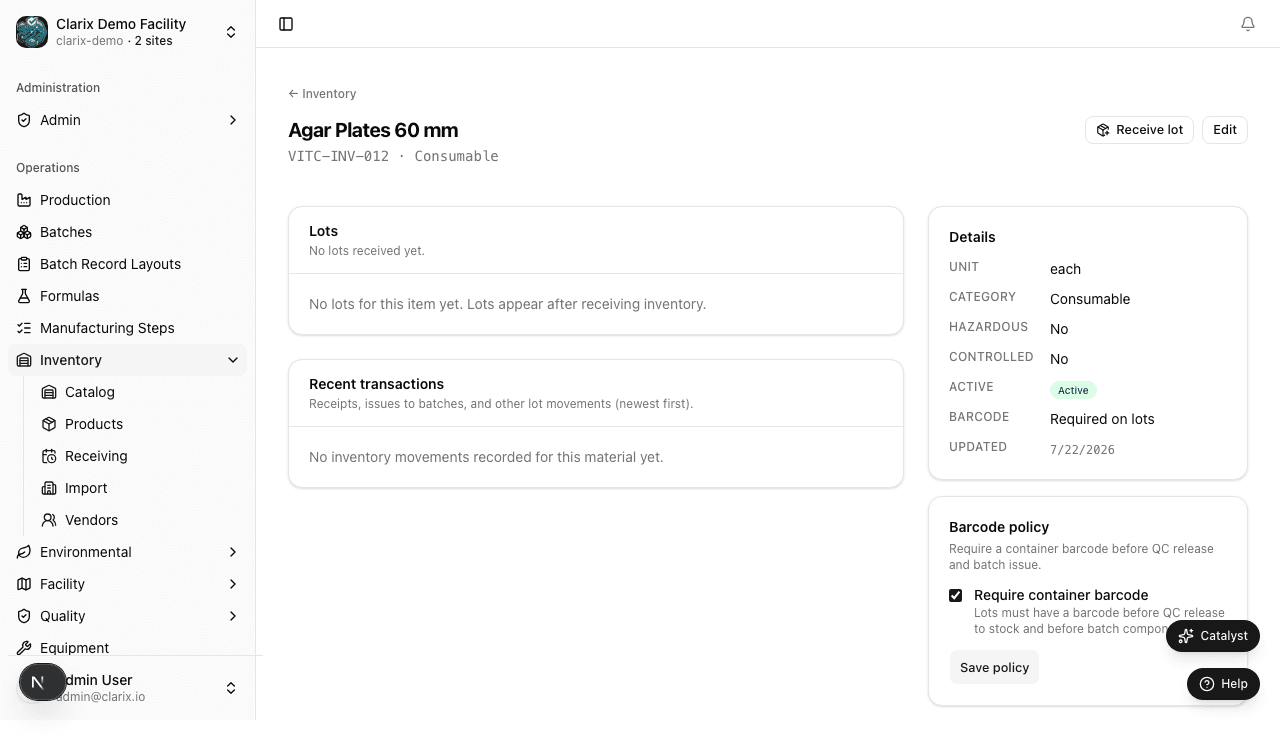
The item detail page
When you open an inventory item, the detail page is organized into three tabs:
Lots tab
Shows all lots for this item — quarantined, released, rejected, and depleted. Each row shows:
- Lot number, manufacturer
- Quantity on hand and unit
- Received date and expiry date
- COA assay percentage
- Status badge (Quarantined, Released, Rejected, Recalled, Depleted)
- Action buttons: Release, Dispose, Adjust, Print label
See Lot Management for details on lot actions.
Transactions tab
A complete audit log of every quantity movement for this item:
| Event type | Description |
|---|---|
| Received | Lot received into inventory |
| Issued | Quantity issued to a batch |
| Returned | Quantity returned from a batch (unused material) |
| Adjusted | Manual quantity adjustment with reason code |
| Disposed | Lot disposed of with reason |
Each transaction row shows the quantity change (+ or −), the lot number, the date, the user who performed the action, and any associated batch number or reason code.
Linked batches tab
Shows every batch that has used this item, with direct links to the batch records. Useful for forward traceability — starting from an ingredient, see all products it has gone into.
Barcode policy: require container barcode
Each inventory item has a Require container barcode toggle. When this setting is enabled:
- Every lot of this item must have a container barcode assigned at receiving time.
- During batch step execution, when a technician reaches a Barcode Scan step linked to this ingredient, they must scan the container barcode before the step is accepted.
- If the scanned barcode does not match a released lot of the correct ingredient issued to the batch, Clarix displays an error and blocks progression.
This policy is recommended for high-risk APIs where material mix-up errors would be catastrophic. It provides an additional layer of protection beyond visual label checks.
To enable the policy:
- Open the inventory item.
- Click Edit.
- Toggle Require container barcode to enabled.
- Click Save.
All new lots received for this item after the policy is enabled will be required to have a barcode. Existing lots without barcodes will display a warning when used in batches, but will not be blocked (to avoid disrupting in-progress batches). Update existing lot barcodes from the lot detail page.
Reorder threshold and low-stock alerts
Set the Reorder threshold to the minimum quantity that you want to have on hand before placing a new order. When the total on-hand quantity (across all released, non-expired lots) falls at or below this threshold, the item is flagged as Low stock on the inventory dashboard and in the catalog.
Low-stock items are also surfaced on the main Dashboard page under the inventory health summary. No automatic purchase orders are created — the alert is informational.
To update the threshold:
- Open the inventory item.
- Click Edit.
- Update the Reorder threshold value.
- Click Save.
Set the threshold to 0 to disable low-stock alerts for an item (useful for one-time or rarely used materials).
Searching and filtering items
On the inventory catalog page:
- Search bar — searches item name, NDC, CAS number, speed code, and generic name
- Category filter — filter by API, Excipient, Diluent, etc.
- Status filter — Normal, Low stock, Out of stock
- Expiring soon — shows items with at least one lot expiring within 30 days
Related pages
Inventory Overview
How Clarix tracks pharmaceutical raw materials at the lot level — including FIFO management, expiry monitoring, COA storage, and quarantine controls.
Receiving Lots
Complete walkthrough for receiving a shipment into Clarix inventory — lot number, quantity, COA assay, barcode, and quarantine release workflow.