
Vendors
How to create, manage, and qualify raw material suppliers in Clarix, and why vendor qualification is required for 503B compliance.
Clarix includes a Vendor management module for tracking the raw material suppliers your facility sources from. In a 503B sterile compounding environment, every API and excipient must come from a qualified supplier. Maintaining vendor qualification records in Clarix creates a direct link between your approved vendor list and the lots you receive, supporting FDA traceability requirements and making compliance audits faster.
Role required: QA Officer or Admin can create, edit, and qualify vendors. All authenticated roles can view vendor information.
Why vendor qualification matters for 503B
Under FDA guidance for 503B outsourcing facilities, you must:
- Qualify each API and excipient supplier before using their materials in compounding
- Maintain records of the qualification basis (audit, questionnaire, COA history, etc.)
- Verify each incoming lot against the approved supplier's COA
- Maintain an Approved Vendor List (AVL) that QA reviews and approves on a defined schedule
Clarix's Vendor module provides the digital backbone for your AVL. By linking lot records to vendor records, Clarix can flag incoming lots from unqualified or deactivated vendors, and your quality team can see at a glance whether a material source is on the approved list.
Approved Supplier List (ASL)
The Approved Supplier List (ASL) is the formal, QA-approved register of vendors that have met your facility's qualification criteria for supplying APIs, excipients, components, and packaging materials. Under 21 CFR 211.84, all incoming components must be received from suppliers whose identity and reliability have been established, and tested or examined appropriately before use in compounded sterile preparations.
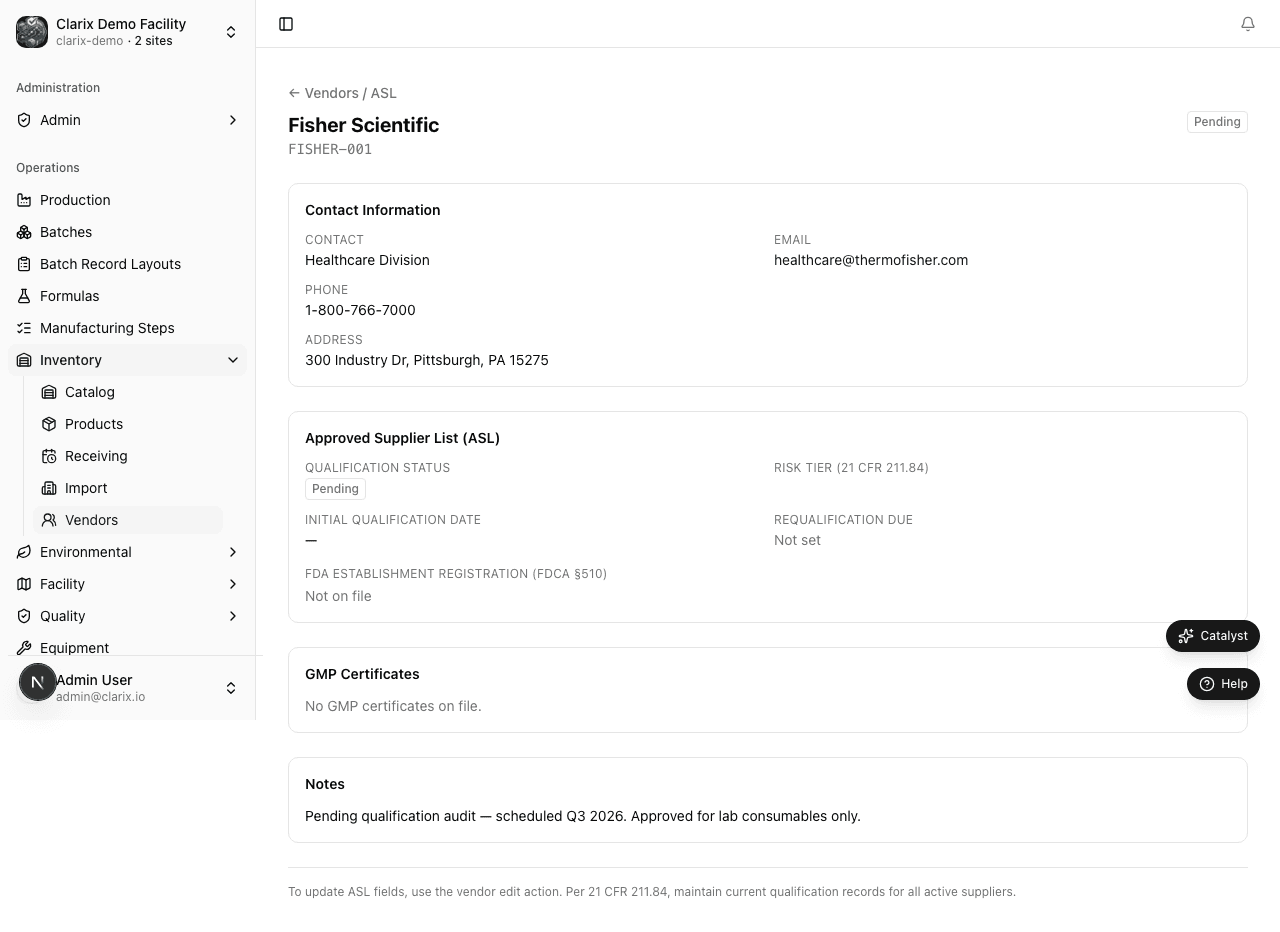
Clarix surfaces the ASL as a filtered view of the vendor catalog — showing only vendors with Qualified status — and augments each vendor record with the additional fields required to support a complete supplier qualification dossier.
ASL-specific fields
The following fields are available on each vendor record to support your formal ASL program. Access them from the vendor detail page under the Qualification tab:
| Field | Description |
|---|---|
| Qualification status | Qualified, Conditional, Pending qualification, or Disqualified. Only Qualified vendors appear on the printed ASL. |
| Risk tier | Supplier risk classification: Tier 1 (high risk — API manufacturer), Tier 2 (medium risk — excipient supplier or repacker), Tier 3 (low risk — packaging or indirect materials). Risk tier drives the requalification frequency. |
| FDA establishment registration number | The vendor's FDA Establishment Identifier (FEI) number. Required for API suppliers operating as domestic or foreign drug manufacturers registered under 21 CFR Part 207. |
| GMP certificates | Upload current GMP certificates (ISO 9001, DUNS, ICH Q10 conformance letter, FDA Drug Establishment Registration confirmation) from the Documents tab. Clarix displays the certificate expiry date and alerts when certificates are within 90 days of expiry. |
| Requalification schedule | The next scheduled requalification date for this vendor. Driven by risk tier: Tier 1 suppliers are requalified annually; Tier 2 every 2 years; Tier 3 every 3 years (or per your written vendor qualification SOP). Clarix sends a reminder 60 days before the requalification date. |
| Qualification basis | Free-text field documenting how the vendor was qualified: on-site audit, questionnaire, COA history review, third-party audit report, or a combination. Reference specific audit report IDs or document numbers. |
| Quality agreement on file | Toggle indicating whether a signed quality agreement exists with this vendor. Required for API suppliers under GMP-aligned programs. |
Printing the ASL
To generate a dated, QA-signed Approved Supplier List for your regulatory file:
- Navigate to Inventory → Vendors.
- Click ASL View in the toolbar to filter to Qualified vendors only.
- Click Export ASL PDF.
- Enter the QA Manager's Facility PIN to certify the list.
- The PDF is downloaded with the facility name, generation date, certifying QA Manager identity, and all Qualified vendor entries.
The exported ASL PDF should be retained in your quality records and refreshed whenever a vendor is added, qualified, or disqualified. FDA investigators may request your current ASL during an inspection.
21 CFR 211.84 incoming material controls
When a lot is received from a vendor, Clarix checks the vendor's ASL qualification status before allowing the lot to be released from quarantine to production:
| Vendor status at receipt | System behavior |
|---|---|
| Qualified | Lot proceeds normally through the receiving workflow |
| Conditional | A warning is displayed at receiving; additional testing requirements noted in the conditional approval are surfaced for the QA reviewer |
| Pending qualification | A warning is displayed; the lot is flagged as received from an unqualified vendor and requires QA Manager approval to release from quarantine |
| Disqualified | Receiving is blocked. A supervisor override (with justification and facility PIN) is required to log the lot at all |
The vendor catalog
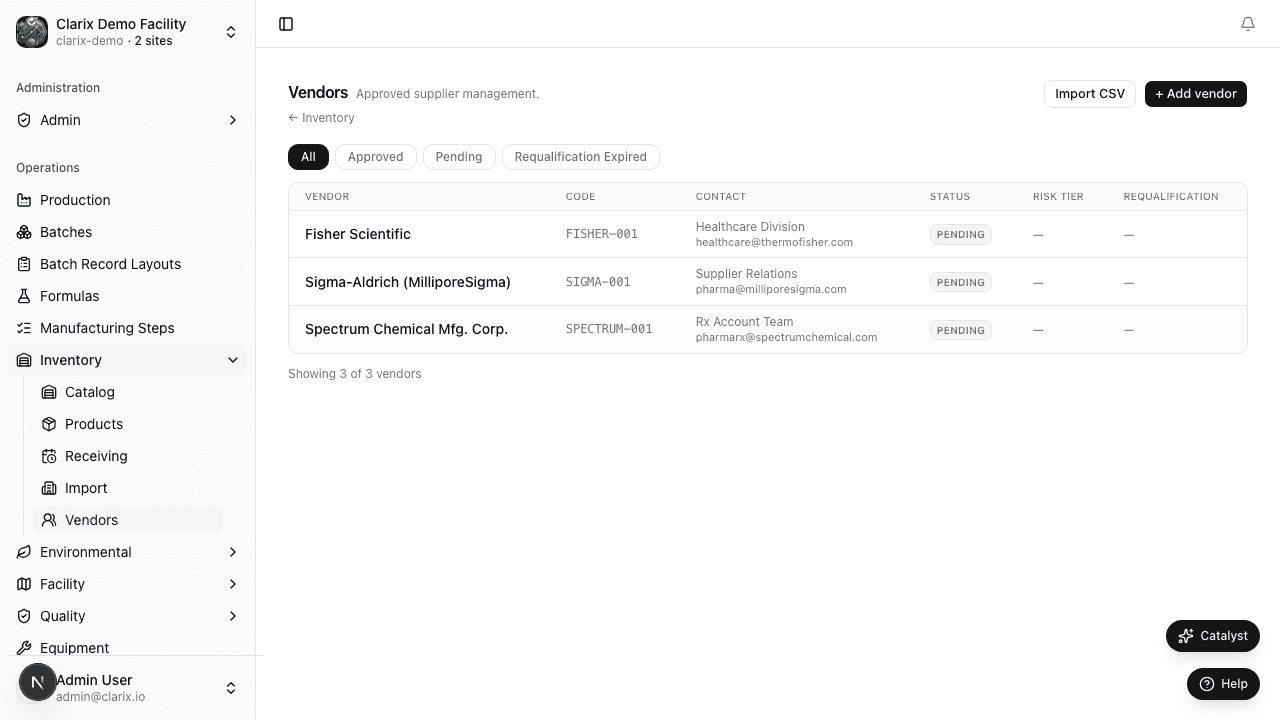
Navigate to Inventory → Vendors to see all vendor records. The vendor catalog shows:
| Column | Description |
|---|---|
| Vendor name | Legal or trade name of the supplier |
| Contact | Primary contact name and email |
| Qualification status | Qualified, Conditional, Pending qualification, or Disqualified |
| Materials | Number of inventory items sourced from this vendor |
| Last reviewed | Date of most recent qualification review |
| Active | Whether the vendor is currently active for sourcing |
Use the Qualification status filter to quickly identify vendors pending review or that have been conditionally qualified.
Creating a vendor
- On the Vendors page, click New Vendor.
- Fill in the vendor creation form:
Contact information
| Field | Required | Description |
|---|---|---|
| Vendor name | Yes | Full legal or trade name (e.g., "Spectrum Chemical Mfg. Corp.") |
| Contact name | No | Primary contact person at the supplier |
| Contact email | No | Email address for procurement or quality inquiries |
| Contact phone | No | Primary phone number |
| Website | No | Supplier's website URL |
Address
| Field | Description |
|---|---|
| Street address | Primary address of the manufacturing or distribution facility |
| City | City |
| State / Province | State or province |
| ZIP / Postal code | ZIP or postal code |
| Country | Country |
The address is particularly important for FDA Drug Supply Chain Security Act (DSCSA) compliance and for locating the supplier during audits.
Qualification status
| Status | Meaning |
|---|---|
| Qualified | Vendor has been fully audited and approved for use. Their materials can be received and released to production. |
| Conditional | Vendor is approved with conditions (e.g., enhanced lot testing required; limited to specific materials). Conditions should be documented in the Notes field. |
| Pending qualification | Qualification is in process. Receiving lots from this vendor displays a warning. |
| Disqualified | Vendor has failed qualification or been suspended. Receiving lots from a disqualified vendor is blocked. |
Check the Qualified checkbox in the form if the vendor has already completed qualification. You can update this later.
Notes
Use the Notes field to document:
- The basis for qualification (e.g., "Qualified per audit QA-V-2025-003, September 2025")
- Any conditional requirements (e.g., "Conditional approval — require independent COA verification for each lot of Famotidine USP")
- Re-qualification schedule (e.g., "Annual re-qualification due Q3 2026")
- Click Create vendor.
Vendor detail page
Click any vendor to open its detail page, which contains:
Materials tab
Lists all inventory items in Clarix that have been linked to this vendor. An item is linked to a vendor when a lot is received with that vendor selected. From this tab you can see:
- Every material sourced from this vendor
- The most recently received lot for each material
- Aggregate on-hand quantity from this vendor's lots
Purchase history tab
A chronological list of every lot received from this vendor, with columns for:
- Lot number
- Material (item name)
- Date received
- Quantity
- COA assay
- Current lot status
This gives QA a complete receiving history for the vendor, useful during re-qualification or in response to a quality concern.
Documents tab
Attach qualification documents directly to the vendor record:
- Audit reports
- Supplier questionnaires
- Quality agreements
- FDA Form 483 responses
- GMP certificates
Accepted formats: PDF, DOCX, XLSX. Maximum file size: 25 MB per document.
Editing a vendor
- Open the vendor detail page.
- Click Edit vendor in the header.
- Update the fields as needed.
- Click Save.
All changes are logged in the vendor's audit trail.
Bulk import vendors (CSV)
Use Inventory → Vendors → Import CSV (/inventory/vendors/import) to create multiple ASL vendor records at once — useful during pilot onboarding or when migrating an approved supplier list from a spreadsheet.
- Open Vendors and click Import CSV.
- Click Download template for the supported columns.
- Fill in the CSV (see columns below) and upload it.
- Confirm column mapping, review the preview, then Import.
Duplicate vendor codes within the organization are skipped. Qualification status values: pending, approved, conditional, suspended, disqualified. Risk tiers: critical, major, minor. Scope may use ; or | separators for multiple materials.
| Column | Required | Description |
|---|---|---|
name | Yes | Supplier legal / trade name |
code | No | Unique vendor code (e.g. VND-KHB-001) |
contact_name | No | Primary contact |
contact_email | No | Orders / quality contact email |
contact_phone | No | Phone |
address | No | Street address |
qualified_supplier | No | yes / true — sets approved when status omitted |
qualification_date | No | YYYY-MM-DD |
qualification_expiry | No | YYYY-MM-DD |
qualification_status | No | ASL lifecycle status |
risk_tier | No | critical / major / minor |
fda_establishment_reg_number | No | FEI / FDA registration number |
qualification_scope | No | Approved materials (; or | separated) |
requalification_due_date | No | YYYY-MM-DD |
notes | No | Free text |
Import before receiving lots that reference vendorCode, so lot receiving can link to the ASL record.
Deactivating a vendor
When a vendor is no longer approved for sourcing — whether due to failed re-qualification, a quality incident, or a business decision — you should deactivate them rather than delete them.
- Open the vendor detail page.
- Click Edit vendor.
- Toggle Active to disabled.
- Update Qualification status to Disqualified if appropriate.
- Add a deactivation note in the Notes field.
- Click Save.
Effect of deactivation:
- The vendor no longer appears in the vendor dropdown when receiving new lots
- Clarix displays a warning when viewing any quarantined lot from a deactivated vendor
- Existing released lots from the vendor are not automatically quarantined — you must separately review and action any in-stock material from a deactivated or disqualified vendor
- The vendor record is retained permanently for audit purposes
Linking vendors to lots
When receiving a lot, you can optionally select the vendor from the vendor dropdown in the receive lot form. Linking the vendor:
- Associates the lot with the vendor's qualification record
- Makes the lot appear in the vendor's purchase history
- Enables the system to warn when a lot is from a conditionally qualified or disqualified vendor
If a vendor is not yet in Clarix when you receive a lot, you can create the vendor record first and then receive the lot, or receive the lot without a vendor link and link it later from the lot detail page.
Related pages
Lot Management
Managing lot statuses, performing lot actions (release, dispose, adjust, print label, trace), and understanding the lot lifecycle in Clarix.
Labels and Barcodes
How to print lot labels and container barcodes from Clarix inventory, and how the container barcode policy works during batch execution.