
Bulk Actions
Multi-select batches in the catalog to quarantine, reassign technicians, or export PDFs in bulk.
Bulk Actions
The batch catalog supports multi-select so you can perform the same action across many batches at once — saving time when managing large production volumes.
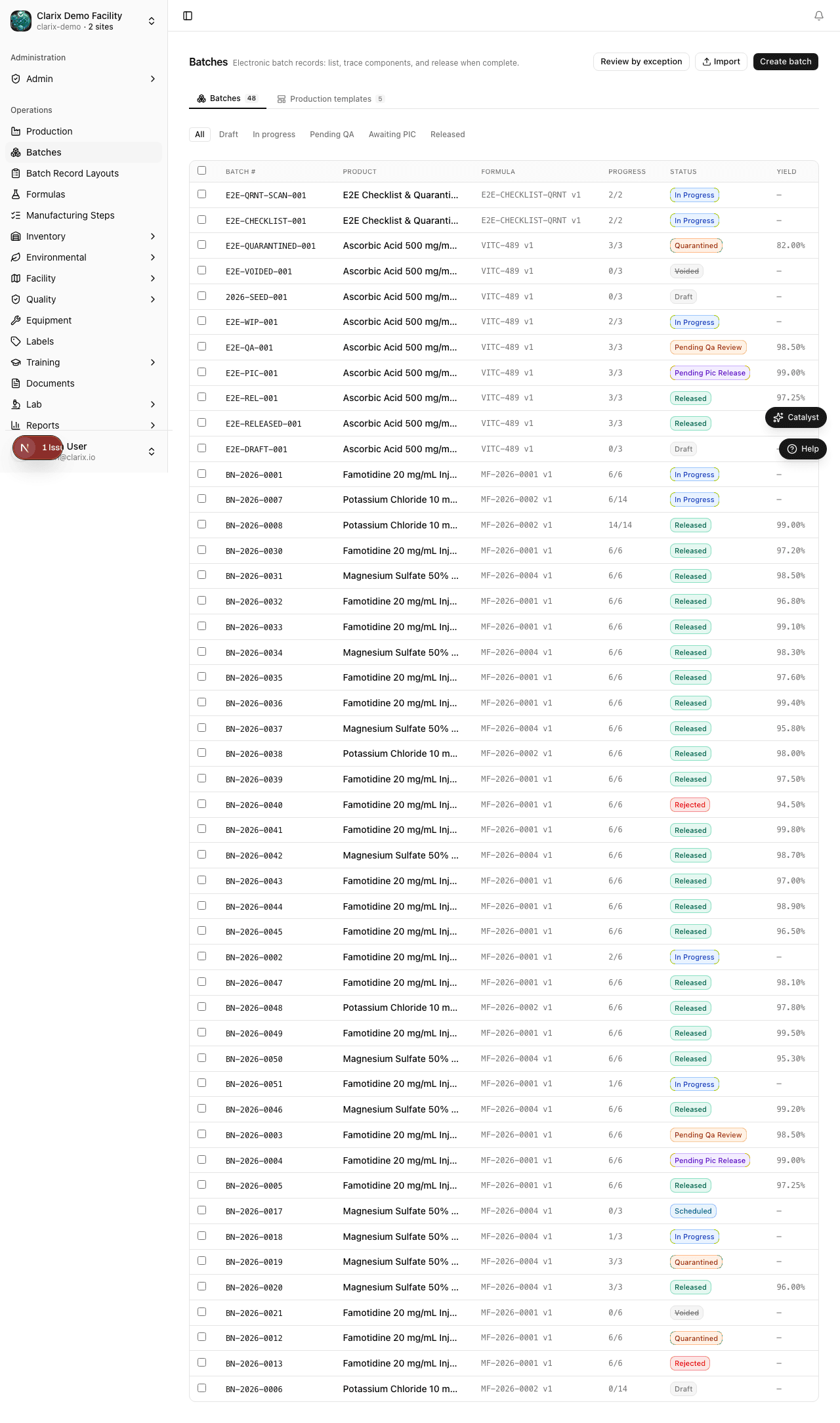
Selecting batches
- Go to Batches in the sidebar.
- Check the checkbox on the left side of each batch row you want to include. A selection count and action bar appear at the top of the table.
- To select all batches matching the current filter, check the header checkbox.
Available bulk actions
Quarantine
Places all selected batches on a QA hold simultaneously. Requires:
- A facility PIN for the QA officer performing the action
- A written reason for the quarantine (mandatory — logged to audit trail)
Quarantined batches cannot be released until a QA officer explicitly lifts the hold.
Role required: QA Officer, QA Manager, or Pharmacist-in-Charge
Re-assign technician
Reassigns the compounding technician on all selected batches. Useful when a technician calls out and another person needs to take over active batches.
Role required: Supervisor, QA Manager, or Administrator
Export PDFs (bulk MBR download)
Generates PDF Batch Manufacturing Records for all selected released batches and downloads them as a ZIP file. Only released batches are included in the export; batches still in progress are skipped with a warning.
Role required: Any user with access to batch records
Batch templates tab
The Templates tab next to the main Batches tab shows saved batch configurations that can be reused to quickly create new batches:
- Switch to the Templates tab in the batch catalog.
- Click a template row to use it as the starting point for a new batch.
- Templates carry forward the formula selection and any pre-configured batch metadata.
Templates are useful for recurring production runs where the same formula and batch size are used repeatedly.
Related pages
Production Batch Templates
Save recurring batch configurations as templates and spin up new production runs in seconds — without re-entering formula, batch size, or setup details each time.
MBR and Exports
Download the Master Batch Record (MBR) PDF and JSON exports from Clarix for regulatory filing and long-term archiving.