
Production Kanban
Monitor all active batches in real time with the Production Kanban — swimlane view by status, filter by production line, and navigate directly to any batch.
Production Kanban
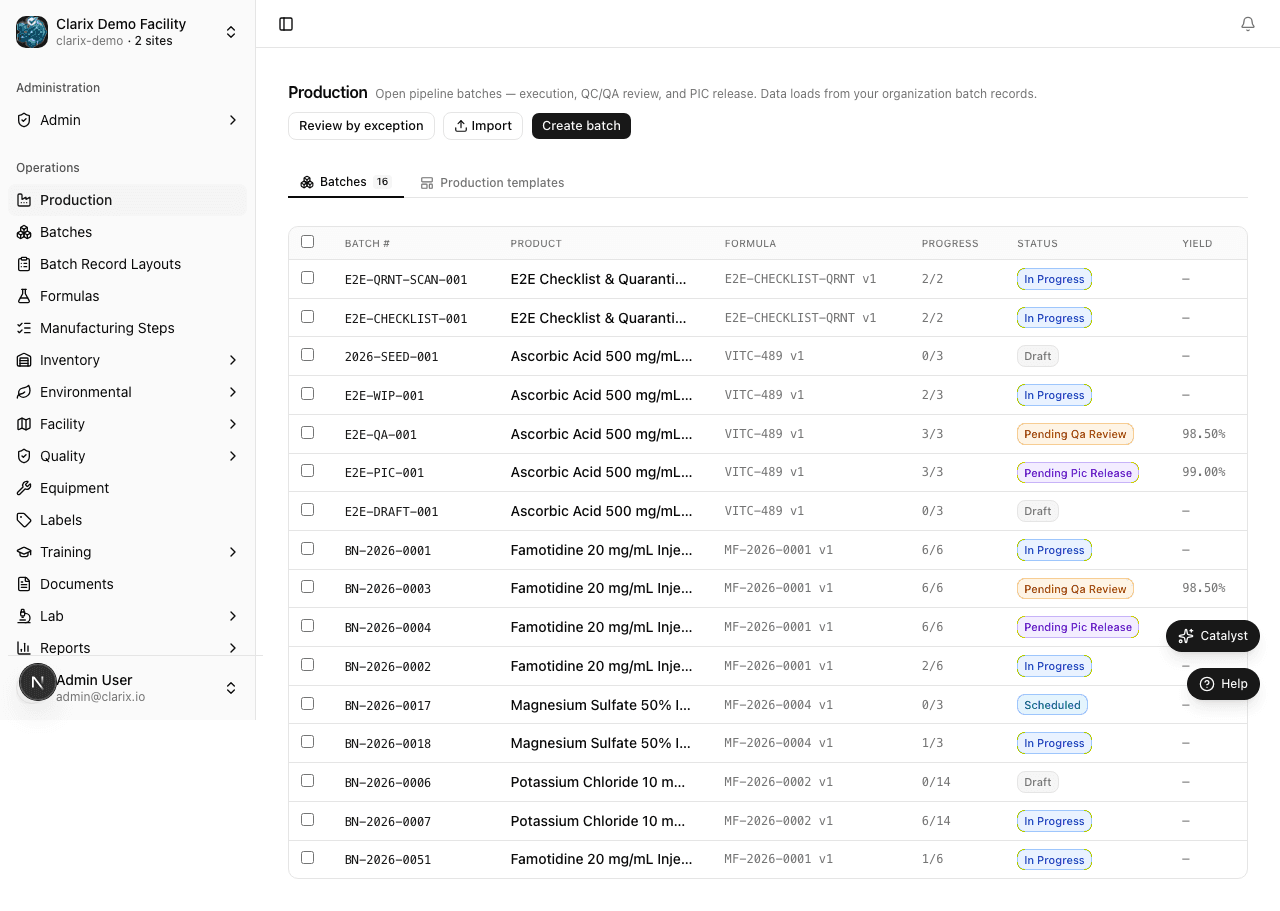
Overview
The Production Kanban at /production provides a real-time visual overview of every batch currently in the production workflow. Batches are arranged in horizontal swimlane columns by status, giving supervisors, QA staff, and technicians an at-a-glance picture of the entire production floor without opening individual batch records.
Only batches that are In Progress or later appear on the kanban. Draft batches are excluded until they are formally started.
Swimlane Columns
| Column | Description |
|---|---|
| In Progress | Batches actively being manufactured — steps are being executed by assigned technicians |
| Pending QA | Batches that have completed all production steps and are awaiting QA review |
| Awaiting PIC | Batches that have passed QA review and require final Pharmacist-in-Charge release sign-off |
| Released | Batches that have been fully released and are ready for dispensing or distribution |
Each batch card in a column displays:
- Batch number — unique identifier with a link to the full batch detail page
- Product name — the compounded formulation
- Assigned technician — the operator currently responsible for the batch
- Step progress — e.g.,
4 / 8 steps complete - Yield — displayed when a yield measurement has been recorded for the batch
How to Use the Kanban
- Navigate to
/productionfrom the main navigation sidebar (under Batches). - Scan the swimlane columns to identify bottlenecks — a large stack in Pending QA may indicate a QA review backlog.
- Click any batch card to open the full batch detail page for that batch.
- Hover over the step progress badge on a card to see a tooltip showing the name of the last completed step.
Filter Options
Use the filter bar at the top of the kanban to narrow the view:
| Filter | Behavior |
|---|---|
| Production Line | Show only batches assigned to a specific production line |
| Technician | Show only batches assigned to a specific operator |
| Date Range | Show only batches with a start date within the selected range |
Filters are reflected in the URL query string, so the filtered view can be bookmarked or shared with a direct link.
Real-Time Refresh
The kanban automatically refreshes every 60 seconds to pull the latest batch statuses. A manual refresh button in the top-right corner triggers an immediate refresh if you need the most current state after a step completion or status change.
Batch Card Actions
- Click a card — opens the full batch detail page.
- Hover over the step progress badge — displays a tooltip with the name of the last completed step and the time it was completed.
Edge Cases
Note: Batches in a Deferred step state remain in the In Progress column — the deferral is visible in the batch detail but does not move the card to a separate column.
Note: Batches with open amendments display an amendment badge (pencil icon) on the card. Click the card to review the amendment in the batch detail.
Note: Draft batches are not shown on the kanban. A batch must be started (moved out of Draft status) before it appears.