
Reports Overview
Pre-built analytics reports for FDA inspections and internal performance review in Clarix — covering batch production, quality, environmental monitoring, training, inventory, and audit readiness.
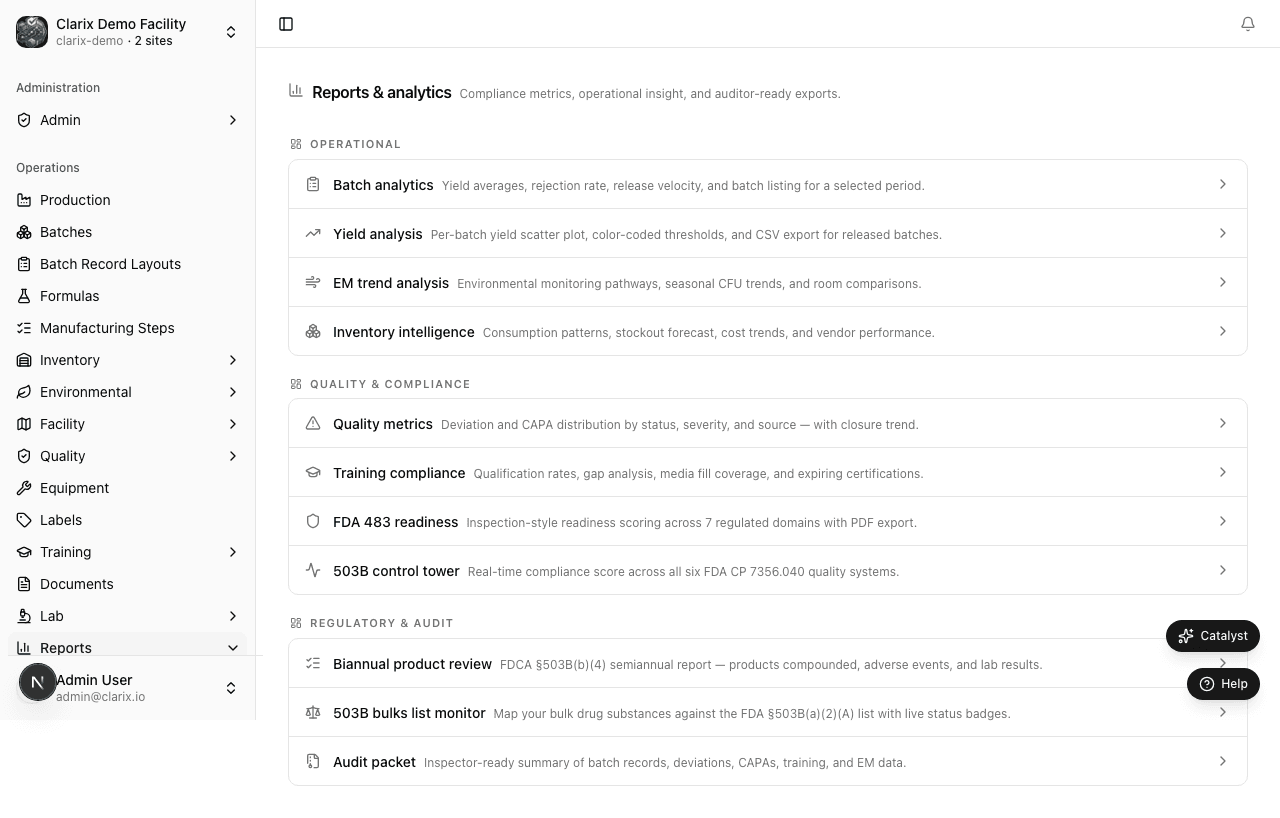
The Reports hub is your central destination for pre-built analytics across every operational domain in Clarix. Navigate to Reports in the sidebar to see all available reports as a grouped list, each linking to a dedicated report page. Every report pulls data in real time from the live database — there are no nightly jobs or stale snapshots. Whatever you see reflects the current state of your facility at the moment you open the page.
Role required: Viewing reports requires the QA Technician role or higher. Some reports (such as 483 Readiness and Training Compliance) are most meaningful to QA Officers, QA Managers, and PICs. All reports are read-only — no data can be edited from a report page.
Why use reports?
Clarix reports are designed for two primary audiences and two primary use cases:
For FDA inspections: FDA investigators often arrive without notice or with very little lead time. When an investigator asks "What is your batch rejection rate over the past 12 months?" or "Show me your environmental monitoring trend for ISO 5 Suite A," you need an answer in seconds, not hours. Clarix reports give you a shareable, exportable answer instantly. The 483 Readiness and Audit Packet reports are purpose-built for this scenario and are the first place your QA team should look when preparing for an inspection.
For internal performance review: Monthly operations reviews, quarterly QA board meetings, and annual program evaluations all require trend data. Reports replace manual spreadsheet exports and give your leadership team consistent, reproducible analytics that update automatically as new batches are completed, deviations are closed, and training records are filed.
All reports include date range filters
Every report page includes a date range filter in the header bar. By default, reports open showing the past 90 days. You can change this to any custom range — last 30 days, last 12 months, a specific quarter, or a precise start-to-end date. Filter changes are reflected immediately; reports do not require a page reload.
Most reports also include additional filters specific to their domain (formula, technician, room, department, etc.). Filters are described in detail on each report's page.
Available reports
| Report | Path | Primary use |
|---|---|---|
| 503B Control Tower | /reports/503b-control-tower | Composite 503B compliance score, critical alerts |
| Batch Analytics | /reports/batch-analytics | Monthly operations review, volume and yield trending |
| Yield Analysis | /reports/yield | Identify technician or formula yield patterns |
| Quality Metrics | /reports/quality-metrics | Quarterly QA review, CAPA effectiveness |
| EM Trends | /reports/em-trends | Environmental program annual review |
| Inventory Intelligence | /reports/inventory-intelligence | Procurement planning, vendor qualification |
| Training Compliance | /reports/training-compliance | Inspector-ready training evidence |
| 483 Readiness | /reports/483-readiness | Pre-inspection checklist, inspector-ready PDF |
| Audit Packet | /reports/audit-packet | Single-page pre-inspection PDF with date-range selector |
| Biannual Product Review | /reports/biannual | Annual BPR narrative with summary tables |
| 503B Bulks List Monitor | /reports/bulks-list | 503B bulk drug substance qualification tracker |
Exporting report data
Most reports offer an Export CSV button that downloads a flat file of all data underlying the current chart view, respecting the active filters. The following reports additionally offer a Export PDF button that generates a formatted PDF summary suitable for handing directly to an FDA investigator:
- 483 Readiness — full scoring breakdown, open deviations, EM excursions, and training gaps.
- Audit Packet — compact one-page summary scoped to a configurable inspection window.
Exported files are named with the report name and the date of export (for example, batch-analytics-2026-06-01.csv). Keep exported PDFs in your inspection readiness file and refresh them at least monthly.
Note: All export actions are logged in the audit trail. The log entry includes the user identity, the report name, the active filters at the time of export, and the export timestamp. This gives you a defensible record of when a report was generated and by whom — important if an investigator asks when your last pre-inspection review was conducted.
Navigating to a report
- Click Reports in the left sidebar navigation.
- The reports hub displays all eleven report entries grouped by category. Each entry shows the report name and a brief description.
- Click any entry to open that report.
- Use the date range picker in the top-right of the report to select your time window.
- Apply any additional filters relevant to the report (formula, technician, department, etc.).
- Use the Export button if you need a downloadable copy of the data.
Related pages
EM Locations
Registering environmental monitoring sample points — room linkage, location types, and USP 797 coverage
503B Control Tower
Real-time readiness scoring across all six FDA Compliance Program 7356.040 quality systems — your always-current inspection readiness dashboard for 503B outsourcing facilities.