
Module Settings
Enable or disable Clarix product modules for your organization — hide unused features from the sidebar.
Module Settings
Module Settings at /settings/modules lets administrators turn individual Clarix modules on or off for their organization. Disabled modules are hidden from the sidebar and navigation, simplifying the interface for facilities that don't need every feature.
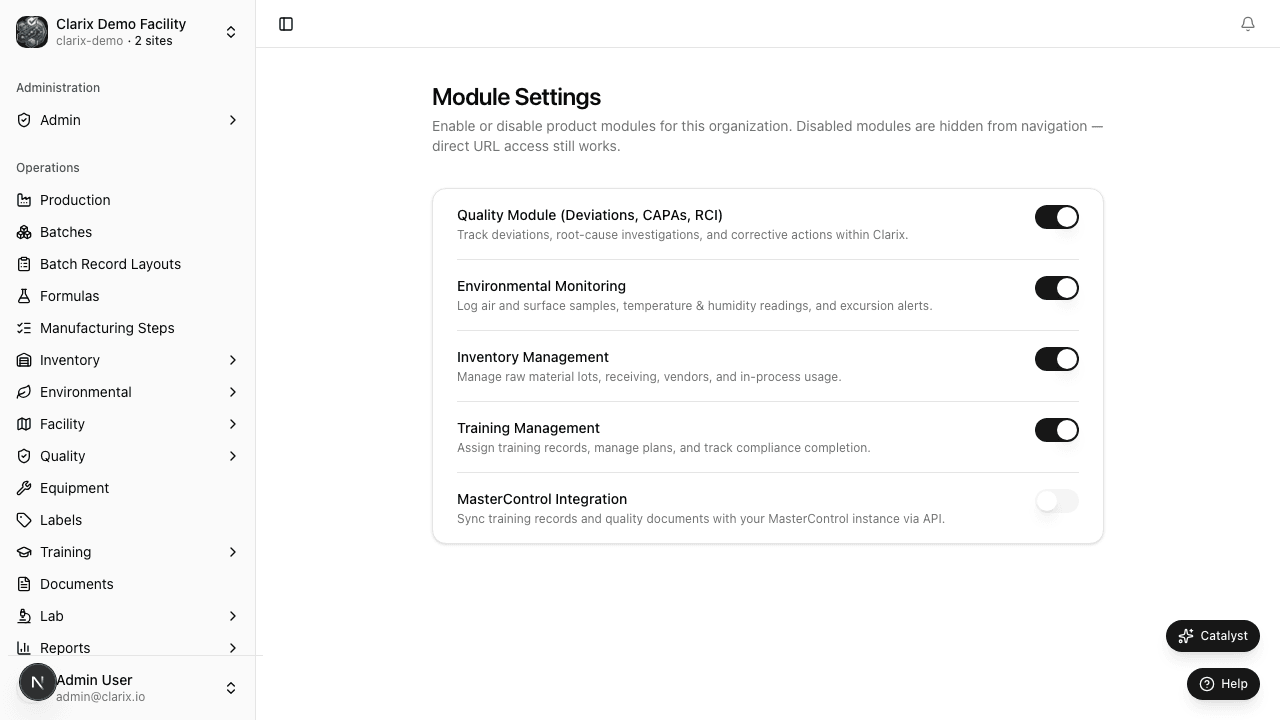
Available modules
| Module | What it controls |
|---|---|
| Quality | Quality hub, deviations, RCIs, CAPAs, OOS, DCR, change control, risk assessment, protocol validation |
| Environmental | Environmental monitoring, sampling, excursions, T&H log |
| Lab | QC sample tracking and lab results |
| Training | Training plans, records, and personnel matrix |
| Documents | Controlled document library |
| Labels | ZPL label template management |
| Facility | Floor plan and room register |
How to enable or disable a module
- Go to Settings → Module Settings.
- Find the module you want to enable or disable.
- Toggle the switch next to the module name.
- The change takes effect immediately — no restart required.
Role required: Administrator only.
Module dependencies
Some modules depend on others being configured first. The table below documents these relationships.
| Module | Depends on | Notes |
|---|---|---|
| Batches | — | Core module, always enabled |
| Inventory | — | Core module, always enabled |
| Formulas | — | Core module, always enabled |
| Quality | — | Standalone; deviations raised from batch execution appear even if Quality module is disabled, but the full Quality hub is hidden |
| Environmental | Facility | EM locations require facility rooms to be configured before monitoring can be set up |
| Training | — | Standalone; training gates in batch execution still run even if the Training module is hidden from the sidebar |
| Documents | — | Standalone |
| Labels | — | Requires at least one Approved label template before label printing is available in batch execution |
| Facility | — | Rooms and EM locations; required before the Environmental module can be meaningfully used |
| Lab | — | Standalone |
Note: The training gate in batch execution (where a step requires a qualified technician) is enforced at the system level regardless of whether the Training module is visible. Hiding the module does not disable the gate.
What happens when a module is disabled
- The module's sidebar link is hidden from all users.
- Existing data in that module is preserved — it is not deleted.
- Users who know the direct URL can still access the module if they are an administrator. Non-admin users are redirected.
- Reports that pull from that module continue to work for admins.
Re-enabling a module
Re-enabling a previously disabled module restores full access immediately for all users with the appropriate role — no data migration or setup is required.
- All records created while the module was enabled are fully accessible as soon as the module is re-enabled.
- Users who had bookmarked direct URLs to the hidden module will regain access automatically.
- No notifications are sent to users when a module is enabled or disabled.
Data preservation guarantee
Disabling a module never deletes data. All records remain in the database and are fully preserved throughout the disabled period.
- Administrators can reach any module's pages via direct URL even when the module is disabled for regular users.
- This makes it safe to disable modules temporarily — for example, during a focused onboarding phase or system training period — without risk to historical records.
- If you need to confirm that data is intact before re-enabling, navigate directly to the module as an Admin while it is still disabled.
Recommended configuration for pilots
If your facility is piloting Clarix for batch records and inventory only, consider disabling Environmental, Training, Documents, and Lab initially. This gives your staff a focused, less overwhelming onboarding experience. Enable the remaining modules when you are ready to extend the system.
Related pages
Appearance and Facility PIN
Configure your Clarix display theme (light, dark, or system) and set or change your 4-digit Facility PIN used for electronic signatures on the production floor.
Custom Numbering
Configure auto-numbering schemes for each Clarix record type — set prefixes, year formats, sequence lengths, and reset rules for batches, formulas, deviations, CAPAs, and more.