
Notification Preferences
Choose which Clarix notifications you receive and through which channels — in-app, email, and push.
The Notification Preferences page at /settings/notifications lets each user control which alerts they receive and how they are delivered. Unlike organization-wide settings, notification preferences are personal — your choices apply only to your account.
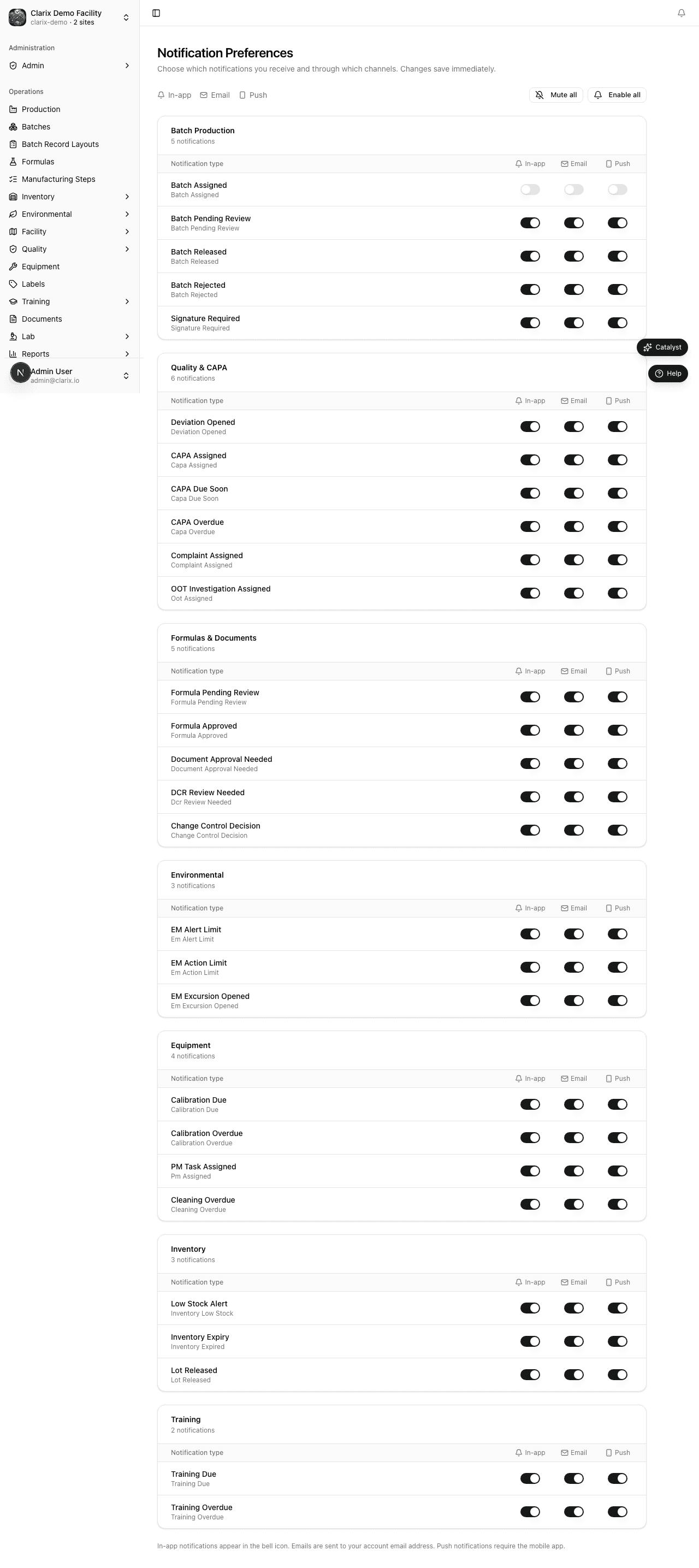
Role required: All authenticated users can manage their own notification preferences. Changes save immediately when you toggle a channel.
Notification channels
Each notification type can be enabled or disabled independently across three channels:
| Channel | Description |
|---|---|
| In-app | Bell icon alerts and notification center entries inside Clarix |
| Messages sent to your registered email address | |
| Push | Mobile push notifications (when the mobile app is installed and enabled) |
Toggle any channel on or off for each notification type. Disabled channels are skipped entirely — you will not receive that alert through that medium.
Notification types
The table below lists every notification type, the channels it supports, and the event that triggers it.
| Notification | In-app | Push | Trigger | |
|---|---|---|---|---|
| Batch assigned to me | ✓ | ✓ | ✓ | Batch technician assigned |
| Batch pending QA review | ✓ | ✓ | ✓ | Batch marked Complete |
| Batch pending PIC release | ✓ | ✓ | ✓ | QA approves batch |
| Batch released | ✓ | ✓ | — | PIC releases batch |
| Amendment request submitted | ✓ | ✓ | — | Technician requests amendment |
| Deviation assigned | ✓ | ✓ | ✓ | Deviation assigned to me |
| CAPA due in 7 days | ✓ | ✓ | — | CAPA due date approaching |
| Equipment calibration overdue | ✓ | ✓ | — | Calibration due date passed |
| Equipment PM due | ✓ | ✓ | — | PM scheduled date approaching |
| Inventory lot expiring | ✓ | ✓ | — | Lot expiry within threshold |
| Inventory low stock | ✓ | — | — | On-hand balance below minimum |
| EM excursion detected | ✓ | ✓ | ✓ | Reading exceeds alert limit |
| Training qualification overdue | ✓ | ✓ | — | Training due date passed |
| Formula submitted for approval | ✓ | ✓ | — | Formula submitted for review |
| Document approved | ✓ | ✓ | — | Document controller approves |
Note: Push notifications require the Clarix mobile app to be installed and notification permissions granted on the device. Email notifications require a valid email address on the account.
Notification groups
Preferences are organized by domain:
- Batch Production — batch assignments, pending review, release, rejection, signature required
- Quality & CAPA — deviations, CAPA assignments and due dates, complaints, out-of-trend results
- Formulas & Documents — formula review requests, approvals, document approvals, DCR and change control decisions
- Environmental — EM alert and action limits, excursion notifications
- Equipment — calibration due and overdue alerts, PM reminders
- Training — assignment due dates and overdue qualifications
- Inventory — low stock, expiry warnings, lot quarantine events
Digest settings
Email notifications can be configured for immediate delivery or daily digest mode.
- In immediate mode (default), each notification triggers a separate email as soon as the event occurs.
- In digest mode, all email notifications for the day are bundled into a single end-of-day summary email, reducing inbox volume.
To switch modes:
- Go to Settings → Notification Preferences.
- Scroll to the Email delivery section.
- Toggle Email digest mode on or off.
- The setting saves immediately.
Note: In-app and push notifications always deliver immediately, regardless of digest mode. Digest applies to email only.
Role-based defaults
Default notification settings vary by role. When a new user account is created, their notification preferences are pre-configured based on their assigned role:
| Role | Pre-enabled notifications |
|---|---|
| Compounding Technician | Batch assigned to me, Batch released |
| QA Officer | Batch pending QA review, Deviation assigned, Formula submitted for approval |
| Pharmacist-in-Charge (PIC) | Batch pending PIC release, Batch released |
| Lab Technician | Batch assigned to me |
| Administrator | (all notifications enabled by default) |
Users can freely adjust their own preferences after account creation.
Note: Administrators can view other users' notification preferences from the user management page but cannot change preferences on behalf of another user.
Quick actions
Use Mute all to disable every notification across all channels — useful during time off or when troubleshooting duplicate alerts. Use Enable all to restore the default on state for every type.
Each individual toggle saves immediately; there is no separate Save button.
Email footer link
Notification emails include a link to this settings page so recipients can adjust preferences without navigating through the sidebar.