
Document Change Requests
How to submit, review, approve, and implement Document Change Requests (DCRs) in Clarix to manage controlled document revisions under your quality system.
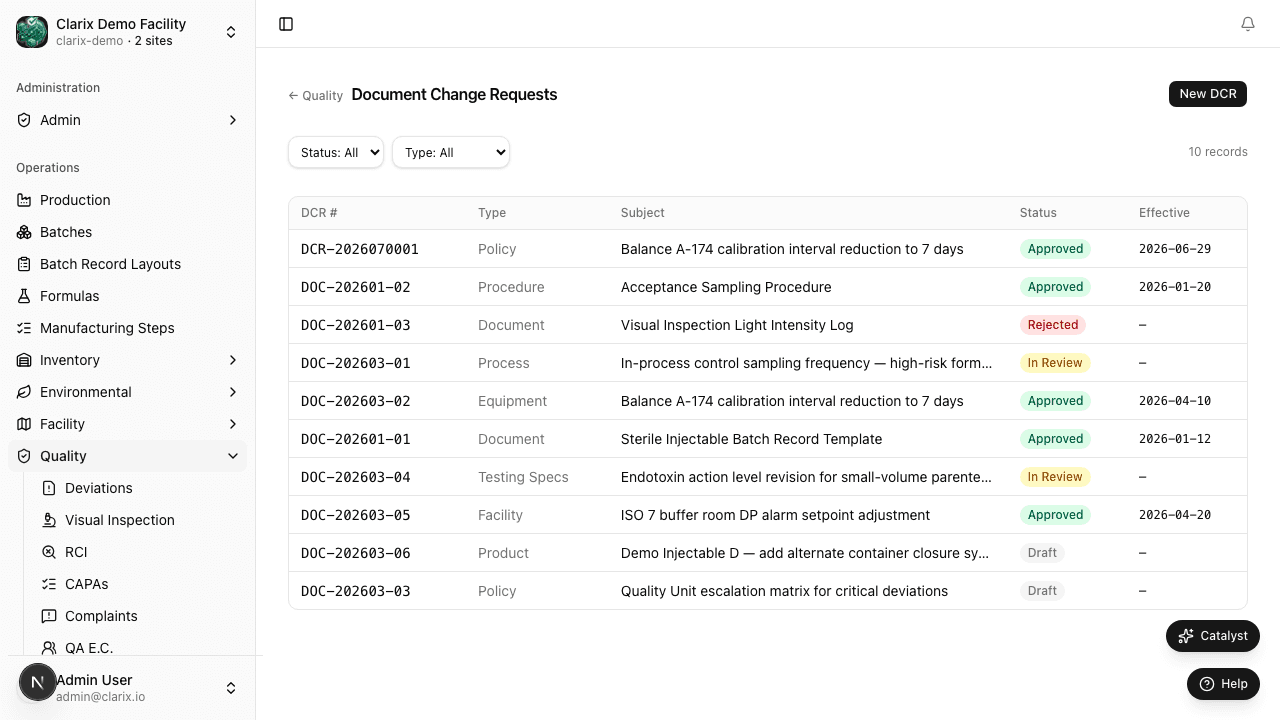
A Document Change Request (DCR) is the formal mechanism for proposing and approving revisions to controlled documents in your quality system. Controlled documents include Standard Operating Procedures (SOPs), work instructions, batch record templates, forms, policies, and specifications. In a GMP environment, you cannot simply edit a document — every change must be reviewed, approved, and implemented through a controlled process that creates an auditable record of what changed, why, and who authorized it.
The Clarix DCR module manages this entire lifecycle: from the initial request through review and approval, to implementation and closure. When a DCR is approved, it serves as the authorization to revise the document in your Documents module. When it is implemented, the new document version is linked back to the DCR for traceability.
Role required: Viewing DCRs requires the QA Technician role or higher. Creating a DCR requires QA Officer or the document's assigned author role. Approving or rejecting a DCR requires QA Manager or PIC.
When to open a DCR
Open a DCR whenever you need to:
- Correct an error in a current SOP, form, or work instruction
- Update a procedure to reflect a new process, equipment change, or regulatory requirement
- Add a new step or checkpoint to a controlled process
- Remove obsolete requirements that no longer apply
- Implement a CAPA that requires an SOP revision (the CAPA record links to the DCR to close the loop)
- Respond to a regulatory finding — 483 observation or Warning Letter response
You should also open a DCR when an approved Change Control record identifies a document update as part of its implementation plan. Clarix allows you to link a Change Control to one or more DCRs so the implementation trail is complete.
Creating a DCR
- In the sidebar, navigate to Quality → DCR.
- Click New DCR in the top-right corner.
- Complete the required fields:
- Affected document — the title and current document number of the controlled document to be changed (e.g., SOP-FILL-002, Rev 3)
- Change description — a clear, specific description of what is being changed. Do not write "update SOP" — write "Add step 7.4 requiring a second-person verification of stopper integrity before filling begins. Remove reference to obsolete Form QA-017 in step 9.2."
- Reason for change — why this change is needed. Reference the CAPA number, Change Control number, or regulatory citation that drove the change (e.g., "Linked to CAPA-2026-0023; confirmed root cause identified inadequate verification step")
- Urgency — Standard (follows normal review timeline) or Urgent (requires expedited review, used for patient safety-related changes or regulatory commitments)
- Proposed effective date — when the new document version should go into effect; this drives training scheduling
- Affected departments / roles — which teams need to be notified and retrained when the document is updated
- Related records — link any associated CAPA, Change Control, Deviation, or OOS records
- Click Create DCR.
Clarix assigns the DCR a unique number in the format DCR-YYYY-NNNN — for example, DCR-2026-0001 is the first document change request of 2026.
DCR lifecycle
| State | Meaning |
|---|---|
| Open | The DCR has been submitted and is awaiting review. The document author can still edit the change description if needed. |
| Under Review | A QA Manager or designated reviewer has begun evaluating the change. They may request additional justification or impact assessment. |
| Approved | The change has been authorized. The document owner may now implement the revision in the Documents module. |
| Rejected | The change was not approved as submitted. The reviewer provides comments explaining what must change before resubmission. The DCR can be revised and resubmitted. |
| Implemented | The revised document has been published, the DCR is linked to the new document version, and affected staff have been notified for training. |
| Closed | All implementation steps are complete — training has been delivered or scheduled, old versions have been archived, and the DCR is finalized. |
The review process
When a DCR enters Under Review, the assigned reviewer assesses:
- Technical accuracy — Is the proposed change correct and consistent with current science, regulations, and facility practice?
- Regulatory impact — Does the change affect a validated process, a submitted specification, or a regulatory filing?
- Training impact — Which roles need training on the revised document before it takes effect?
- Cross-document impact — Are there other controlled documents that reference this one and may also need updating?
- Change Control alignment — If this change affects a validated process or equipment, is there a corresponding approved Change Control record?
For Urgent DCRs, the review must be completed within 48 hours of submission. Standard DCRs have a target review time of 10 business days, after which overdue DCRs appear on the 483 Readiness report.
Implementing an approved DCR
Once a DCR is Approved, the document author takes the following steps in the Documents module:
- Create a new version of the affected document.
- Make the changes as described in the approved DCR.
- Submit the new version for document approval through the normal document approval workflow.
- Once the new version is approved, return to the DCR and click Mark Implemented, entering the new document version number (e.g., "SOP-FILL-002, Rev 4").
- Notify affected departments and schedule or assign training as required.
The DCR remains in Implemented state until the assigned closer (typically QA Manager) confirms that all training is complete or scheduled, at which point the DCR moves to Closed.
Linking DCRs to CAPAs and Change Controls
Clarix supports bidirectional linking between DCRs and other QMS records:
- CAPA → DCR: When a CAPA's corrective or preventive action requires an SOP update, open a DCR and link it to the CAPA. The CAPA cannot be marked Verified until all linked DCRs are at least Approved.
- Change Control → DCR: If an approved change control identifies document updates as required, open DCRs for each affected document and link them to the change control record.
This linking ensures that your quality system is internally consistent — a CAPA that requires a procedure change is not considered complete until that procedure has actually been changed and approved.
Related pages
Media Fill Tracker
Schedule, execute, and document aseptic process simulations (media fills) required by 21 CFR 211.113(b) and USP ⟨797⟩ for 503B sterile compounding facilities.
Change Control
How to manage facility, equipment, process, and supplier changes through Clarix's structured change control workflow — ensuring that every significant change is assessed, approved, and verified before implementation.