
Media Fill Tracker
Schedule, execute, and document aseptic process simulations (media fills) required by 21 CFR 211.113(b) and USP ⟨797⟩ for 503B sterile compounding facilities.
The Media Fill Tracker manages your facility's aseptic process simulation (APS) program — commonly called media fills. Under both 21 CFR 211.113(b) and USP ⟨797⟩, 503B outsourcing facilities must perform media fills at least semi-annually (every six months) per production line and personnel type, using conditions that represent the worst-case complexity and duration of actual compounding operations. Clarix tracks the schedule, documents the simulation conditions, captures the incubation and read results, and generates the CAPA workflow if a fill fails.
Role required: Viewing media fill records requires QA Technician or higher. Creating and updating media fill records requires QA Officer. Attesting completion with a facility PIN and approving fill results requires QA Manager or PIC.
Regulatory basis
| Regulation | Requirement |
|---|---|
| 21 CFR 211.113(b) | Written procedures to prevent microbiological contamination of sterile drug products; must include validation of aseptic processes |
| USP ⟨797⟩ (2023) | Semi-annual media fills required for Category 1 and Category 2 CSPs; personnel-based qualification for all sterile compounding staff |
| FDA Aseptic Processing Guidance (2004) | Industry guidance on APS design, worst-case conditions, incubation, and failure response |
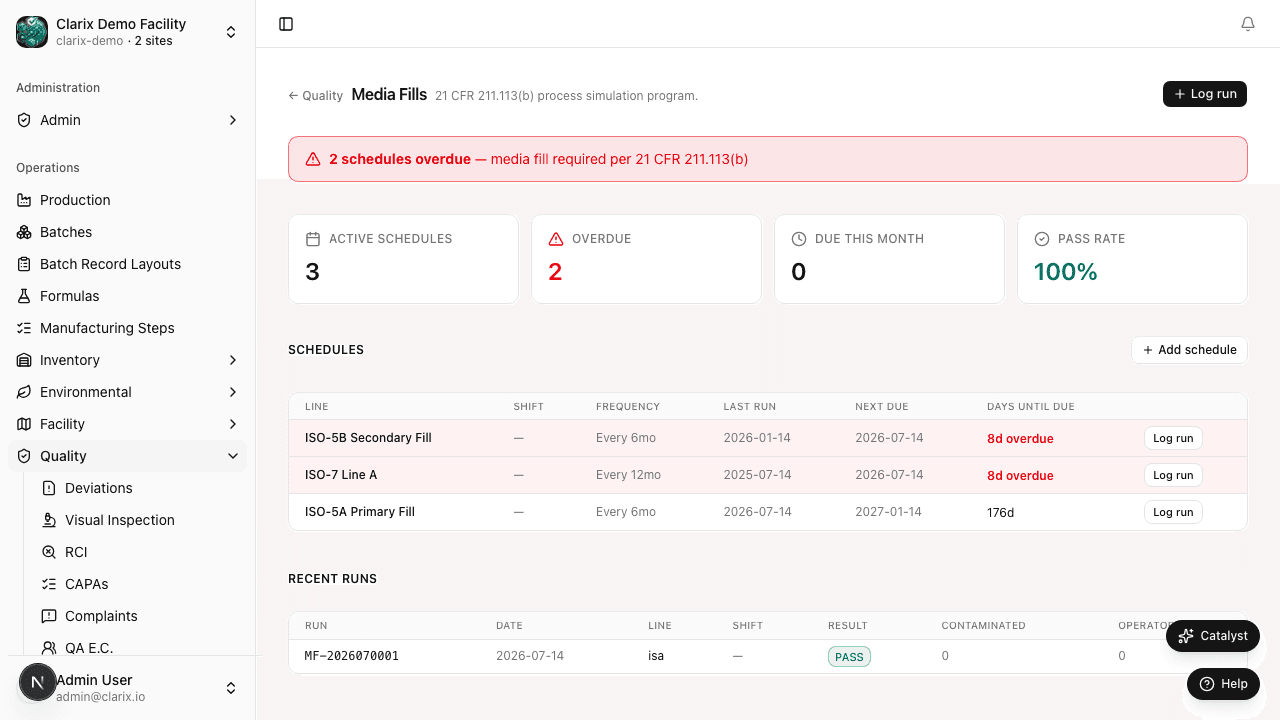
The semi-annual requirement means a maximum of six months between consecutive successful fills for each qualifying category. Clarix flags upcoming fills when they are 30 days away and marks them overdue on the day they pass the six-month anniversary of the last successful fill.
Media fill schedule
Navigate to Quality → Media Fills to view the fill schedule. The schedule view shows:
| Column | Description |
|---|---|
| Fill ID | Unique identifier in the format MF-YYYY-NNNN |
| Production line / suite | The ISO-classified compounding suite or LAFW/BSC being qualified |
| Fill type | Personnel qualification or process/line qualification |
| Target date | Scheduled date for the simulation |
| Due date | Latest permissible date (six months after last successful fill) |
| Status | Scheduled, In Progress, Pass, Fail, Overdue |
| Days remaining | Calendar days until due date |
Rows highlighted in amber are within 30 days of due date. Rows in red are overdue.
Creating a media fill record
- Navigate to Quality → Media Fills and click New Media Fill.
- Select the Production line being qualified.
- Select the Fill type: Personnel Qualification or Process/Line Qualification.
- Enter the Scheduled date.
- Enter the Assigned compounder(s) — the personnel whose aseptic technique is being validated for personnel fills.
- Complete the Worst-case conditions checklist before the fill date (see below).
Worst-case conditions checklist
The simulation must represent the worst-case compounding conditions performed in that suite. Before a fill can be marked In Progress, the following checklist must be acknowledged:
| Condition | Worst-case parameter |
|---|---|
| Compounding duration | Longest documented compounding session duration for this suite |
| Number of manipulations | Highest number of sterile container penetrations performed in a single session |
| Personnel count | Maximum number of personnel simultaneously present in the suite |
| Product type represented | Most complex formulation type (multi-component, longest fill time) |
| Environmental conditions | Temperature and humidity at high end of acceptable range for the suite |
| Glove integrity | Gloves inspected; any breach disqualifies the personnel from the fill |
| Gowning observed | Gowning performed per SOP; gowning observation documented |
Click the checkbox next to each condition and enter the actual parameter value. The system records the QA reviewer and timestamp for the checklist acknowledgment.
Executing a media fill
Starting the fill
- Open the media fill record and click Begin Fill.
- Confirm that all pre-fill checklist items are complete.
- Enter the Media lot number and Media expiry date (soybean casein digest broth, SCDM, or equivalent per your SOP).
- Enter the Number of units filled (the total number of filled media units entering incubation).
- Enter your Facility PIN to attest that the simulation conditions have been met.
- Click Begin Incubation.
Incubation
Media fill units are incubated per your written procedure (typically 14 days at two temperature phases: 20–25°C followed by 30–35°C, or per USP ⟨797⟩). Clarix calculates the incubation end date automatically based on start date and your configured incubation duration.
Enter the Incubation start date and Incubation temperature(s). The system generates a reminder alert on the incubation end date for the assigned QA reviewer.
Reading the fill
- On the incubation end date, open the record and click Enter Read Results.
- Enter the Number of contaminated units (units showing turbidity or growth).
- Enter the Read date and Reader identity.
- Upload the incubation read report (photographs of any turbid units and the read sheet).
- Enter your Facility PIN to attest the read.
- Click Submit Read.
Automatic PASS/FAIL and CAPA
Pass criteria
A fill PASSES when zero (0) contaminated units are detected. Any contamination in a media fill is a failure — there is no acceptable number of contaminated units.
On failure
When a fill fails, Clarix automatically:
- Sets the fill status to Fail
- Opens a Critical deviation linked to the fill record (DEV-YYYY-NNNN)
- Prompts the creation of a linked CAPA
A failed media fill is a serious quality event. Required immediate actions include:
- Quarantine all product compounded in the affected suite or by the affected personnel since the last successful fill
- Initiate a root cause investigation
- Re-gown inspection and environmental monitoring of the suite
- Halt compounding in the affected suite until the root cause is identified and corrected
- Repeat the media fill after corrective action; all units in the second fill must pass
Document all of these actions in the linked deviation and CAPA records.
Personnel qualification records
Personnel fills generate individual qualification records linked to the compounder's personnel profile. The qualification record shows:
- Most recent successful fill date and fill ID
- Qualification expiry date (six months forward)
- Historical fill results
QA Managers can view all personnel qualification statuses from Quality → Media Fills → Personnel Summary.
Related pages
Visual Inspection
How to conduct and record 100% first-pass and AQL second-pass visual inspections for compounded sterile preparations under FDA VI Guidance (Dec 2021) and USP ⟨790⟩.
Document Change Requests
How to submit, review, approve, and implement Document Change Requests (DCRs) in Clarix to manage controlled document revisions under your quality system.